Setting up Data Collection Connection from APKSH "Continent"
The settings described below are performed for all network devices.
Setting up data transmission via syslog
-
In the CU Management program, call the context menu of the network device and select
Properties:
-
Go to the
Logssection:
-
In the
External System Logsparameter group, click the+button. A window for adding a server will open:
-
Set the following parameter values:
- Address — IP address of the Smart Monitor Data Collector server
- Port — port number through which connection to the Smart Monitor Data Collector server occurs
- Detail Level — in the dropdown list, select the
Debuglevel
Setting up data transmission via SNMP
-
In the CU Management program, go to the
Administratorstab:
-
In the context menu, select
Administrator–local administrator KS: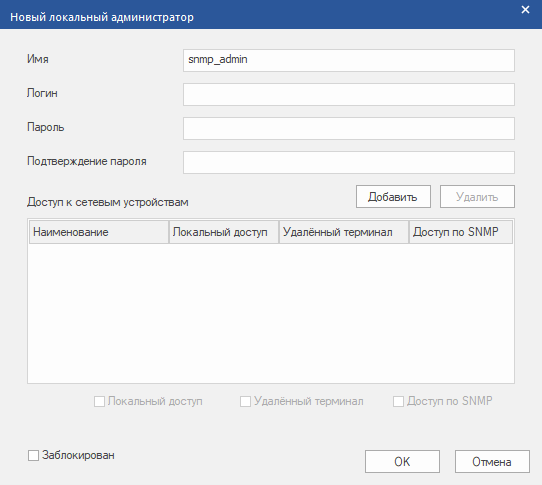
-
Specify login and password for the account
-
Select network devices, check the
SNMP Accessfield and clickOK -
Go to the
Continent Network Devices-Crypto Gatewayssection -
Select a network device and click the
Propertiesbutton. A window containing the network device properties will appear on the screen:
-
In the left part of the window, select the
SNMPsection. The current SNMP access settings will appear in the right part of the window:
-
Enable SNMP monitoring service, select SNMP v3 version, specify authentication algorithm
SHAand encryption algorithmAES -
In the
Receiving Connection Addressfield, select the IP address of the required management interface -
In the
Hoststab, in theList of Allowed IP Addressesfield, you need to specify the IP address of the Smart Monitor Data Collector server. To do this, click the+button, in the opened window specify the allowed IP address, mask and click theOKbutton:
