Server Template Management
Server template management includes:
- adding a server template
- updating a server template
- deleting a server template
- server template reference
Adding a Server Template

This section allows you to add server templates. To do this, you need to:
- enter the template name
- enter the username
- select the authentication type (
PasswordorCrypto Key) - enter the password or crypto key depending on the selection
- Click the
Add Server Templatebutton
Updating a Server Template

This section allows you to modify an already added server template. To do this, you need to:
- modify the data
- click the
Update Server Templatebutton
warning
The username and password or crypto key do not need to be re-entered, as they are already stored in secure storage. However, if you need to change one of the fields, the other will also have to be entered again.
Deleting a Server Template

This section allows you to delete a server template. To do this, you need to:
- navigate to the server template modification section
- click the
Delete Server Templatebutton
Server Template Reference
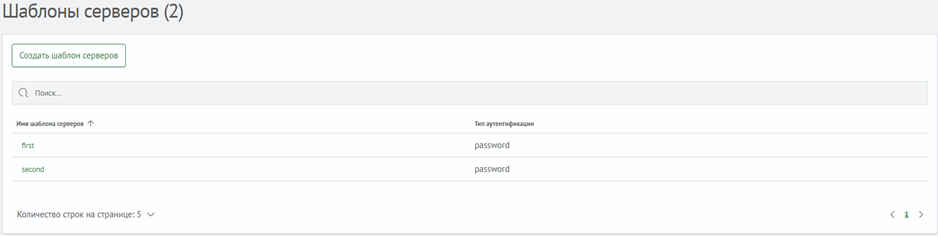
This section allows you to view the current list of server templates. The list displays:
- server template name
- authentication type
The following functions are also available:
- search
- filtering by each column
- creating a server template
- navigating to the modification section by clicking on the
Server Template Name