Asset Configuration Relationships
To navigate to the page of all asset configuration relationships, you need to go to the Relationships tab.
The page contains information about configured relationships between asset configurations:

The information is presented in the form of a Relationship List table and a Relationship Map visualization.
Only asset configurations with the updated calculation algorithm can be linked together!
Relationship List
The relationship list displays all existing relationships.
The list can be filtered using the Search input field.
A new relationship can be created using the Add Relationship button. After that, you need to select asset configurations for linking and fill in the information about fields for linking:
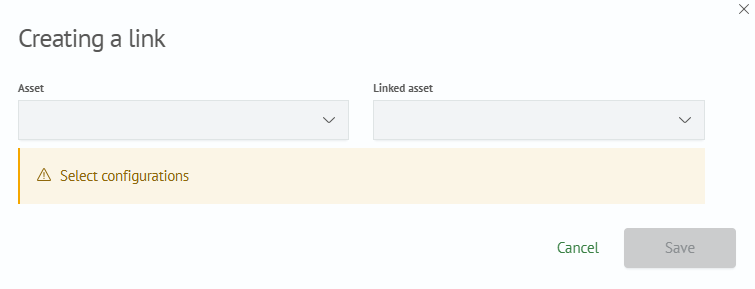
For each asset configuration relationship in the All Actions column, the following actions are available:
Edit- editing relationship settingsDelete- deleting relationship
To view relationship fields, you can click on the row expansion icon:

Relationship Map
The asset configuration relationship map displays them as nodes, and relationships between them as arrows.
To create a relationship, you can hold down a point to the left or right of a node and drag it to the opposite point of the connected node (for example, if the right point of a node is selected, it needs to be dragged to the left point of the connected node, and vice versa).
As a result, an asset configuration relationship creation window will be displayed with already selected configurations for linking:
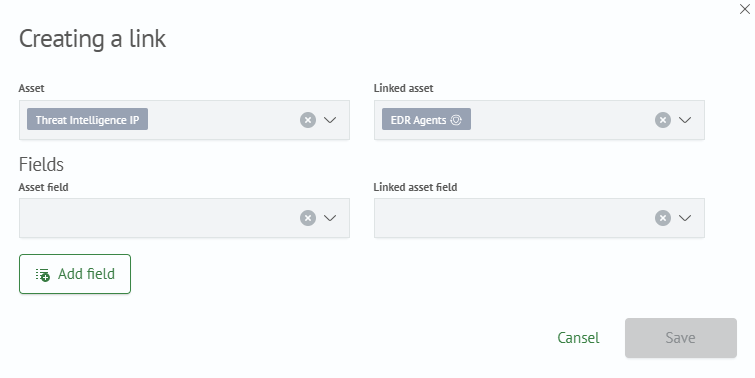
By default, nodes on the map are arranged randomly, but they can be moved around the relationship map at your discretion. In this case, the Save Layout button will be available to apply changes or the Cancel button to return to the original view.
To display only configurations with relationships, you can set the Hide nodes without relationships switch.
By clicking on a node, you can see which fields the asset configuration consists of:
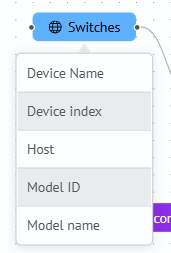
When hovering over an arrow between node relationships, you can see which configuration fields are linked together:
