Reactions
The Reactions tab of a profiling policy contains reactions to the profile. A reaction is a Job Scheduler rule built from an algorithm in the policy. The rule compares new events with profiling results and records an alert with the UBA Alert action when behavior deviates from the profile.
The rule is enabled when created and starts working when saved. The UBA module generates the rule query from the reaction settings.
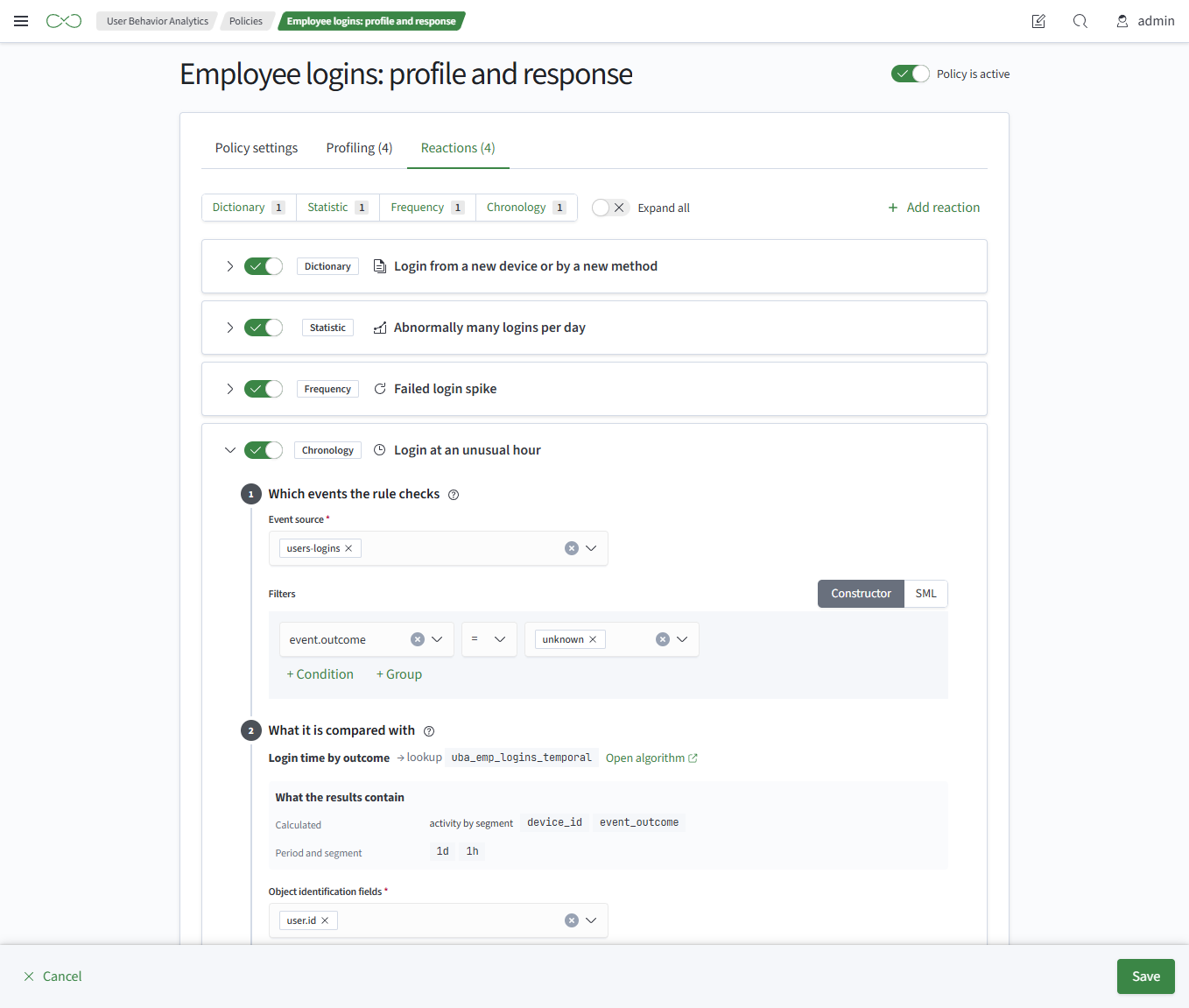
Creating a Reaction
To create a reaction:
- Go to
Main Menu-User Behavior Analytics-Policiesand open a policy - Open the
Reactionstab - Click
+ Add Reactionand select an algorithm - Fill in
Name. By default, it is based on the algorithm name and deviation type. The name identifies the rule and its alerts - Check the sources, identification fields, and filter. For details, see Sources and Fields
- Set the deviation condition
- Fill in the alert classification and alert card
- If necessary, change the run settings and enable incident creation
- Click
Checkto run a test query and see whether it can execute and whether there are warnings - Click
Savein the bottom panel
The Save button saves all changed reactions, each as a separate rule.
Sources and Fields
Sources, filters, and matching fields are copied from the algorithm when a reaction is created and then stored separately. A field shows the same as algorithm or changed label and a reset button.
- Event Source - indices checked by the rule. Required
- Identification Fields - event fields used to identify the object. If empty, the policy fields are used. If populated, they replace the entire set of policy fields
- Filter - event selection with a condition builder or SML query
For a source that is not in the algorithm, matching fields must be specified manually. The lookup is inserted automatically.
Deviation Condition
Set the condition in the Compare Against step.
Dictionary
- Trigger Condition - required:
New Combination- the value combination is absent from the profiling result, so the behavior is newKnown Combination- the value combination exists in the profiling result
- Fields to Compare - fields used to compare the combination. Required
Statistics, Frequency
- Compare Against - the comparison baseline
- Trigger When Value Is - the direction of deviation. Required
- σ from Mean - the number of standard deviations from the mean defining the baseline boundary. Shown when comparing with
Mean ± σ. Required
| Compare Against | Trigger When Value Is |
|---|---|
Mean ± σ | above baseline, below baseline, outside baseline |
Profile Percentile: p5, p50, p95 | above baseline, below baseline |
Absolute Threshold | above, below |
The outside baseline direction is available only when comparing with the mean and its deviation: a percentile and an absolute threshold do not have a second boundary.
With an absolute threshold, the rule does not read the profile, so it works even before the policy's first run.
Timeline
Select the condition in Trigger When:
object is active in a segment where it is usually silent- the segment is absent from the profile or its baseline is below the thresholdevent count in the segment is above its baseline- an activity spike in the segment. For this condition, set the comparison baseline and direction as for Statistics and Frequency
Alert Classification
- Severity - low, medium, or high. It contributes to the object score with the weight from the scoring model
- Rule Family - a value from the Rule Families lookup
- Lifetime - how long the alert contributes to the score. One value applies to all alerts from the rule; the default is 24 hours
Alert Card
- Violation Text - required. Contains static text and substitutions from the rule result, including the baseline used for comparison
- Alert Fields - a field name and a field from the rule result or source
- Details - a search of source events or a link
A source field is added to the query automatically. In window comparison mode, it contains a list of values for the group.
By default, details consist of a search of source events with the rule's sources and filter, the object and comparison fields, and the alert time interval. If no details are configured, the alert card shows Details are not configured in the rule.
Run Settings
By default, the rule runs every 15 minutes and checks the last 15 minutes. For Statistics and Frequency algorithms, the default window equals the algorithm interval. Configure the schedule, search window, and throttling in Run Settings.
The rule window must match the algorithm interval. The baseline is calculated for one interval: a wider window inflates the count and sum, so the baseline is always exceeded. A warning appears when the window differs from the interval or the rule runs less often than the window; it does not prevent saving.
Incident Creation
The last reaction step has the Create Incident on Alert toggle. This step is available when the Smart Monitor Incident Manager module is installed.
- Name - defaults to
UBA: <reaction name> — <object>. Required - Description - defaults to the reaction name, object, time, and other alert fields. Required
- Severity - defaults to the alert severity. Can be changed
- Workflow - defaults to the first workflow in the lookup
- Incident Type - defaults to
UBA
Fields from the rule result are substituted into the name and description. A placeholder for a field missing from the result remains as text in the incident. An incident is created for each alert; repeated alerts are throttled according to the rule's throttling setting. Configure other incident parameters in Job Scheduler.
Editing a Rule
You can edit the same rule on the Reactions tab or in Job Scheduler.
You can edit the query manually with Edit Query or in Job Scheduler:
- if only values change (threshold, multiplier, percentile, filter value), the builder shows the new values the next time you open it
- if the query structure changes, the reaction shows the SML query with the label
query changed outside the builderand can subsequently be edited only as SML
You cannot return to the builder after changing the query structure. When you change the query with Edit Query, a warning appears before you save.