Cancelling Execution
Cancelling execution stops calculations for a profiling policy or its individual components. It is available for policy runs with the In Progress status. You can cancel the entire policy, an individual algorithm or selected objects.
Cancelling Policy Execution
Cancelling policy execution is available for profiling policy runs with the In Progress status.
To cancel policy execution:
- Go to
Main Menu-User Behavior Analytics-Object Profiling. - Open
Run Statisticsfor the required policy using the corresponding action. - Click
Cancel Executionabove the latest run statistics table.
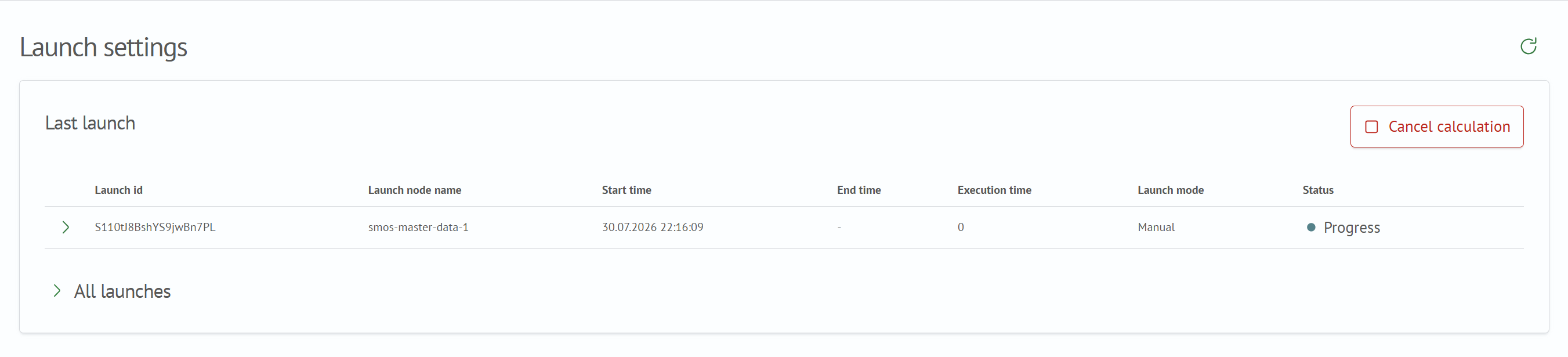
- In the dialog that opens, click
Cancel Executionto confirm the operation.
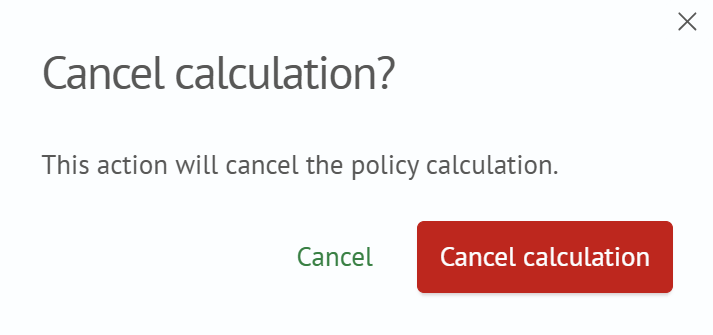
- After confirmation, policy execution is cancelled.
Cancelling Algorithm Execution
Cancelling an individual algorithm is available for profiling policy runs with the In Progress status.
To cancel an individual algorithm:
- Go to
Main Menu-User Behavior Analytics-Object Profiling. - Open
Run Statisticsfor the required policy using the corresponding action. - Expand the run details by clicking the arrow icon in the first column.
- Click the cancel button in the row of the required algorithm. The button is located at the end of the row and uses a square icon.
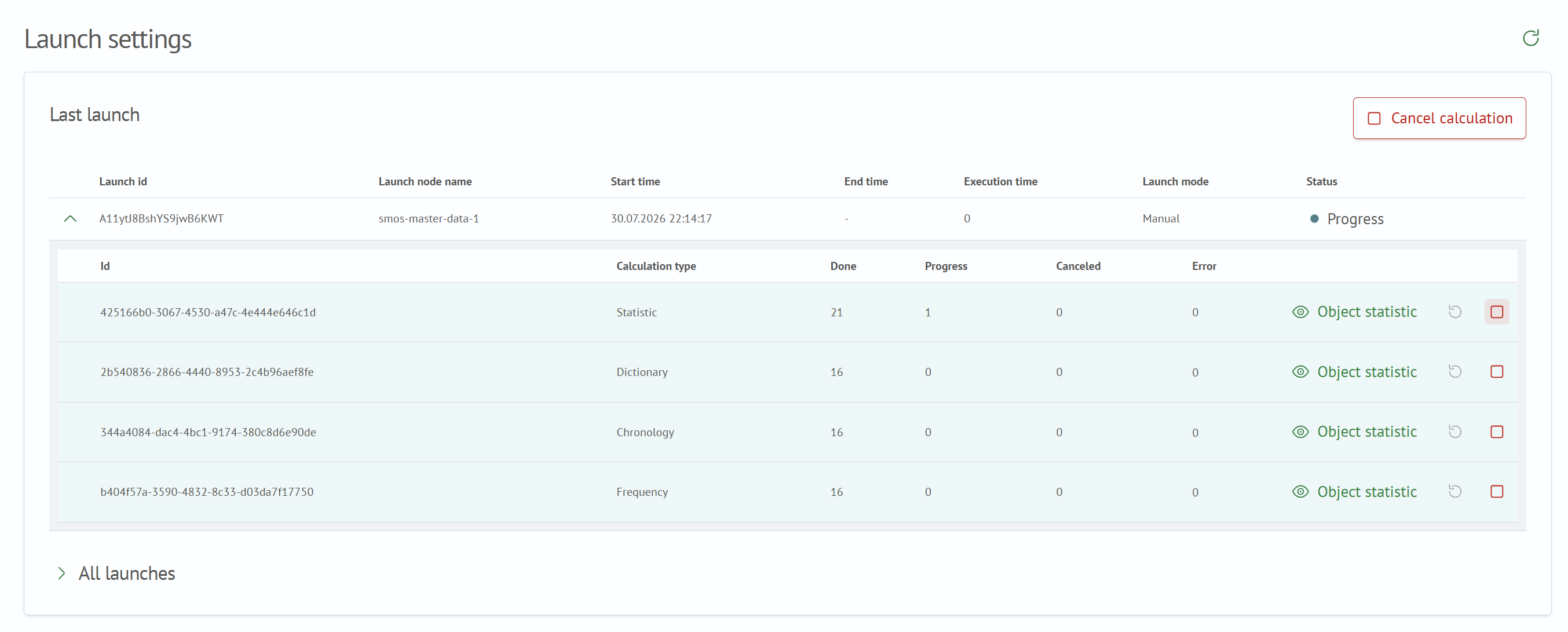
- In the dialog that opens, click
Cancel Executionto confirm the operation.
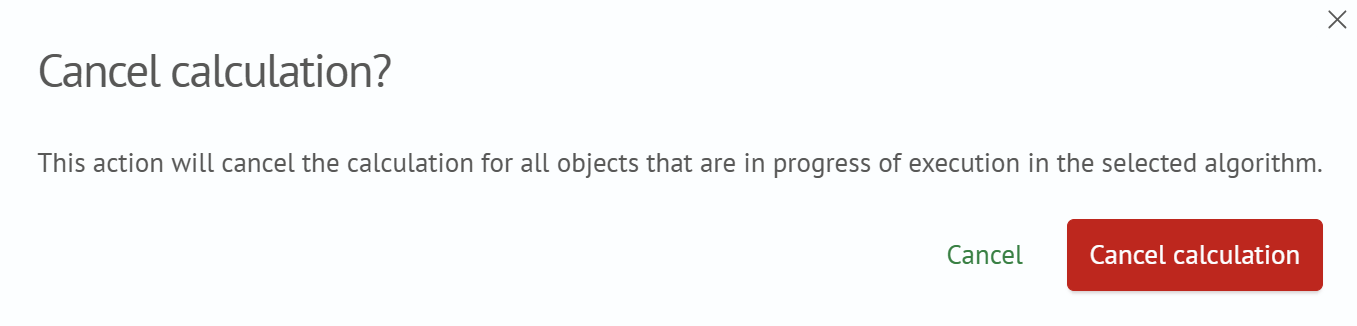
- After confirmation, execution of the algorithm calculation is cancelled.
Cancelling Execution for Individual Objects
Cancelling execution for individual objects is available when both the policy run and the selected objects have the
In Progress status.
To cancel calculations for individual objects:
- Go to
Main Menu-User Behavior Analytics-Object Profiling. - Open
Run Statisticsfor the required policy using the corresponding action. - Expand the run details by clicking the arrow icon in the first column.
- Open the
Object Statisticspage by clickingObject Statisticsat the end of the required algorithm row.
- Single Object
- Multiple Selection
- Click the cancel button in the row of the required object. The button is located at the end of the row and uses a square icon.

- In the dialog that opens, click
Cancel Executionto confirm the operation.
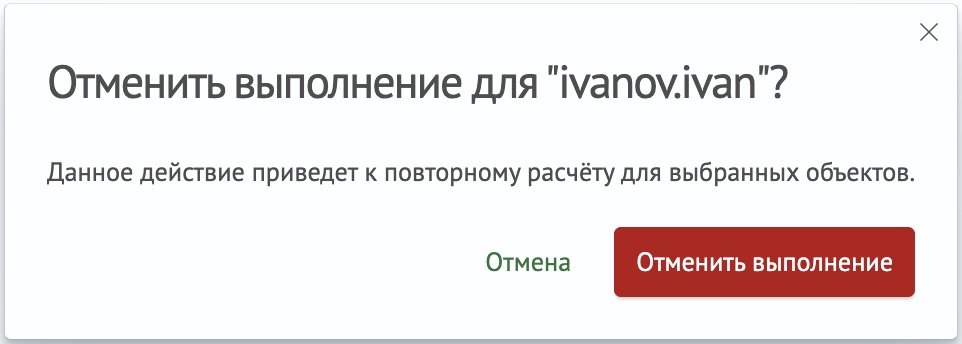
- After confirmation, calculation for the selected object is cancelled.
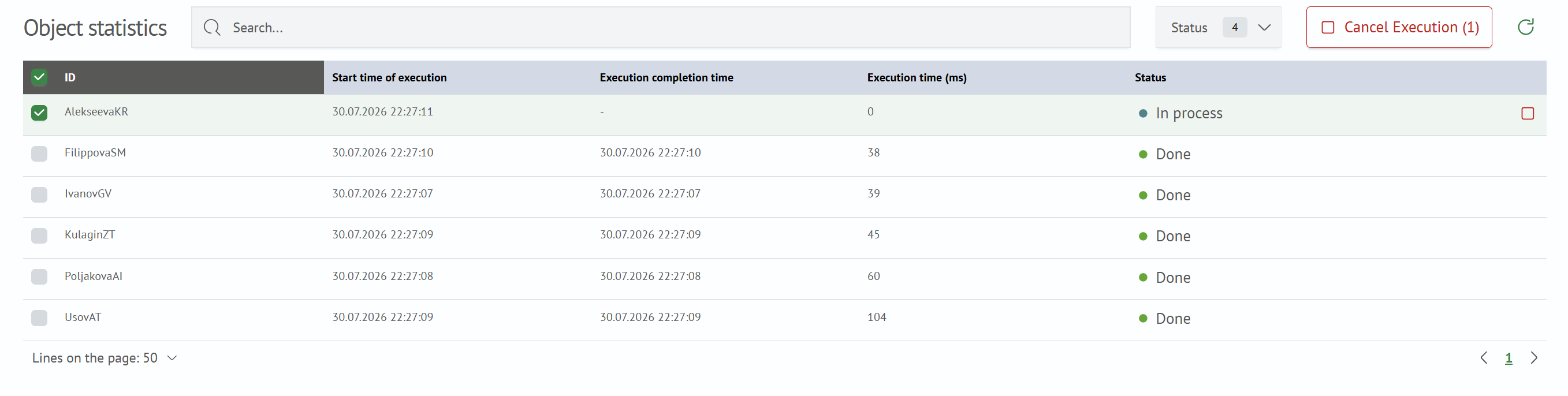
- Select the objects whose execution you want to cancel using the checkboxes.
- Click
Cancel Execution (<n>)above the table.
- In the dialog that opens, click
Cancel Executionto confirm the operation for the selected objects.
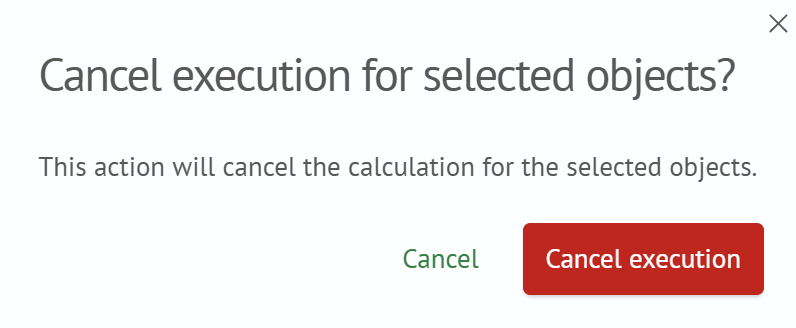
- After confirmation, calculation for the selected objects is cancelled.