Filling the Objects List
Objects can be filled in two ways:
- Manual object creation and editing
- Automatic object fill using a scheduled configuration
Manual Object Fill
Manual configuration allows you to create or edit an object by filling object fields.
Manual Object Creation
To create a new object:
- Select
Objectsin theUser Behavior Analyticssection of the navigation menu. - Select the required object type in the
Select typedropdown above the table. - Click
Createat the top of the page, to the right of the search field. - In the modal window, fill the form and click
Create.

- The created object appears in the objects list.
To edit an object:
- Select
Objectsin theUser Behavior Analyticssection of the navigation menu. - Find the object in the table.
- Click the pencil icon in the rightmost column (if the object is editable).
- In the edit modal, update the required fields.

- Click
Savein the modal to apply changes. - The object is saved.
Only manually created objects are editable. Generated objects are updated automatically and cannot be edited.
When creating and editing objects, each base and additional field supports two field modes:
- Text
- Array
Switch field modes with the toggle to the left of the field name.
For Text mode (left toggle position), the field looks as follows:

For Array mode (right toggle position), the field looks as follows:

Switching from Array mode to Text mode is available only when the array has no more than one element.
Avoid duplicates when creating or editing objects. Duplicates are not added to the objects list.
Automatic Object Fill
Automatic fill lets you avoid manual object creation. Objects are filled automatically according to a configured job, which can run once or on schedule.
Data Sources
In the Index field, you can specify any index or index pattern that contains the entity identifier and the fields to copy to the UBA object. You can also use an aggregator index, such as an index created by the Inventory module or formed by another process.
You can use different sources for different purposes:
- a reference or prepared index to fill the objects list
- event indexes to build behavior profiles later
For example, you can load the users list from employees-current and profile user logins using auth-events-*.
Input Data Processing
The configuration processes data in the following order when it runs:
- Reads documents from the index or index pattern specified in
Index - Restricts the dataset using the time field and time range, if configured
- Applies the expression from
Filter - Extracts the value from
Object identifier field - Maps source fields to the object type base and additional fields
- Merges records with the same identifier and checks base fields for duplicates
- Applies the
Maximum number of objectslimit and writes the result to the UBA objects list
Source fields must exist in the selected index and contain compatible value types. For a string field that has a keyword subfield, exact matching typically uses that subfield, for example, user.id.keyword.
Filtering
The time filter and the expression in Filter apply together. The custom filter uses search command conditions without the search keyword:
user.id.keyword=="*" AND user.status.keyword=="active"
This example keeps only active users with a non-empty identifier. Specify the AND, OR, and NOT logical operators in uppercase. If the time field is empty, the query is not time-restricted; this option is suitable for an index that stores the current entity snapshot.
When reading an arbitrary index, use its actual field names, such as user.id.keyword. The base.*, advanced.*, and other.fields.* prefixes apply only to the data structure prepared by Inventory.
Entity Uniqueness and Deduplication
The resulting dataset must contain one entity for each unique key field value. This is required because:
Object identifier fieldis the primary deduplication key and must consistently identify one entity- each object type base field must be unique within that type; if any base field has the same value for different entities, UBA treats them as duplicates
- additional fields can repeat and do not participate in entity identification
If the input index contains multiple events for one user, prepare an unambiguous record set in advance. A basic option is to keep the latest record for each identifier with the dedup command and output only the required fields:
source auth-events-*
| search user.id.keyword=="*"
| dedup user.id.keyword sortby - @timestamp
| table user.id.keyword, user.name.keyword, user.department.keyword
You can validate this query in search and save its result to a dedicated prepared index on schedule. If additional field values differ between repeated records, sorting before deduplication makes record selection predictable.
Before filling objects, use Preview and verify that:
- every row has an identifier
- each identifier corresponds to one row
- a base field value does not belong to multiple entities
- result fields match the configuration mapping
Inventory as an Optional Aggregator
You can place Inventory between the source indexes and UBA when you need to combine multiple sources, normalize identifiers, enrich entities, or regularly produce a current snapshot without duplicates. If the source index already meets these requirements, the UBA object fill configuration can read it directly.
Configurations List
The configurations page contains a list of created configurations and supports filtering via the Search field.
To open the configurations list page, select Object Fill Configurations in the User Behavior Analytics section of the navigation menu. The configurations list is a table with:
- Configuration name
- Configuration object type
- Index used by the configuration
- Run schedule
For each configuration, an actions menu is available (rightmost column), including:
- Edit (opens configuration settings page)
- Configure permissions
- Clone configuration
- Enable/Disable configuration
- Delete configuration
For selected configurations (checkbox-selected), bulk actions are available (Edit selected dropdown and Delete <n> configurations button), including:
- Edit permissions for all selected configurations
- Enable all selected configurations
- Disable all selected configurations
- Delete all selected configurations (the bulk delete button appears only when there are selected configurations)
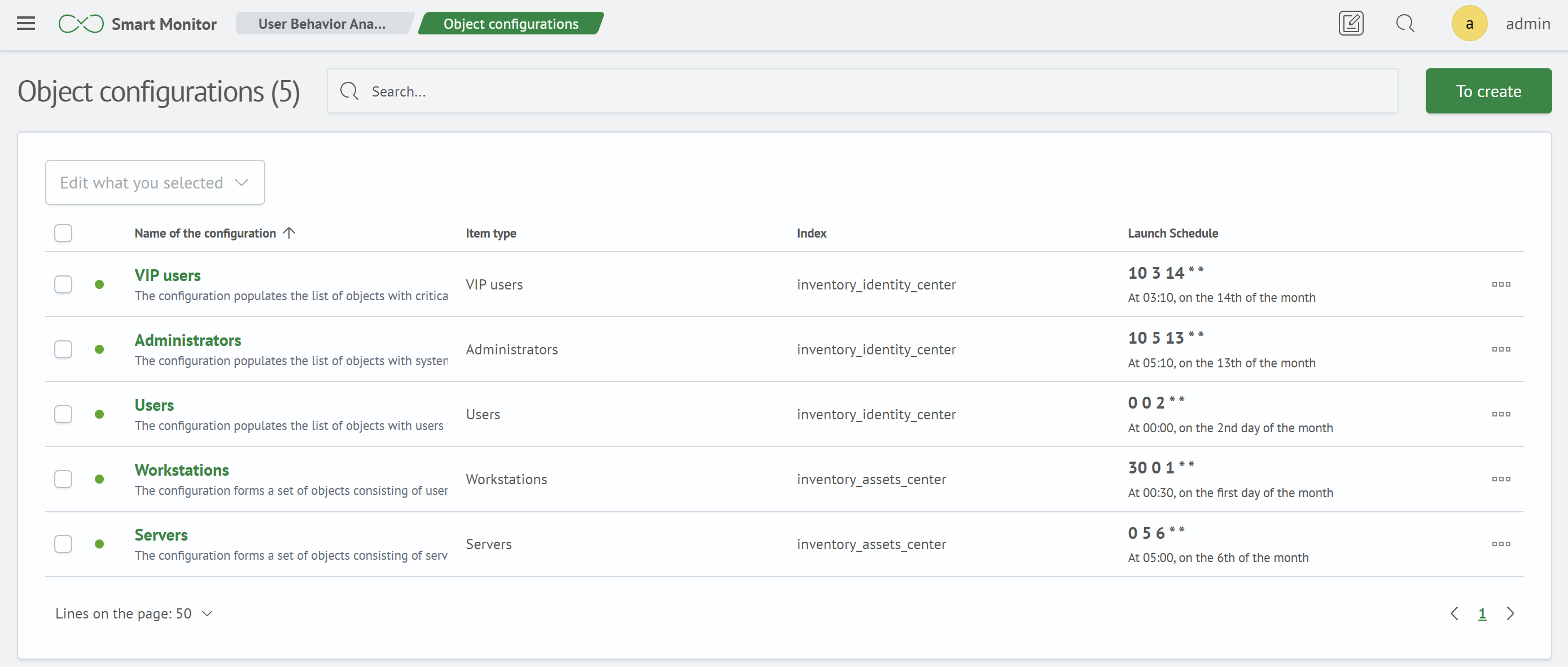
To create a new configuration, click Create to the right of the Search field.
To open edit mode, click the configuration name or the corresponding action in the table actions menu.
Configuration Settings
The configuration settings page is used to create and edit object fill parameters. It contains a form panel with the following sections:
- General
- Schedule
- Filtering
- Object settings
- Advanced settings

General
The General section contains:
- Name: configuration name
- Description: detailed configuration description
Schedule
The Schedule section defines how often the configuration runs. You can use:
- Interval
- Cron expression
Filtering
This section filters source data for object list generation and contains:
- Index to collect data from
- Time interval for time-based filtering
- Field containing the timestamp
- Filter expression used for filtering
Object Settings
This section contains output object settings:
- UBA object type: defines object type association
- Object identifier field: field used to determine object uniqueness
- Base and additional fields: fields written to the output object
Advanced Settings
This section contains:
- Maximum number of objects: limit for objects written
- Lock duration
- Configuration run: enable/disable execution
Automatic Object Fill Algorithm
After filling the configuration form, click Save to save the configuration and run it on schedule.
Click Preview to see a preliminary object fill result. The settings panel is hidden and an objects table appears. The page includes:
- Filtering found objects using the
Searchfield - Information about found objects (above the table)
- Objects table

If you need to change settings, click the arrow icon to the right of the Search filter field. After preview, click Fill to populate the objects list. On success, a notification appears, and the following buttons become available: Save to save the configuration, Cancel to discard settings and return to the configurations list, and Go to objects list.
Automatic fill can detect duplicates. Duplicates are not included in the objects list, and you receive a notification.
The end-to-end configuration example provides a consistent set of settings for the object type, object fill, profiling policy, anomaly detection job, and scoring calculation.