Anomalies
An anomaly groups one object's alerts within the period specified by an anomaly detection rule. The feed across all objects is the starting point for an investigation. Detection rules are described in Anomaly Detection Rules.
To open the page, select Main Menu - User Behavior Analytics - Anomalies.
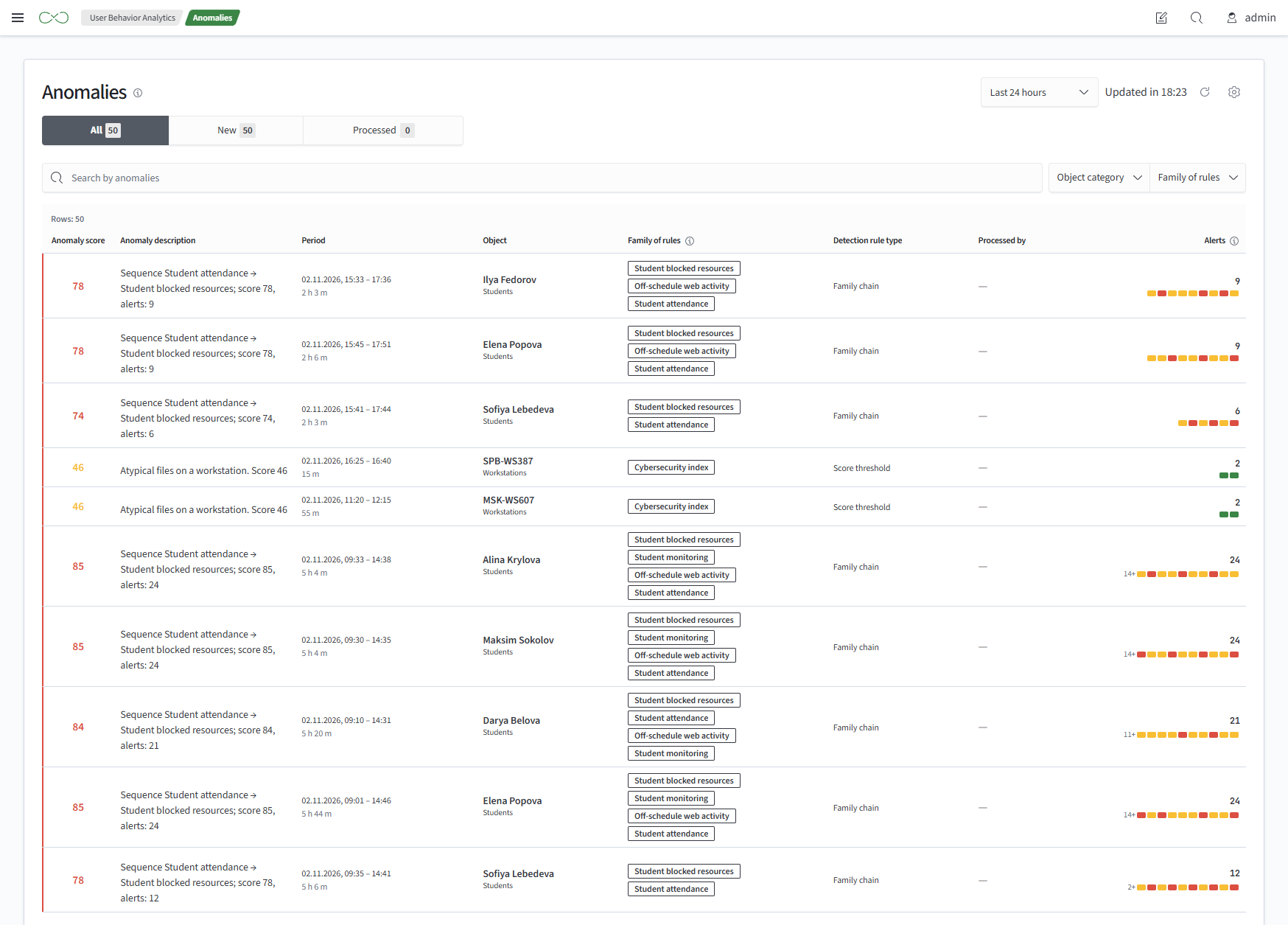
Anomaly Feed
Controls above the table include:
- period - the interval for displaying anomalies, for example
Last 7 Days All,New, andProcessedtabs - with anomaly counters- search - search across anomalies
- filters -
Object CategoriesandRule Families
The total number of rows appears above the table. The table contains:
- Score - the anomaly score, colored by zone
- Anomaly Description - detection rule text with substituted values
- Period - the anomaly's first and last alert times and its duration
- Object - the asset object name and object category
- Rule Families - families of the triggered rules
- Detection Rule Type - the rule type, with its name shown on hover
- Processed By - who marked the anomaly
Processedand when - Alerts - the alert count and a bar of recent alerts
The alert bar shows the latest alerts for the anomaly, with newer alerts on the right. Color indicates severity.
An anomaly is new if an analyst has not marked it as processed or if another alert arrived after it was marked. A red bar on the left marks a new anomaly, but does not move it to the top: the selected sort order determines the row position. For a reopened anomaly, the number of reopenings appears next to the score.
Anomaly Card
Click a feed row to open the card on the right.
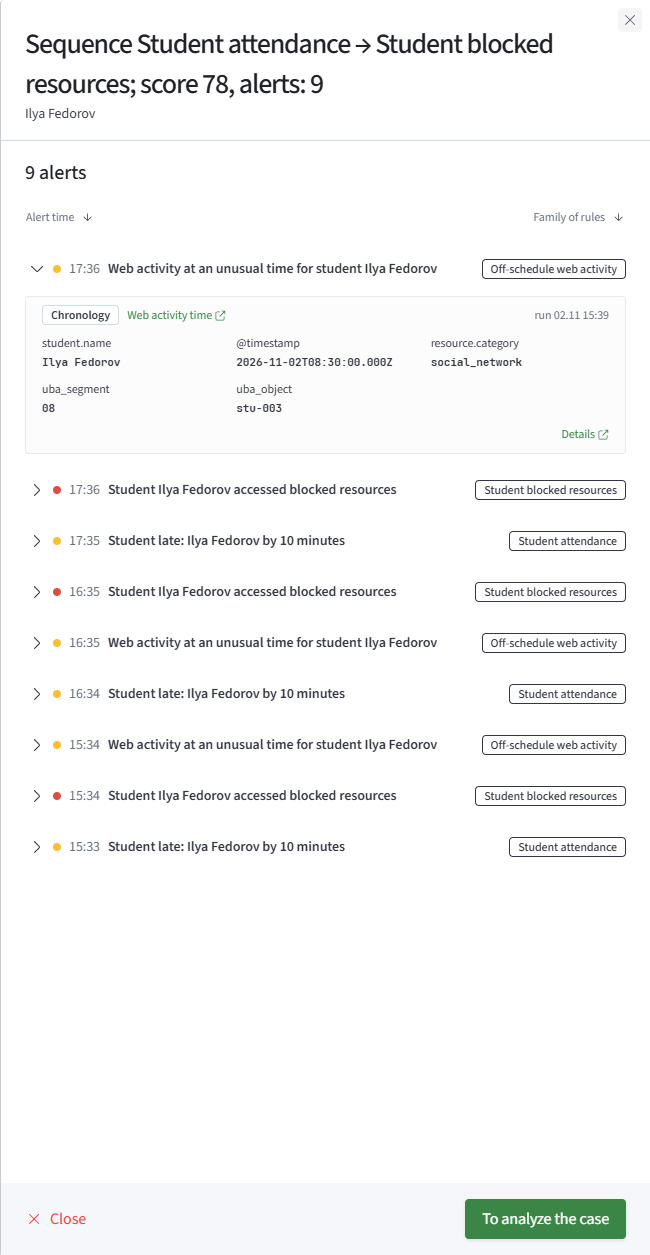
The card contains:
- Title - the anomaly description and object
- Alert List - the alert count and all alerts in the anomaly. You can sort by alert time or rule family
- Investigate Case - opens the object's Anomaly Investigation tab
Each alert shows its time, violation text, rule family, and severity color. The arrow on the left expands the alert details:
- algorithm type and a link to the profiling policy algorithm
- policy run time whose result produced the alert
- fields of the event that caused the alert
- a
Detailslink