Maintenance Windows
Description
A maintenance window is a defined period during which selected metric dimensions do not affect service health. I allows scheduled or unscheduled maintenance to be performed without generating false incidents or degrading service health.
When creating a window, specify the maintenance start and end times, global metrics, and filter groups. The filters determine which dimensions of the selected metrics enter maintenance mode. For example, a window can apply only to app-node-* nodes in the production environment without affecting other nodes.
While the window is active, metric values continue to be calculated and their state history is retained. Dimensions that match the filters are marked as being in maintenance and are temporarily excluded from service health calculations. When the window ends, they automatically return to normal operation.
Maintenance Window Statuses
The status of a maintenance window depends on its configured period and the actions performed on it.
| Status | Description |
|---|---|
Planned | The window has been created, but its scheduled start time has not yet arrived |
Active | The window is active: dimensions that match its conditions do not affect service health calculations |
Completed | The maintenance period has ended, and the window no longer applies to any dimensions |
Cancelled | The planned window was cancelled before its scheduled start time |
Only a window with the Planned status can be cancelled.
Only windows with the Planned and Cancelled statuses can be deleted.
For requests used to create, view, update, and delete maintenance windows, see Maintenance Windows API.
Maintenance Window List
To view existing maintenance windows, go to the Maintenance Windows page.
The page displays a table of all created windows and filters for quickly finding specific windows.
The table displays the following information for each window:
- name
- list of affected metrics
- dimensions
- status
- work period
- author
- updated at
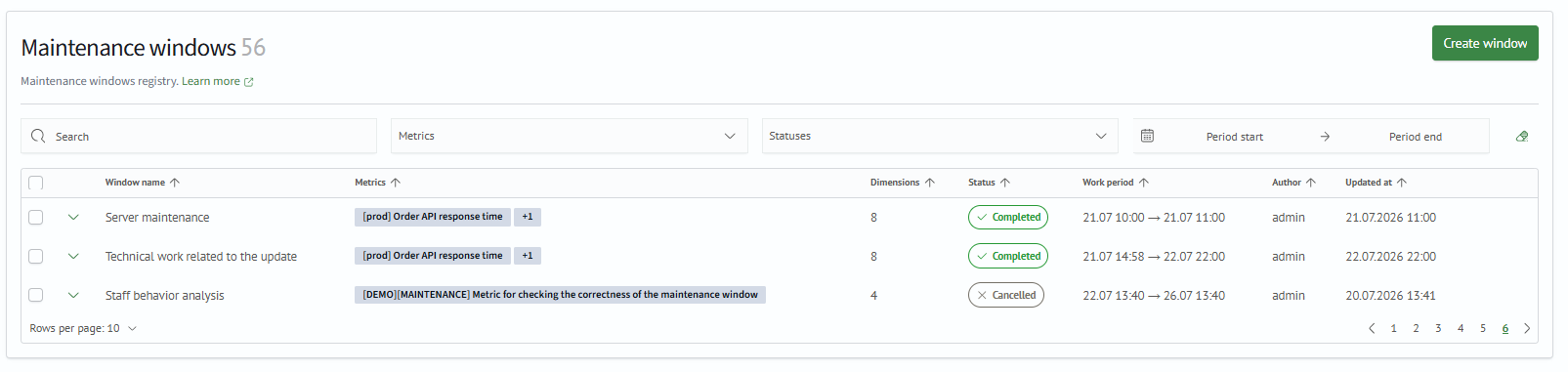
Use the Search, Metrics, Statuses, and Maintenance Period filters above the table to filter the windows.
Quick action buttons are available on the right side of each row. The available actions depend on the window status.
| Action | Window Statuses |
|---|---|
| Clone | All states |
| Edit | Active, Planned |
| Complete manually | Active |
| Delete | Planned, Cancelled |
| Cancel | Planned |
When an active window is completed manually, it receives the Completed status and its end time is set to the time when the action was performed.
To perform an action on multiple windows, select the corresponding rows. A menu then becomes available for cancelling, completing, or deleting the selected windows.

Click Create Window at the top of the page to open the maintenance window creation page.
Creating, Viewing, and Editing a Window
The pages for creating, viewing, and editing a window have the same structure. The top section contains an intersection table with the selected metric names and their corresponding dimensions. The main window settings are displayed below the table. The available actions depend on the page mode and the current window status:
- in view mode, all fields are read-only
- all settings specified during creation can be changed for a planned window
- the name, end time, filter groups, and selected metrics can be changed for an active window; its start time cannot be changed
- completed and cancelled windows are available only in view mode
Creating a Maintenance Window
On the creation page, specify the window name and the start and end of the maintenance period. Configure filter groups and select metrics separately in the Configure Metric Intersections dialog.
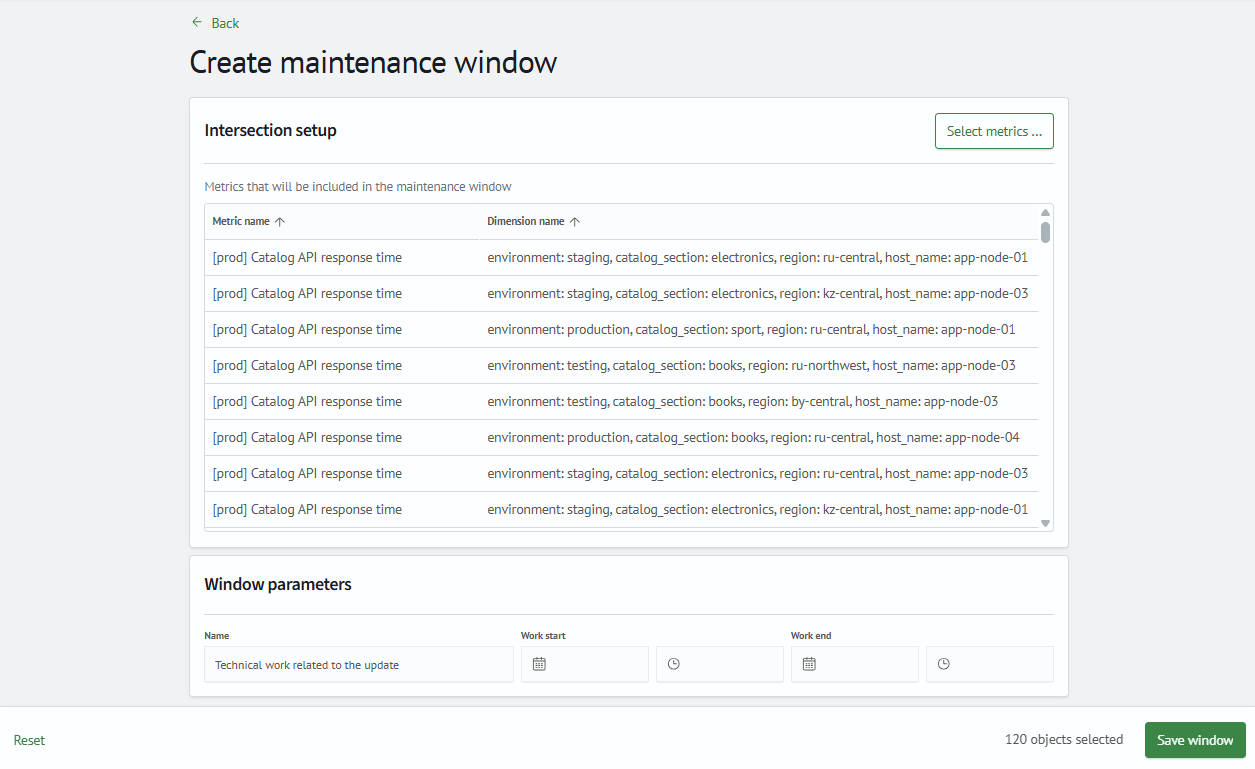
The maintenance period must start later than the current time. You cannot specify the current time or a time in the past.
The end time must be later than the start time. When editing an active window, the end time must also be later than the current time.
To configure filters and metrics, click Select Metrics.... In the dialog that opens, first configure the filter groups, and then select the metrics that match them.
Configuring Filter Groups and Metrics
A filter group defines the conditions that determine which dimensions are included in the maintenance window.
Conditions within a group are combined with the logical AND operator, while the groups are combined with OR.
Therefore, a dimension must satisfy all conditions in at least one group.
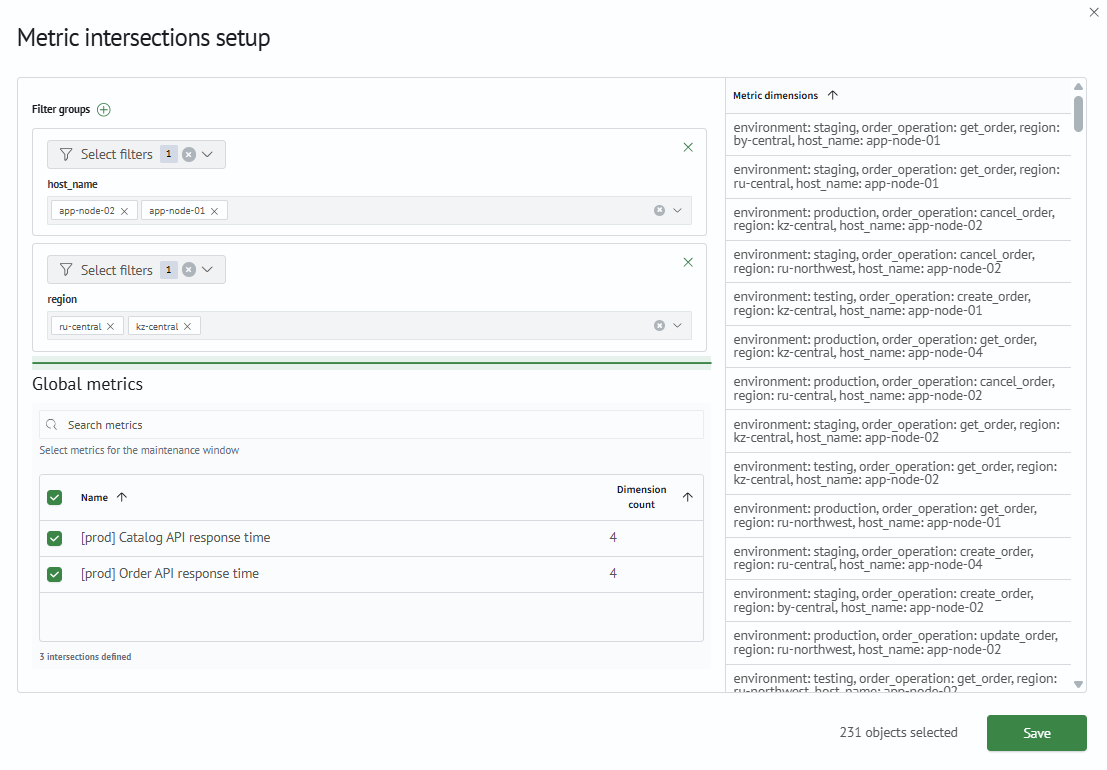
First, select a dimension for each filter. Then specify one or more values to match, or leave the value empty to cover all values of the selected dimension. Based on these conditions, the Global Metrics section displays only metrics
that contain dimensions with the same names. After you select one or more metrics, the matching dimensions appear i the Metric Dimensions panel on the right.
A filter value can be specified as a wildcard expression. This allows a single condition to cover multiple values that match the pattern. For example, app-node-* matches app-node-01, app-node-02, and other values with the same
prefix.
If no value is specified for a filter, the condition applies to all values of the selected dimension.
Click Save to apply the configuration. The dialog closes, and the selected metrics and dimensions appear at the top of the maintenance window creation or editing page.