Watchlists
A watchlist is a named set of Inventory asset objects used by different modules. Watchlists are created, edited, and deleted in the Inventory module. For information about using watchlists in other modules, see Integrations with Other Modules.
To open the page, go to Main Menu - Inventory - Watchlists.
Watchlist List
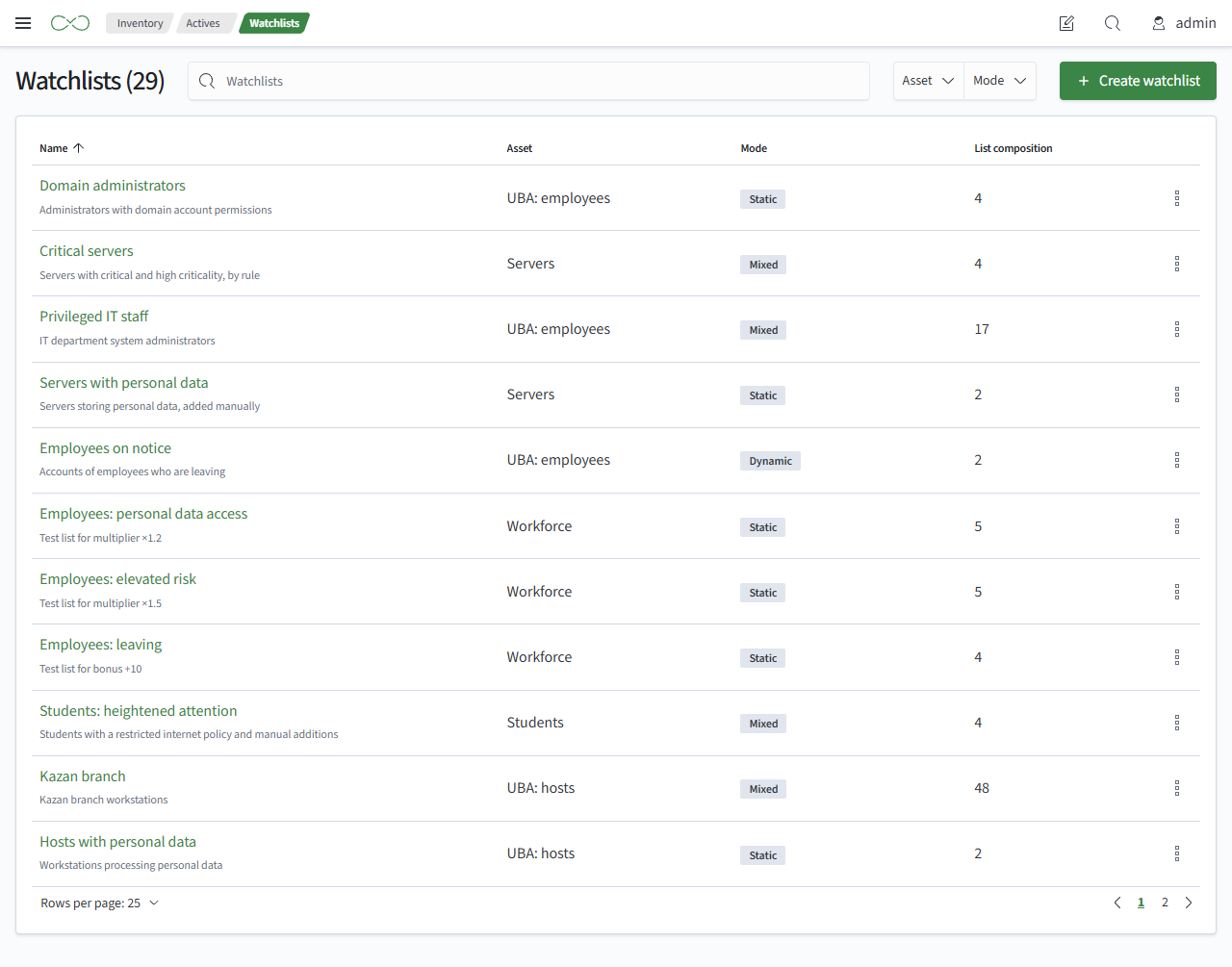
The table contains the following information:
- Name, description
- Asset - the Inventory asset whose objects are included
- Mode - how the watchlist composition is defined
- List composition - the number of asset objects in the watchlist
The mode is determined by the configured data and cannot be selected manually:
| Mode | Composition is defined by |
|---|---|
Dynamic | a membership rule |
Static | pinned asset objects only |
Mixed | a membership rule and pinned asset objects |
Empty | nothing; the watchlist contains no asset objects |
Deletion is not blocked. Before deletion, a warning is displayed that other modules may use the watchlist.
A watchlist can be connected to other modules, such as UBA. Deleting a watchlist does not remove its connections in those modules; they remain as references to a non-existent watchlist.
Before deleting a watchlist, check where it is used.
Creating and Editing a Watchlist
To create a watchlist, follow these steps:
- Go to
Main Menu-Inventory-Watchlists - Click
Create watchlist - Enter a value in the
Namefield - Select an Inventory asset in the
AssetfieldImportantWatchlists are supported only for assets whose data is stored in PostgreSQL. Other assets are not displayed in the
Assetfield. - If necessary, enter a value in the
Descriptionfield - Define the
Membership ruleusing the condition builder or an SML query. The builder works the same way as in UBA object categories - Click
Check ruleto see the number of asset objects that match the rule and view the first results - If necessary, add asset objects in the
Pinned assetssection - Click
Save
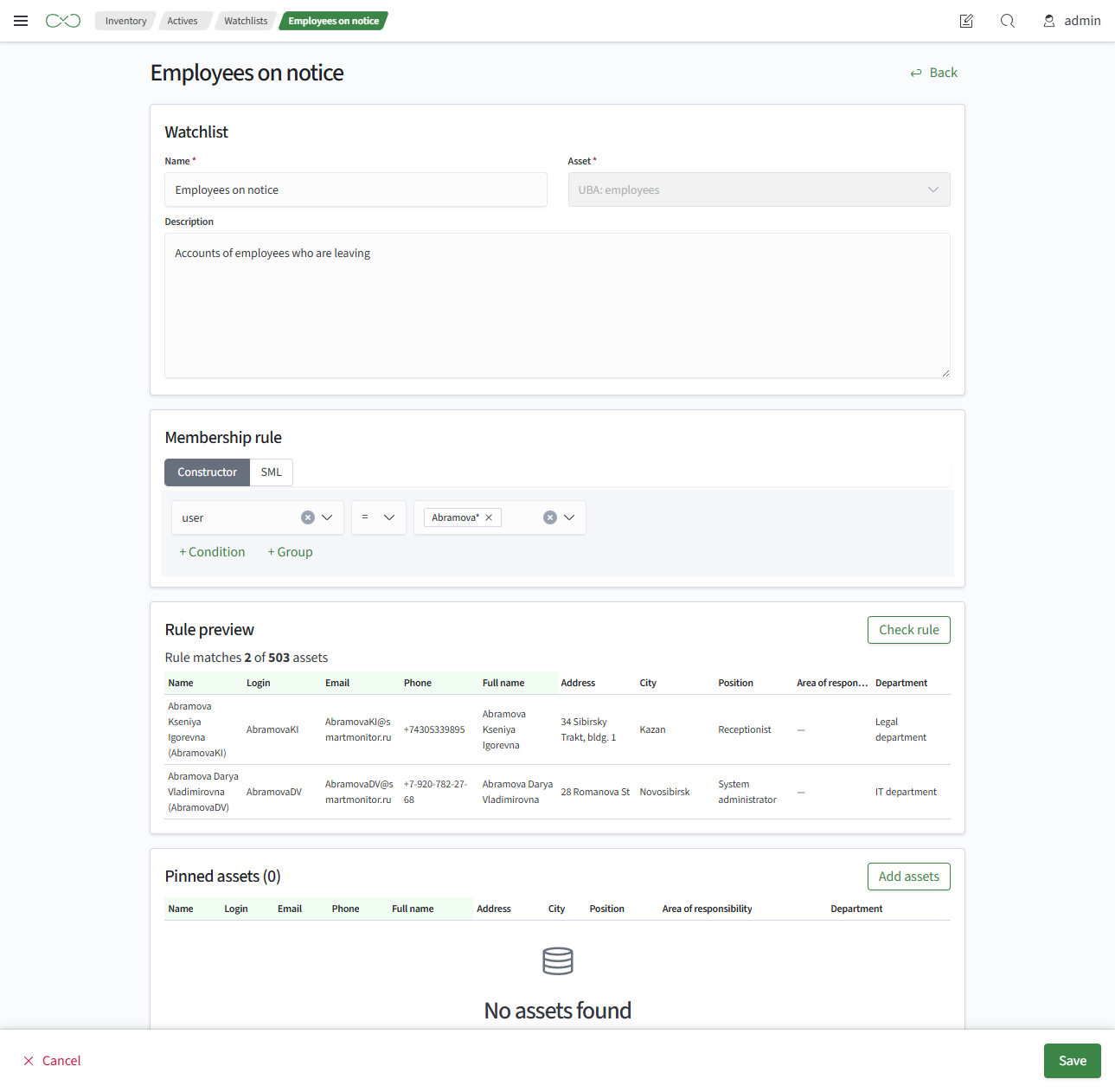
The membership rule is not validated when you save the watchlist. An invalid rule causes an error when the watchlist composition is read. Check the Rule preview before saving.
Pinned Assets
Click Add assets to open a searchable table of asset objects. The search covers all asset objects. Selections are preserved when searching and navigating between pages.
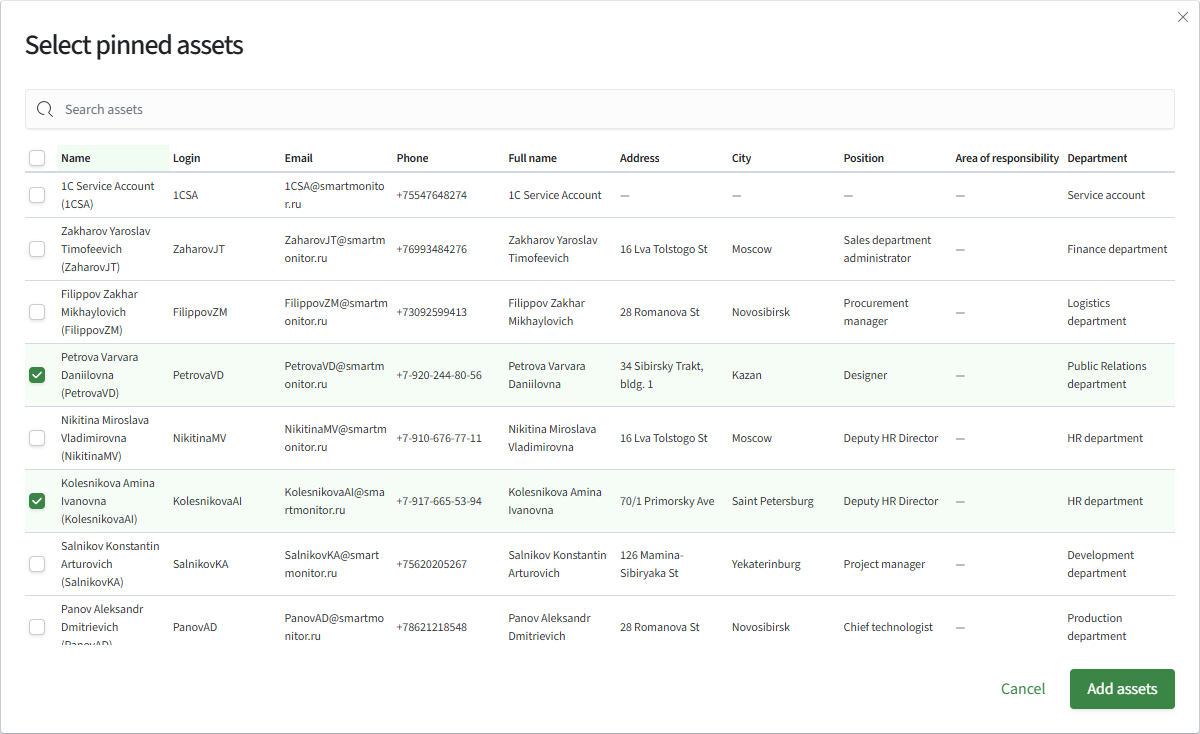
A pinned object is displayed using the asset object's name, which is the value of the Name field.
Integrations with Other Modules
Watchlists are managed in the Inventory module, while other modules connect to them. The effect of a watchlist is defined by the module that connects to it.
- UBA - a connected watchlist increases the risk score of its objects by applying a multiplier or an additional value. For details about the connection and its effect, see Watchlists in UBA. In a UBA object card, you can pin an asset object to a watchlist or remove it
Access
A watchlist has its own permissions, separate from the permissions for the asset. Viewing the watchlist composition also requires permissions for the asset. To add or remove an object from a watchlist in a UBA object card, edit permission for the watchlist is sufficient.