Searching for Incidents
The Incident Manager supports search and filtering, allowing you to quickly find the required incidents. The search tools are located at the top of the module interface.

Search
The Search field allows you to search for incidents by name, description, and other attributes. To use the search, complete the following steps:
- Enter your search query in the
Searchfield - Press
Enter

Incident search supports both full-text search and field-specific queries. Conditions can be combined with the AND and OR keywords.
The AND keyword can be omitted — a space is treated as AND by default.
Basic Search Example
The goal is to find all incidents that mention the user petrov.f or are related to Exchange. To perform the search, enter the following query in the search bar:
petrov.f OR Exchange
Advanced Example
The goal is to find all incidents where the status field is either error or done, the user petrov.f is mentioned, and the potential damage is equal to 100. To perform the search, enter the following query in the search bar:
petrov.f (status=error OR status=done) AND damage=100
In this example, the AND between petrov.f and (status=error OR status=done) is implied and not explicitly written.
Using System Fields in Search
The system field search feature allows you to automatically add and remove fields in the search bar. To do this, hover the mouse pointer over a field name in the incident card, click it, and select the required function.

When multiple fields are added to the search, they are separated by the AND keyword.
This feature works for the following sections:
Custom FieldsIncident DetailsMeta-Information(except for linked notes)History(search by comments)
Error exceeding maxClauseCount limit
When using complex search constructs (for example, searching for strings containing spaces), you may encounter an error related to exceeding the maxClauseCount limit:
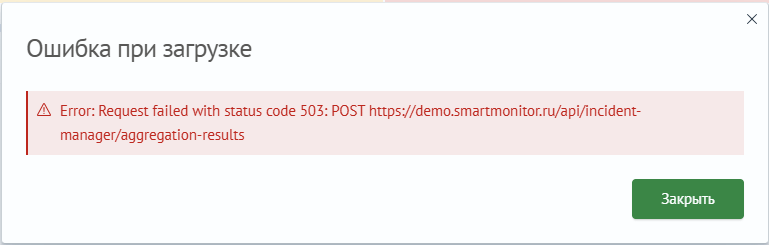
Example response from the browser developer tools on the Network - Response tab:
{
  "statusCode": 503,
  "error": "Service Unavailable",
  "message": "Error while search incidents and aggregations: SearchPhaseExecutionException[all shards failed]; nested: SMException[Query contains too many nested clauses; maxClauseCount is set to 1024]; nested: TooManyNestedClauses[Query contains too many nested clauses; maxClauseCount is set to 1024]; "
}
This error indicates that the number of conditions in the search query has exceeded the allowed limit. If a string consisting of multiple words is not enclosed in double quotes, for example Find incidents error, the search engine processes it as follows:
field1 = "Find" OR field2="Find" OR field3="Find" OR field1="incidents"...
This approach leads to iterating through all fields contained in the .smos_incidents-* index. If there are many such fields and the search string includes multiple space-separated words, this can result in exceeding the maxClauseCount limit, which is set to 1024 by default.
While it is technically possible to increase the maxClauseCount value, doing so is strongly discouraged. Increasing this limit may lead to excessive CPU and memory consumption.
To avoid this error, use more precise search conditions. Enclose multi-word strings in double quotes so that the search engine treats them as a single unit:
"Find incidents error"
In some cases, this approach may not be sufficient to eliminate the maxClauseCount error. In such situations, you can use the following search query formats:
- to search only within custom fields in the incident card:
'fields.*' = "Find incidents error"
- to search within the incident description:
'incident_description' = "Find incidents error"
- to search within the incident title:
'incident_title' = "Find incidents error"
- or a combined query:
'fields.*' = "Find incidents error" OR 'incident_title' = "Find incidents error" OR 'incident_title' = "Find incidents error"
Filters
In addition to searching, you can apply filters. An incident is included in the result set if it matches the search string and every active filter. The Incident Manager provides the following filters:
Time Filter- A dropdown list that allows you to filter incidents by the date and time of their occurrenceCriticality- A dropdown list that allows you to filter incidents by their importance level (e.g.,Alarm,Normal)Workflow- A dropdown list that allows you to filter incidents by a specific processing scenario or lifecycle stageStatus- A dropdown list that allows you to filter incidents by their current status (e.g.,New,In Progress,Closed)Responsible- A dropdown list that allows you to filter incidents by the assigned responsible personTags- A dropdown list that allows you to filter incidents by assigned tags

Custom Filters
Custom filters allow you to further narrow the list of incidents. To show or hide the custom filter block, use the Show Custom Filters toggle at the top of the page. When enabled, the block is displayed below the search bar.
The Filters per Row parameter specifies the number of filters displayed in one row. If there are more filters than the selected value, the remaining filters move to the next rows.
To apply a custom filter, select or enter a value in the corresponding field. When several custom filters are used simultaneously, the result set includes incidents that match every active filter.

For filters of type selection and multi-selection, dynamic filters can be used. Their values are generated from a search query. See dynamic filters.
Display Settings
The Incident Manager also allows you to customize the display of the incident list. Two toggle switches are located at the top of the interface:
Show Tags- Allows you to display or hide incident tagsGroup Incidents- Allows you to group incidents or display them individually
