Index Suffixes
Incident Index Suffix
An index suffix is a string appended to the base name of an incident index.
If you create a prod suffix and use it when creating an incident, incidents will be created in the index .smos_incident-prod-<incident_type>-<year>.<week_number> instead of .smos_incident-<incident_type>-<year>.<week_number>.
Index suffixes can be used to manage user permissions for different incident groups.
To ensure the correct operation of the role model when controlling access to incidents from different OpenSearch indices, it is necessary to add the parameter do_not_fail_on_forbidden: true to the configuration file config/opensearch-security/config.yml of the opensearch-security plugin.
_meta:
  type: "config"
  config_version: 2
config:
  dynamic:
    http:
      anonymous_auth_enabled: false
      xff:
        enabled: false
        internalProxies: "192\\.168\\.0\\.10|192\\.168\\.0\\.11"
    do_not_fail_on_forbidden: true
    authc:
      basic_internal_auth_domain:
      ...
To apply the new configuration, you need to run securityadmin.sh. Set your values for OPENSEARCH_NODE and CLUSTER_NAME.
JAVA_HOME=/app/opensearch/jdk/ /app/opensearch/plugins/opensearch-security/tools/securityadmin.sh \
-cacert /app/opensearch/config/ca-cert.pem \
-cert /app/opensearch/config/admin-cert.pem \
-key /app/opensearch/config/admin-key.pem \
--accept-red-cluster --clustername <CLUSTER_NAME> \
-f /app/opensearch/config/opensearch-security/config.yml \
-t config -h <OPENSEARCH_NODE>
Creation
To go to the list of index suffixes, open the section Navigation Menu - System Settings - Module Settings - Incident Manager - Index Suffixes. This section displays all suffixes available in the system. You can find the required suffix using the search or add a new one by clicking the Create button.
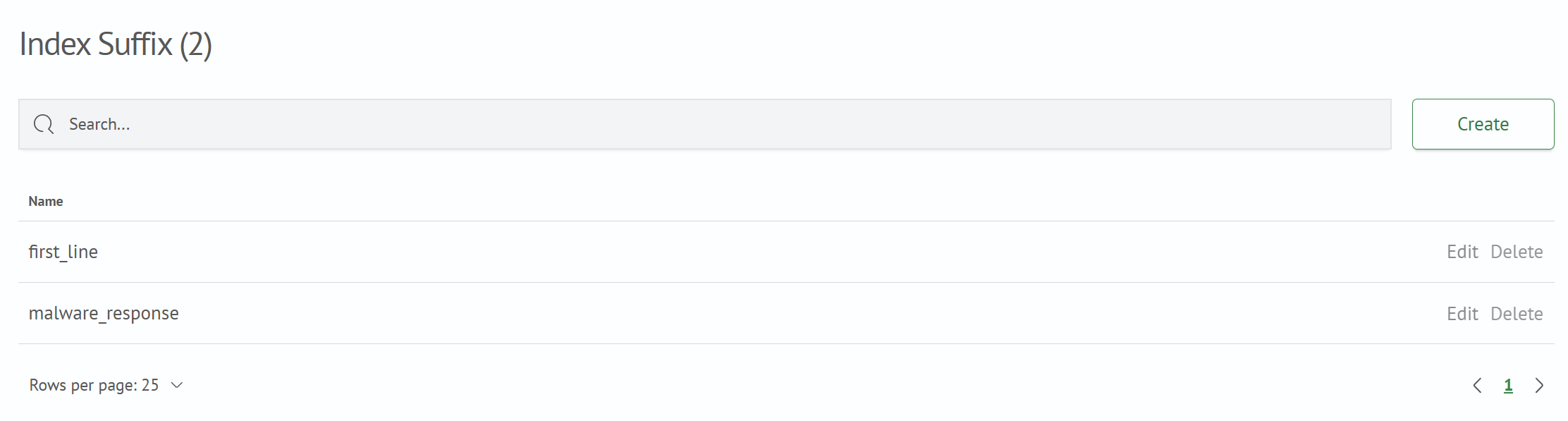
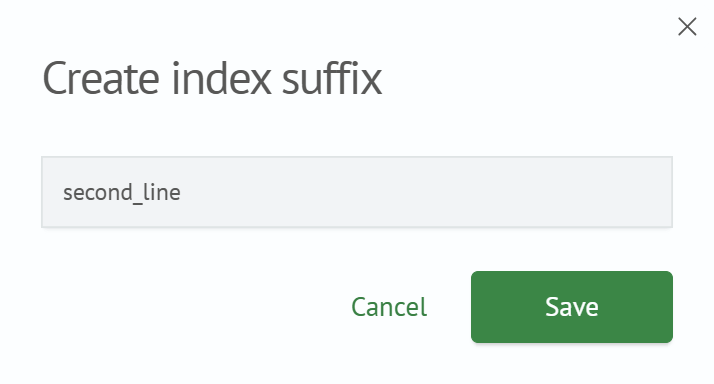
A window for creating a new suffix will open, where you need to specify it.
After clicking the Save button, the new suffix will be displayed in the list.
Editing
To edit an existing suffix, you can select the Edit item to the right of the suffix name.

Deletion
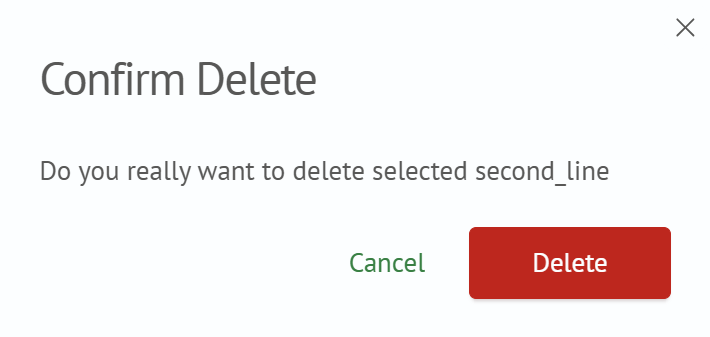
To delete an existing suffix, select the Delete item to the right of the Edit item.
Application
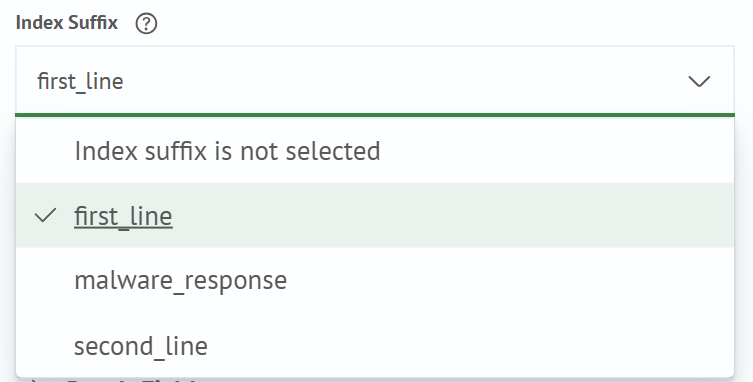
When creating an incident, you can select a suffix from the dropdown list in the Index Suffix parameter.
Application Verification
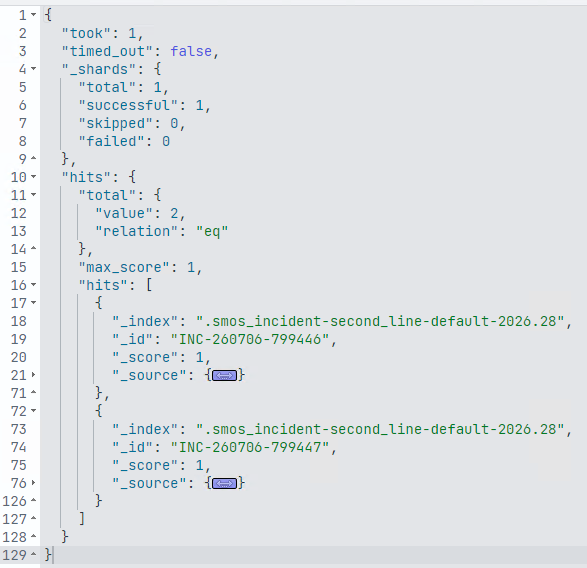
After adding the suffix settings and generating a new incident in the Incident Manager, you can go to Navigation Menu - System Settings - Dev Tools and check that the index was created. To do this, enter the following command:
GET .smos_incident-<incident_suffix>-<incident_type>-<year>.<week_number>/_search
Example:

In the results window, you can see that the index with the required suffix was created:
Incident Aggregation Index Suffix
When using a search job with a specified incident suffix in incident aggregation, the suffix will also be applied to the name of the aggregation results index.
Example
When using the aforementioned search job with the prod suffix in incident aggregation, the aggregation results will be created in an index named .sm_incident_aggregation_results-prod instead of .sm_incident_aggregation_results.
You cannot simultaneously use search jobs with different suffixes in incident aggregation. Attempting to: Add a search job with a different suffix to the aggregation, or Modify the suffix of an already included task will result in an error.
To modify the aggregation suffix when using multiple search jobs, follow this procedure:
- In aggregation settings, keep only one search job by removing all others from the list
- Change the index suffix for all search jobs
- Restore all removed search jobs in the aggregation settings