Installing and Initializing Incident Manager
Conventions
The following conventions are used in this article:
$SMDS_HOME— Smart Monitor Data Storage home directory, usually/app/opensearch/$SMW_HOME— Smart Monitor Web home directory, usually/app/opensearch-dashboards/
Prerequisites
The following files are required for installation:
- archive with
sm-immodule files for Smart Monitor Data Storage - archive with
smartMonitorIncidentManagermodule files for Smart Monitor Web
Installation Process
Install the module on Smart Monitor Data Storage servers:
sudo -u opensearch $SMDS_HOME/bin/opensearch-plugin install file://<path to module archive>
Install the module on Smart Monitor Web servers:
sudo -u opensearch $SMW_HOME/bin/opensearch-dashboards-plugin install file://<path to module archive>
After installing or updating the plugin, increment build.number in $SMW_HOME/package.json. This clears the browser cache. Then restart the Smart Monitor Web service.
For details, see Installing Plugins.
Initializing Incident Manager
After installing the plugins, go to Main Menu - Settings - Module Settings - Incident Manager - Initialization.
Configuring Incident Fields
The first step displays the system incident fields. If necessary, add custom fields or change their settings. For details, see Incident Fields.

To proceed to the workflow settings, click Next Step.
Configuring the Workflow
The Workflow page displays the predefined Default workflow. Click its title to open the configuration wizard.
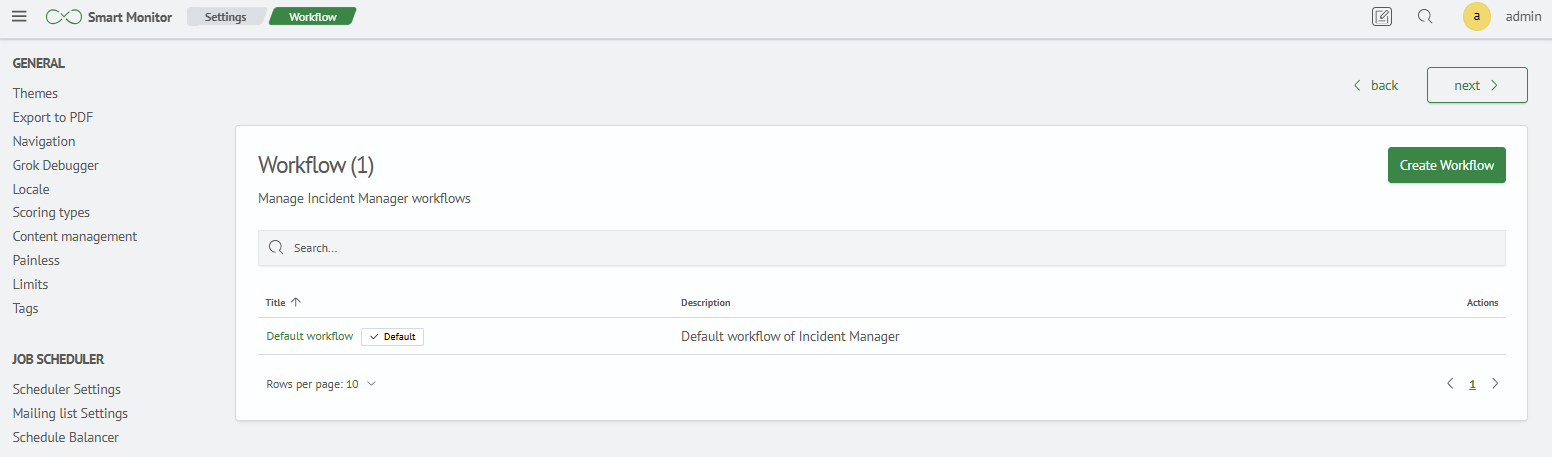
The configuration wizard consists of three steps.
-
Verify the workflow title and description. Change the values if necessary, and then click
Next Step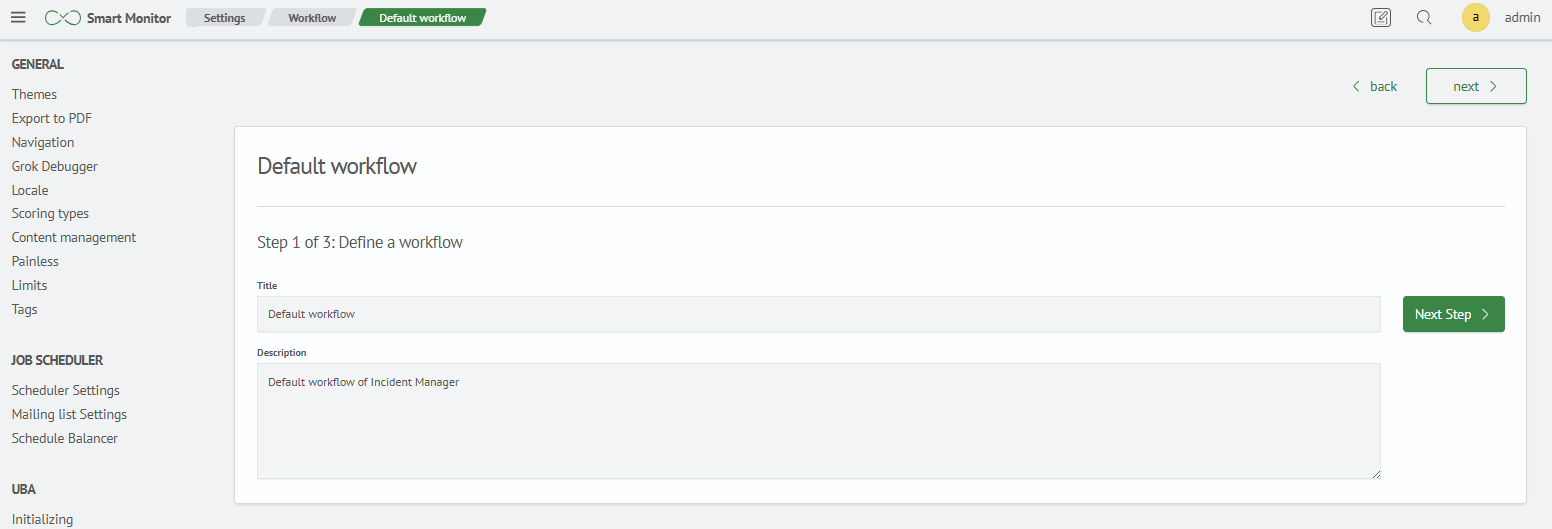
-
Verify the list of statuses. Add new statuses or modify existing ones if necessary, and then click
Next Step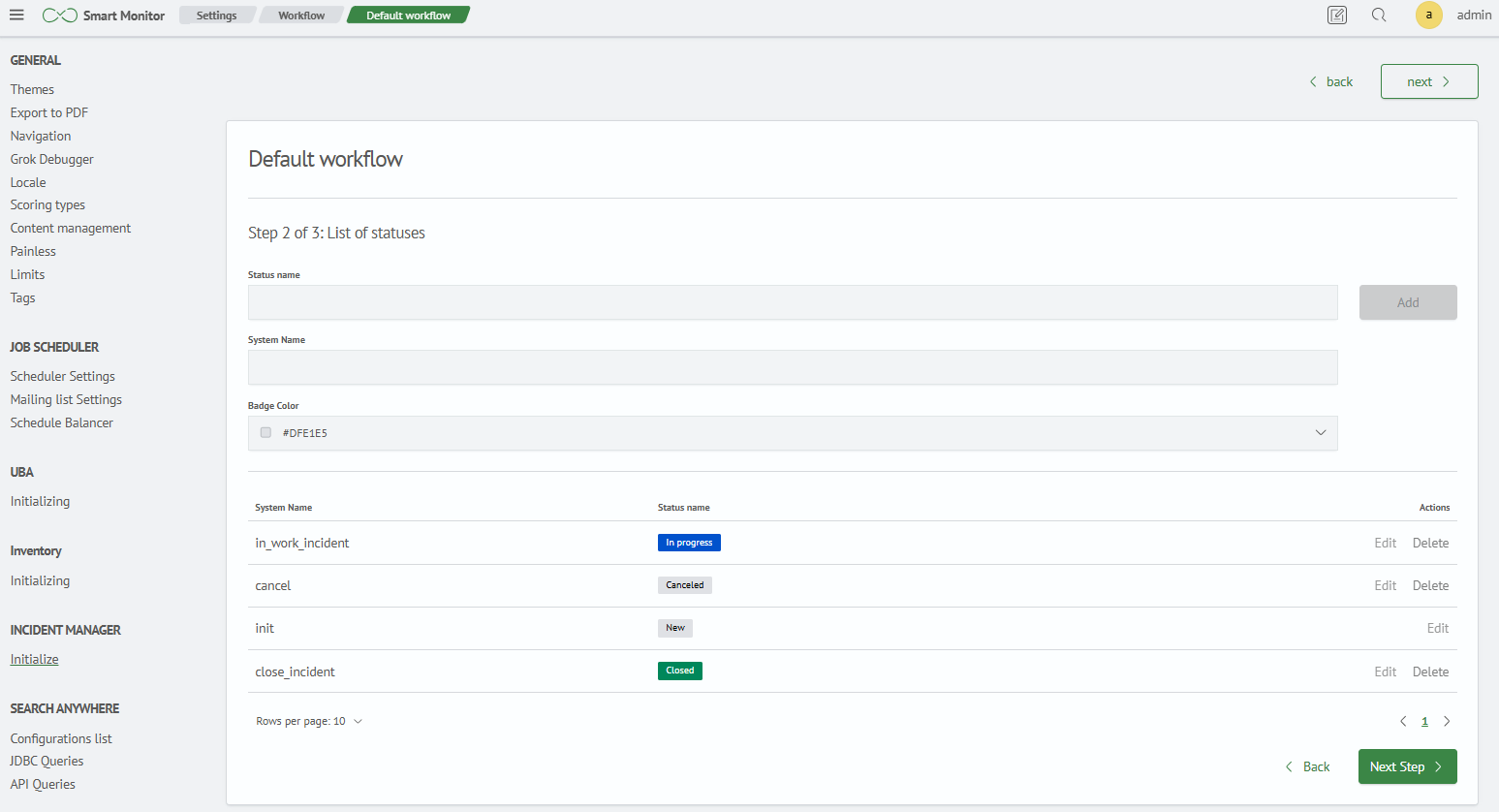
-
Verify the transition rules between statuses. To create a transition, connect the source and target statuses, and then click
Next Step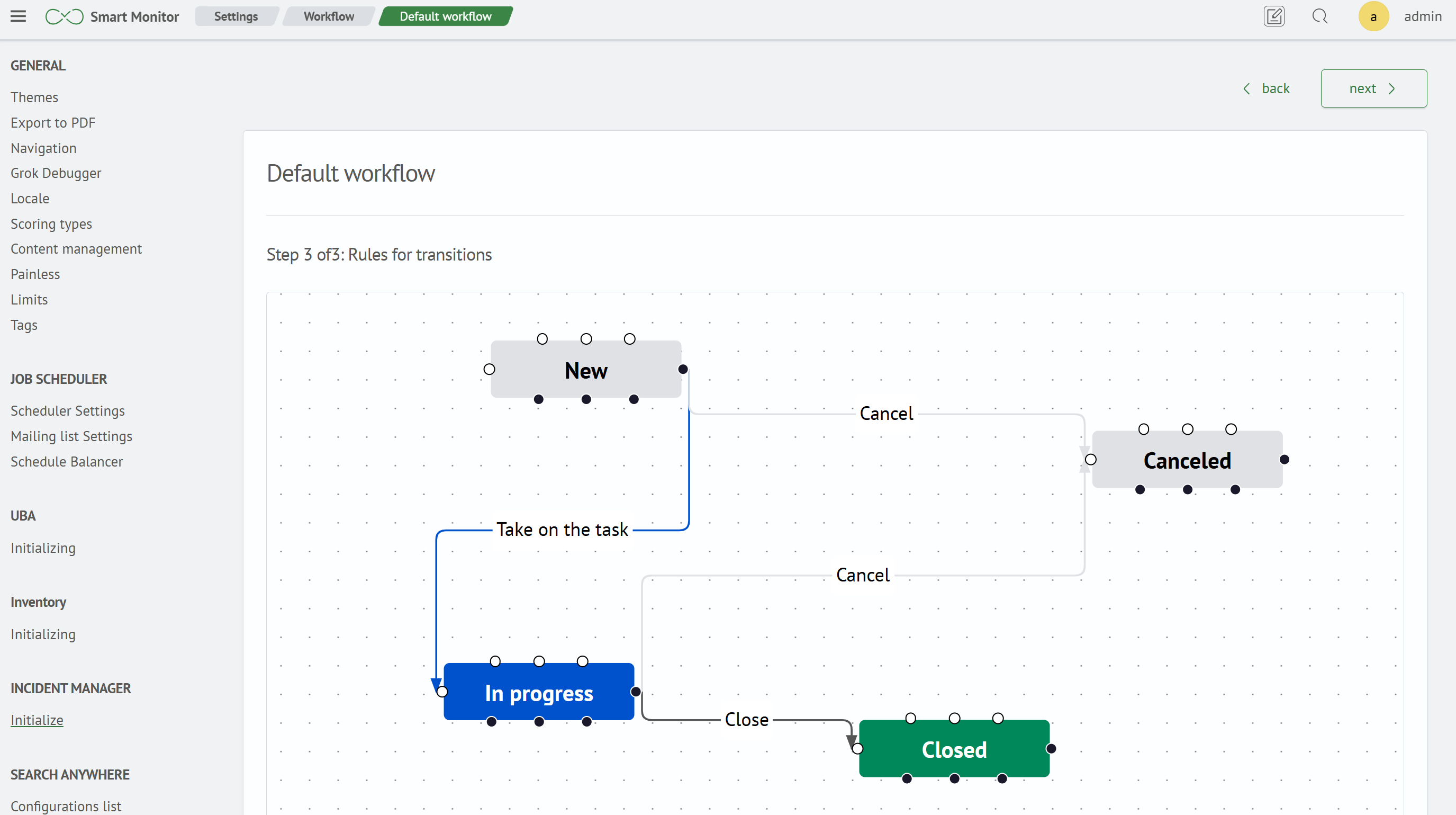
For details about statuses and transitions, see Configuring a Workflow.
After completing the configuration, click Done.

Initialization is complete.