Sigma Rules
General Information
Sigma Rules is a universal, open standard for describing cyber threat detection rules in YAML format. The main idea of Sigma is to write a rule once and then use it in any SIEM systems without having to rewrite the logic for each specific query language.
Sigma Rule Structure
Any Sigma rule consists of three mandatory blocks:
- Metadata — identifier, title, description, author, severity level (Low/Medium/High/Critical), creation date, and tags (often linked to MITRE ATT&CK tactics)
- Log source (Logsource) — specifies which data the rule applies to: product (Windows, Linux), service (Security, Sysmon), etc.
- Detection — the most important part containing the search logic for attacks: sets of conditions (selection) and conditions for combining them (condition)
Example of a simple Sigma rule:
title: Security Eventlog Cleared
id: f2f01843-e7b8-4f95-a35a-d23584476423
description: Detecting clearing of local Security log
tags:
- attack.defense_evasion
- attack.t1070
logsource:
product: windows
service: security
detection:
selection:
EventID:
- 517
- 1102
condition: selection
level: high
Difference from Job Scheduler Rules
Job Scheduler rules are tasks created manually by the user through the Job Scheduler module interface and have active actions for creating incidents.
The difference between these rules and Sigma rules lies in the approach to creation and degree of portability. An ordinary task contains an SML query that can only be executed in the Smart Monitor environment. In turn, a Sigma rule represents a universal threat description that is independent of a specific implementation. It is not subject to direct execution but acts as a source of logic that is automatically converted by the system into an SML query.
Main Page
This section is designed for importing Sigma rules and automatically converting these rules into scheduled jobs in the Job Scheduler module.

The Sigma Rules page displays a list of rules available in the Smart Monitor system.
To view a rule, click on its name.

Importing Rules
To import Sigma rules, click the Import button in the top right corner.

Select the required yaml file.

After this, the Sigma rule will appear in the list.
Automatic Conversion of Sigma Rule to Search Task
To create a new search job from a Sigma rule, click the Create a job button from the rule view window or the create job button in the actions menu in the rule list.


The rule conversion settings window will then appear, where you need to specify the source for building the search query and map the Sigma rule fields to the fields in the specified source.
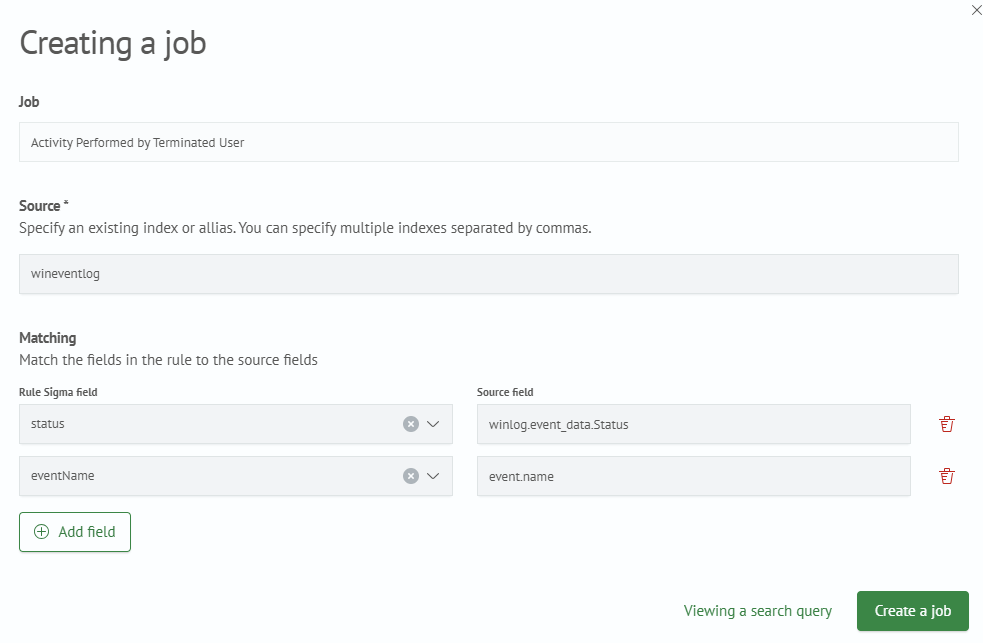
After specifying the data source and field mappings, you can click the Preview Search Query button to verify the correctness of the resulting sml query.
In this window, you can also select options for automatically creating an Incident Action in the search job and adding tags from the Sigma rule to the search job.
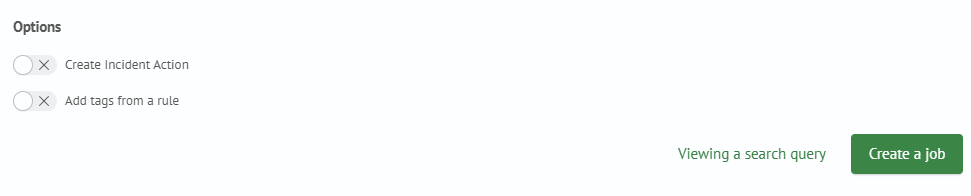
Click the Create a job button in the bottom right corner, and you will be taken to the search query creation page with pre-filled fields from the Sigma rule and the search query in sml syntax.
Fill in or edit the necessary fields and save the search job to complete the conversion.