Cyber Security Installation
Module Installation
For the Cyber Security module to function correctly, it must be installed via the web interface (Main Menu - Settings - Module Settings) in Smart Monitor.
To install the Cyber Security module, the sm-content-installer plugin must be installed (it is included in the base distribution) on all Smart Monitor nodes. This applies to the following system components:
Smart Monitor Data StorageSmart Monitor Master Node
You can check its presence via the Dev Tools console (Main Menu - System Parameters - Dev Tools) by executing the command:
GET _cat/plugins
If the plugin is not installed, install it using the commands provided below.
Before running the installation commands, it is recommended to review the Plugin Management section, which describes the required preparatory steps before installing plugins.
On nodes with the data role:
sudo -u opensearch /app/opensearch/bin/opensearch-plugin install file://<absolute_path_to_archive>
systemctl restart opensearch
On the Smart Monitor Web node:
$OSD_HOME/bin/opensearch-dashboards-plugin install file://<absolute_path_to_archive>
systemctl restart opensearch-dashboards
After installing the sm-content-installer plugin, install the Cyber Security module through the web interface.
Content Installation
Content is a set of objects (dashboards, tags, tasks, reference books, ISM policies, and indexes) that make up the module's functionality.
The Cyber Security module is a content module. In the Smart Monitor web interface, go to Main Menu - Module Settings - Content Management. Upload the archive with the module content by selecting a file or dragging it to the specified area. Then specify the components to install:

Specify the permissions for the objects selected in the previous step and select the dashboards that will be added to the side panel:

The installation of the Cyber Security module is complete. The module update process occurs in a similar manner.
More detailed information can be found in the section Object Selection.
Checking After Installation
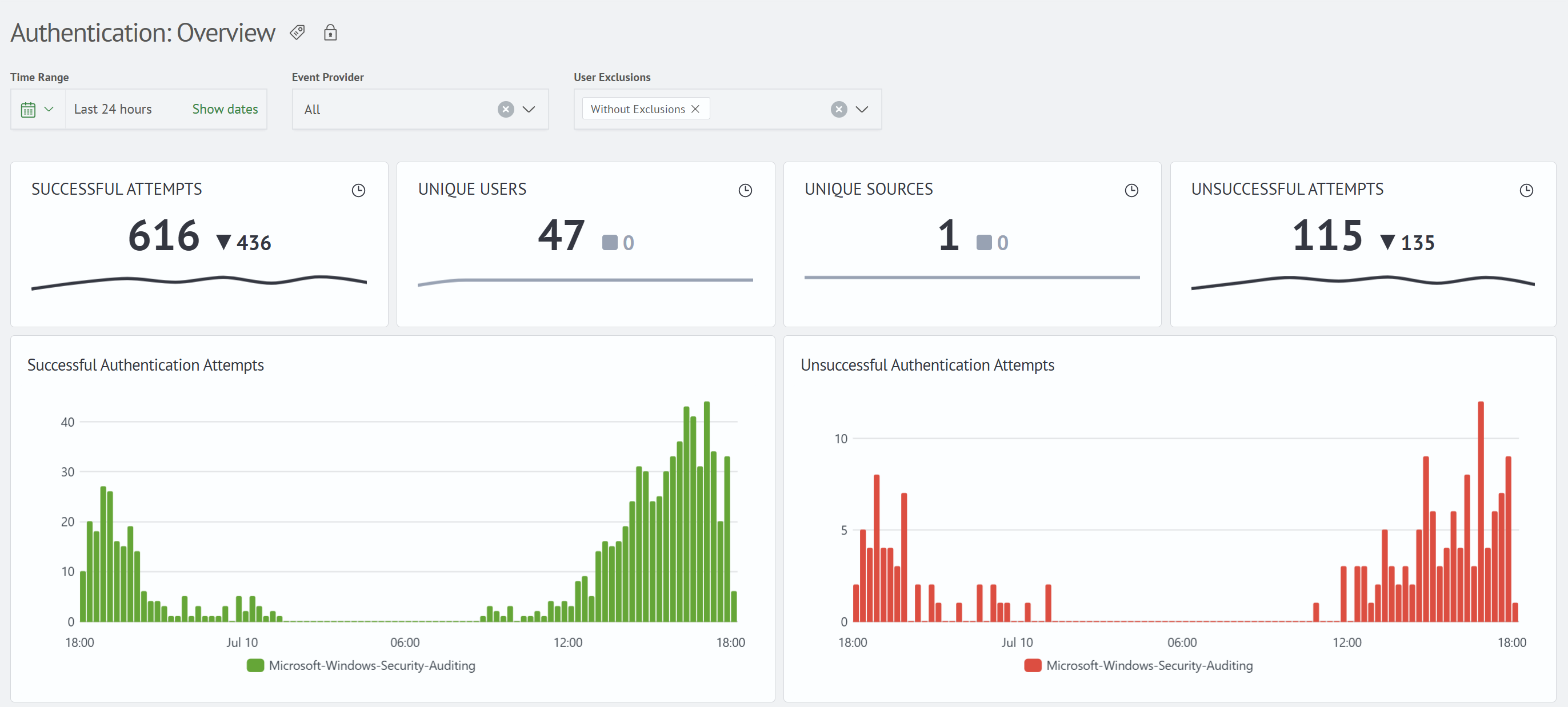
To check the module installation, make sure that the corresponding section appears in the navigation menu and that its dashboards contain visualizations. To do this, go to Main Menu - Cyber Security - Authentication - General Information.

If the corresponding sources were connected before installation, the visualizations will already display information. If the sources are not yet connected, the visualizations will display a warning with the text No data.
Adding Sigma Rules to the Menu
To view Sigma rules in the navigation menu, open Main Menu - System Settings - Module Settings - General - Menu Settings. Click the Add Module button.
Fill in the module fields as follows:
| Field Name | Content |
|---|---|
Type of element | Group |
System Name | sigma-rules |
Module Title | Sigma Rules |
Enable Display | Yes, the flag must be enabled |
Inside the Sigma Rules module, click the Add Section button.
Fill in the section fields as follows:
| Field Name | Content |
|---|---|
Type of element | Page |
System Name | list |
Module Title | Rules List |
Enable Display | Yes, the flag must be enabled |
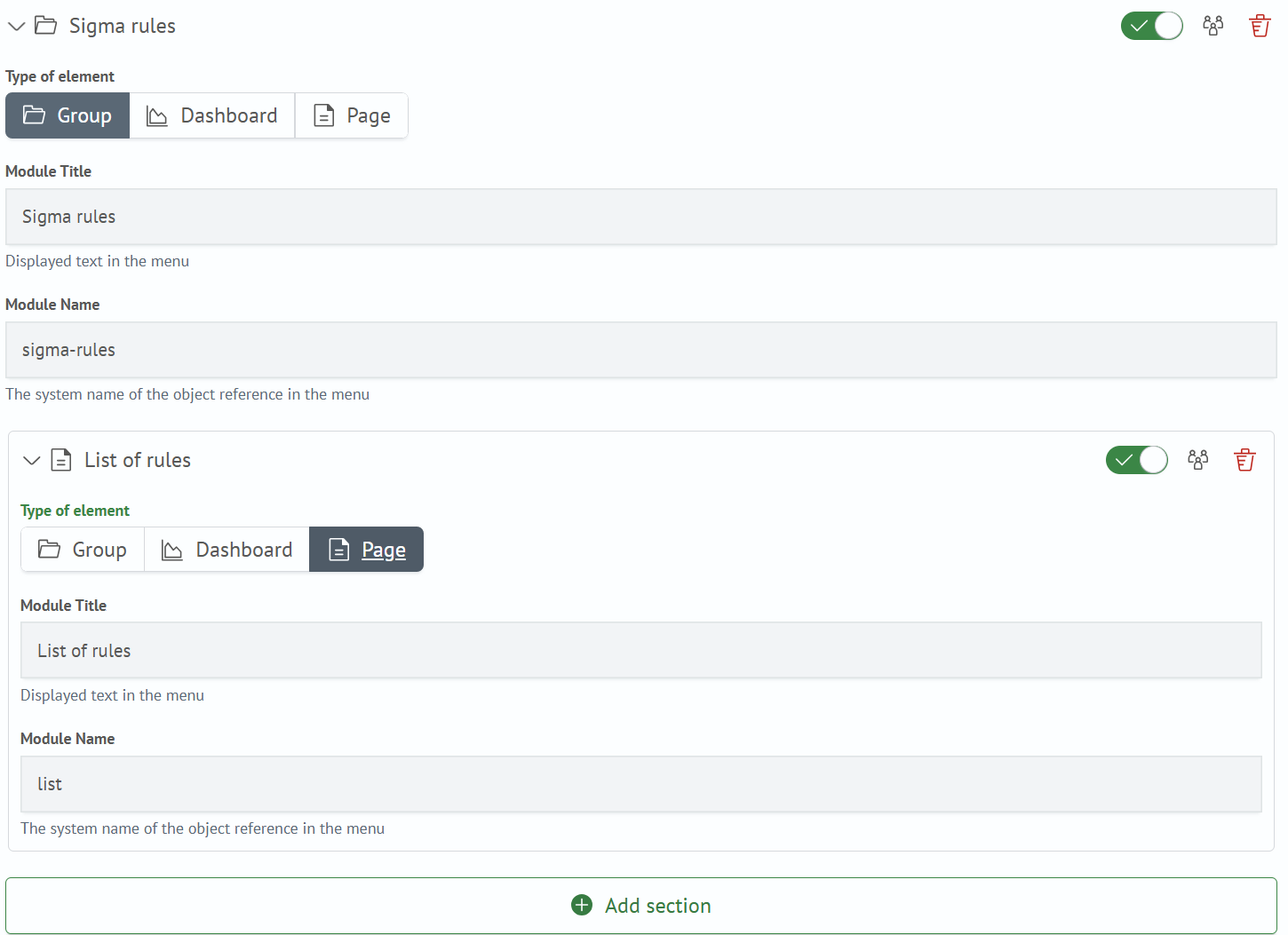
Click the Save Changes button. Configure permissions for user groups if necessary.
The menu item can also be added via a JSON structure. To do this, open Main Menu - System Settings - Module Settings - General - Menu Settings, open the JSON Structure tab, and add the following snippet to the top list, separated by a comma if needed:
{
  "itemType": "group",
  "name": "sigma-rules",
  "_permissions": {
    "owner": "admin",
    "read": {
      "roles": [],
      "users": []
    },
    "write": {
      "roles": [],
      "users": []
    }
  },
  "id": "iff6f40d1-e210-11ef-b57c-6bad33908cd9",
  "title": "Sigma Rules",
  "enabled": true,
  "sections": [
    {
      "itemType": "page",
      "name": "",
      "_permissions": {
        "owner": "admin",
        "read": {
          "roles": [],
          "users": []
        },
        "write": {
          "roles": [],
          "users": []
        }
      },
      "id": "i0ce9b921-e211-11ef-b57c-6bad33908cd9",
      "title": "Rules List",
      "enabled": true
    }
  ]
}
Verifying the Sigma Rules Section
To verify the Sigma Rules section, navigate to Main Menu - Sigma Rules - Rules List.

On the Sigma Rules page, an empty list of rules will be displayed.
