Cyber Security: Sigma Rules
General Information
Sigma is an open format for describing cyber threat detection rules in YAML. A rule can be converted into a query for different SIEM systems without rewriting its detection logic.
Sigma Rule Structure
A Sigma rule contains three mandatory blocks:
- Metadata — identifier, title, description, author, severity level (Low/Medium/High/Critical), creation date, and tags (often linked to MITRE ATT&CK tactics)
- Log source (Logsource) — specifies the data to which the rule applies: product (Windows, Linux), service (Security, Sysmon), and other characteristics
- Detection — contains the attack detection logic: sets of conditions (
selection) and the condition that combines them (condition)
Example of a simple Sigma rule:
title: Security Eventlog Cleared
id: f2f01843-e7b8-4f95-a35a-d23584476423
description: Detecting clearing of local Security log
tags:
- attack.defense_evasion
- attack.t1070
logsource:
  product: windows
  service: security
detection:
  selection:
    EventID:
    - 517
    - 1102
  condition: selection
level: high
Difference from Job Scheduler Jobs
In Job Scheduler, users manually create jobs with an active action for creating incidents.
A job contains an SML query executed in Smart Monitor. A Sigma rule describes a threat independently of a specific implementation. It is not run directly: the system converts its logic into an SML query.
Main Page
This section is for importing Sigma rules and automatically converting them into scheduled jobs in Job Scheduler.

The Sigma Rules page displays the rules available in Smart Monitor.
To view a rule, click on its name.

Importing Rules
To import a Sigma rule, click Import in the top right corner.

Select the rule file in YAML format.

After import, the Sigma rule appears in the list.
Automatic Conversion of a Sigma Rule to a Search Job
To create a search job from a Sigma rule, click Create a job in the rule view window or select it from the actions menu in the rule list.


In the conversion settings window, select the data source for the search query and map the Sigma rule fields to the fields in that source.
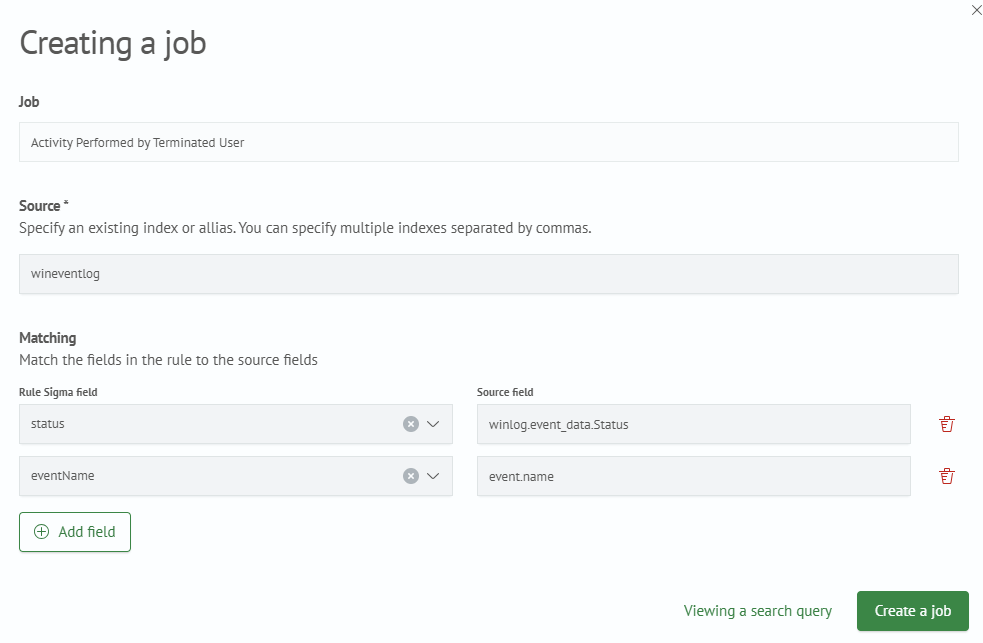
After selecting the source and mapping the fields, click Viewing a search query to check the resulting SML query.
In the same window, you can enable automatic creation of an incident creation action in the search job and add tags from the Sigma rule.
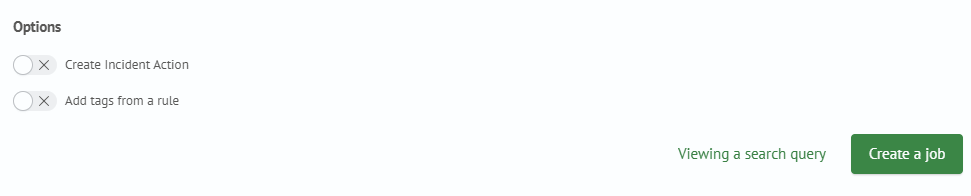
Click Create a job in the bottom right corner. The search job creation page opens with fields populated from the Sigma rule and an SML query.
Fill in or edit the required fields and save the search job to complete the conversion.