Searching for Incidents
The Incident Manager features search and filtering functionality that allows you to quickly find the incidents you need. The search tools are located at the top of the module's interface.

Search
The Search field allows you to search for incidents by their name, description, or other attributes. To use the search function:
- Enter your search query in the
Searchfield - Press
Enter

Incident search supports both full-text search and field-specific queries. Conditions can be combined using the keywords AND and OR.
The AND keyword can be omitted — a space is treated as AND by default.
Basic Search Example
The goal is to find all incidents that mention the user petrov.f or are related to Exchange. To perform this search, enter the following query into the search bar:
petrov.f OR Exchange
Advanced Example
The goal is to find all incidents where the status field is either error or done, the incident mentions the user petrov.f, and the potential damage is equal to 100. To perform this search, use the following query:
petrov.f (status=error OR status=done) AND damage=100
In this example, the AND between petrov.f and (status=error OR status=done) is implied and not explicitly written.
Using System Fields in Search
The system field search feature allows for the automatic addition/removal of fields to the search bar. To do this, hover the mouse cursor over a field name in the incident, click on it, and select the desired function.

When multiple fields are added to the search, they will be separated by the AND keyword.
This substitution works for:
Custom FieldsIncident DetailsMeta-Information(except for linked notes)History(search by comments)
Error exceeding maxClauseCount limit
When using complex search constructs (for example, searching for strings containing spaces), you may encounter an error related to exceeding the maxClauseCount limit:
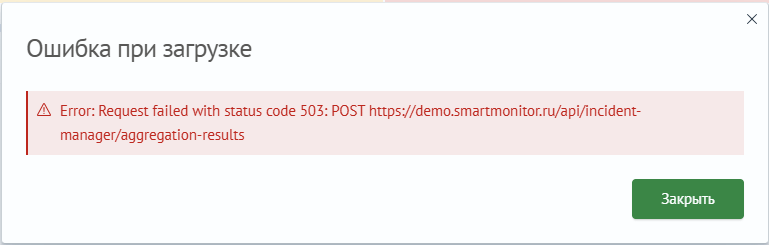
Example response captured from the browser developer tools (Network - Response tab):
{
  "statusCode": 503,
  "error": "Service Unavailable",
  "message": "Error while search incidents and aggregations: SearchPhaseExecutionException[all shards failed]; nested: SMException[Query contains too many nested clauses; maxClauseCount is set to 1024]; nested: TooManyNestedClauses[Query contains too many nested clauses; maxClauseCount is set to 1024]; "
}
This error indicates that the number of conditions in the search query has exceeded the allowed limit. If a multi-word string is used without enclosing it in double quotes (e.g., Find incidents error), the search engine processes it as follows:
field1 = "Find" OR field2="Find" OR field3="Find" OR field1="incidents"...
This approach leads to iterating through all fields contained in the index .smos_incidents-*. If there are many such fields and the search string includes multiple space-separated words, this can result in exceeding the maxClauseCount limit, which is set to 1024 by default.
While it is technically possible to increase the maxClauseCount value, doing so is strongly discouraged. Increasing this limit may lead to excessive CPU and memory consumption.
To avoid this error, it is recommended to use more precise search conditions. Multi-word strings should be enclosed in double quotes so that the search engine treats them as a single unit:
"Find incidents error"
In some cases, even this approach may not be sufficient to avoid exceeding the maxClauseCount limit. In such situations, you can use the following search query formats:
- to search only within custom fields in the incident card:
'fields.*' = "Find incidents error"
- to search within the incident description:
'incident_description' = "Find incidents error"
- to search within the incident title:
'incident_title' = "Find incidents error"
- or a combined query:
'fields.*' = "Find incidents error" OR 'incident_title' = "Find incidents error" OR 'incident_description' = "Find incidents error"
Filters
In addition to searching, you can apply filters. The Incident Manager offers the following filters:
Time Filter- A dropdown list that allows you to filter incidents by the date and time of their occurrenceCriticality- A dropdown list that allows you to filter incidents by their importance level (e.g.,Alarm,Normal)Workflow- A dropdown list that allows you to filter incidents by a specific processing scenario or lifecycle stageStatus- A dropdown list that allows you to filter incidents by their current status (e.g.,New,In Progress,Closed)Responsible- A dropdown list that allows you to filter incidents by the assigned responsible personTags- A dropdown list that allows you to filter incidents by assigned tags

At the top, there is a toggle switch responsible for displaying rows with filters for additional fields in the incident card. These are configured in the module settings.
For filters of type selection and multi-selection, dynamic filters can be used. Their values are generated from a search query. See dynamic filters.
Display Settings
The Incident Manager also offers the ability to customize the display of the incident list. At the top of the interface, there are two toggle switches:
Show Tags- Allows you to display or hide incident tagsGroup Incidents- Allows you to group incidents or display them individually
