Workflow Setup
General Description
Incident Manager provides the ability to configure workflows, which is especially useful when incident response requires a more complex approach. In such situations, standard procedures may be insufficient for effective problem resolution.
A customizable workflow allows taking into account the specific characteristics of each incident, ensuring more accurate and timely response.
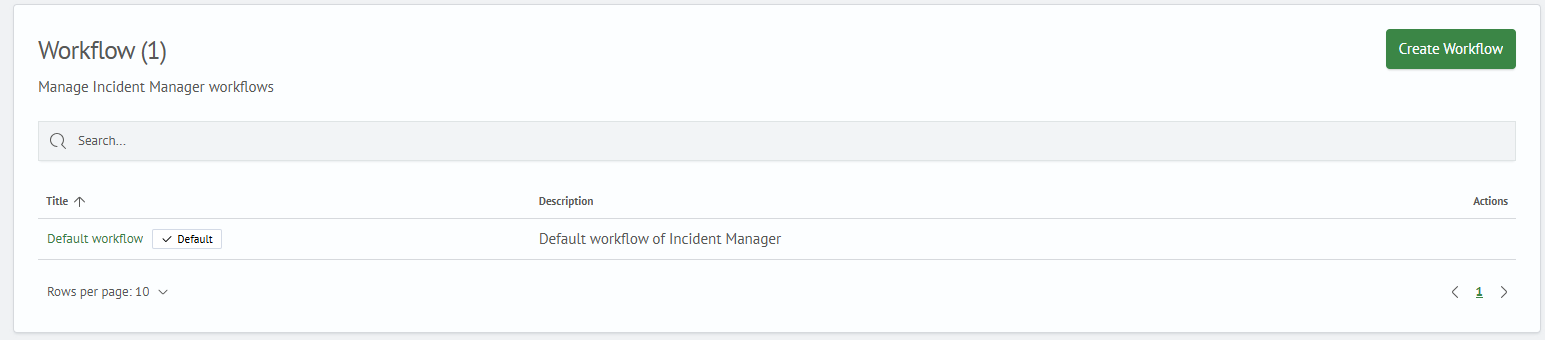
To access workflow settings, navigate to Module Settings - Incident Manager - Workflow.
The interface presents a list of configured workflows. By default, there is a pre-installed workflow Default workflow.
Creating a Workflow
To create a workflow, you need to:
- Click the
Createbutton in the upper right corner of the interface, which will launch the workflow setup wizard - On the first step, enter the
TitleandDescriptionof the workflow: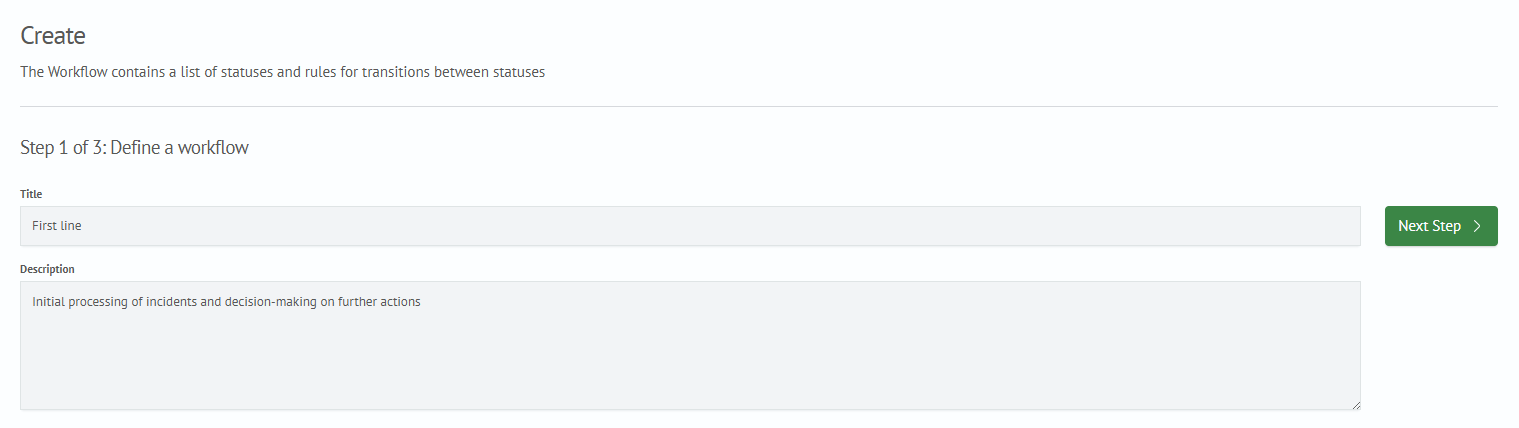
- On the second step, configure the list of incident statuses
Each status has:
Title- short status nameSystem Name- status identifierBadge Color- color of the status badge
Also, by default, an initializing status New is set

- On the third step, configure the transition rules from status to status in the visual editor
A transition is created by dragging a line from the black dot of the source status to the white dot of the target status.
Each transition can also be additionally configured by clicking on the transition name on the line with the left mouse button. This will open the transition settings window.
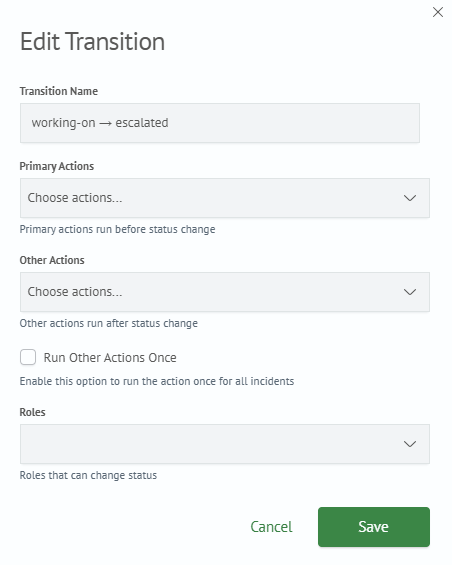
In the appeared window, you can configure:
Transition name- name of the transition in the visual editorPrimary Actions- actions that will be executed before changing the incident statusOther Actions- actions that will be executed after changing the incident statusRun Other Actions Once- if checked,Other Actionswill be applied to the entire group of incidents, otherwise to each separatelyRoles- roles that have rights to change status by this transition
Clicking the Save button will apply changes to the transition settings.

- Click the
Create processbutton
Editing a Workflow
Changes can be made to created workflows, for this you need to:
- In the list of workflows, click on the
Titlein the first column
The editor presents the same setup wizard as when creating a workflow
- Make changes to the workflow, following the setup wizard instructions
- Save the workflow by clicking the
Save processbutton
Any workflow can be set as the default process, which will allow applying it to incidents that were not assigned another process. To do this, in the list of workflows, click the Set as default button.
Deleting a Workflow
To delete a workflow, in the list next to the process that needs to be deleted, click the Delete button.