Sigma Rules
General Description
This section is designed for importing Sigma rules and automatically converting these rules into scheduled jobs in the Job Scheduler module.

The Sigma Rules page displays a list of rules available in the Smart Monitor system.
To view a rule, click on its name.

Importing Rules
To import Sigma rules, click the Import button in the top right corner.

Select the required yaml file.

After this, the Sigma rule will appear in the list.
Automatic Conversion of Sigma Rule to Search Task
To create a new search job from a Sigma rule, click the Create a job button from the rule view window or the create job button in the actions menu in the rule list.


The rule conversion settings window will then appear, where you need to specify the source for building the search query and map the Sigma rule fields to the fields in the specified source.
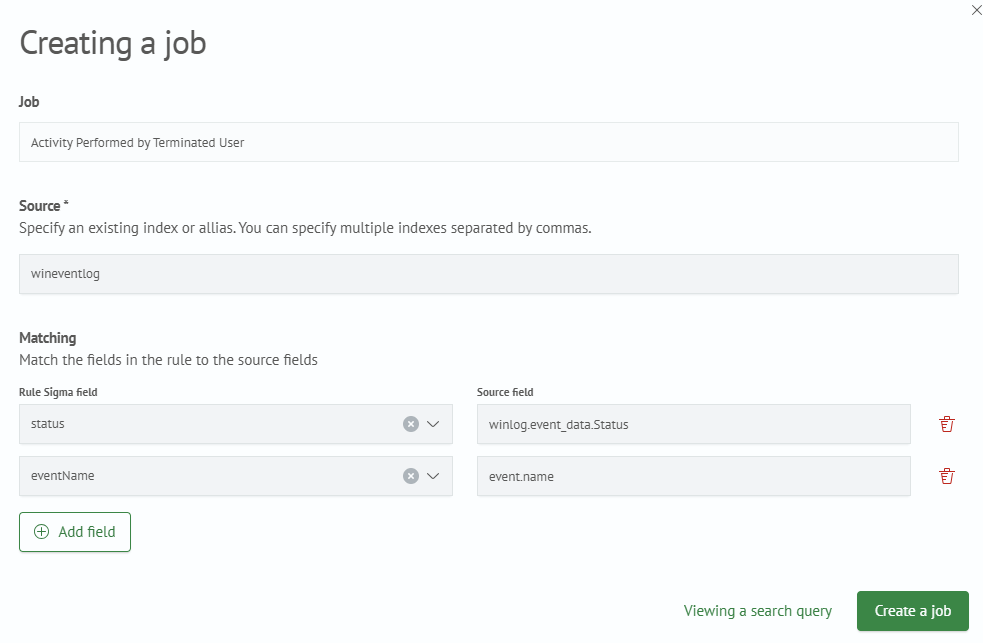
After specifying the data source and field mappings, you can click the Preview Search Query button to verify the correctness of the resulting sml query.
In this window, you can also select options for automatically creating an Incident Action in the search job and adding tags from the Sigma rule to the search job.
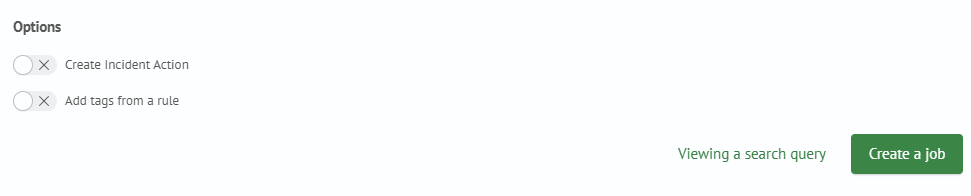
Click the Create a job button in the bottom right corner, and you will be taken to the search query creation page with pre-filled fields from the Sigma rule and the search query in sml syntax.
Fill in or edit the necessary fields and save the search job to complete the conversion.