Declarative Rules
Creating a Rule
To create a declarative rule:
- Open the rule list by going to
Job Scheduler-Streaming Jobs, and clickCreate - Enter a
Rule Name, and enable the rule using theEnabletoggle - In
Rule Type, selectDeclarative - In the
Sources and Fieldssection, select the required aliases inSources. Field mapping and the timestamp field are described in Rules
Correlation
On the Correlation tab, configure the condition and firing behavior:
-
In
Firing Condition, enter an expression in the SML (RTC) dialect. The expression is evaluated for every incoming rule event, and the event is included if the expression returns true -
Set
Event Count Thresholdto the number of events that must match the condition within the window for the rule to fire -
Select a
Refire Mode. This setting determines how often the rule fires while the group counter remains above the threshold:Value When the Rule Fires On Threshold CrossingOnce whenever the value crosses the threshold from below For Each Event BatchFor every threshold-sized batch of events while the value remains above the threshold For Every Event Above ThresholdFor every matching event while the value remains above the threshold 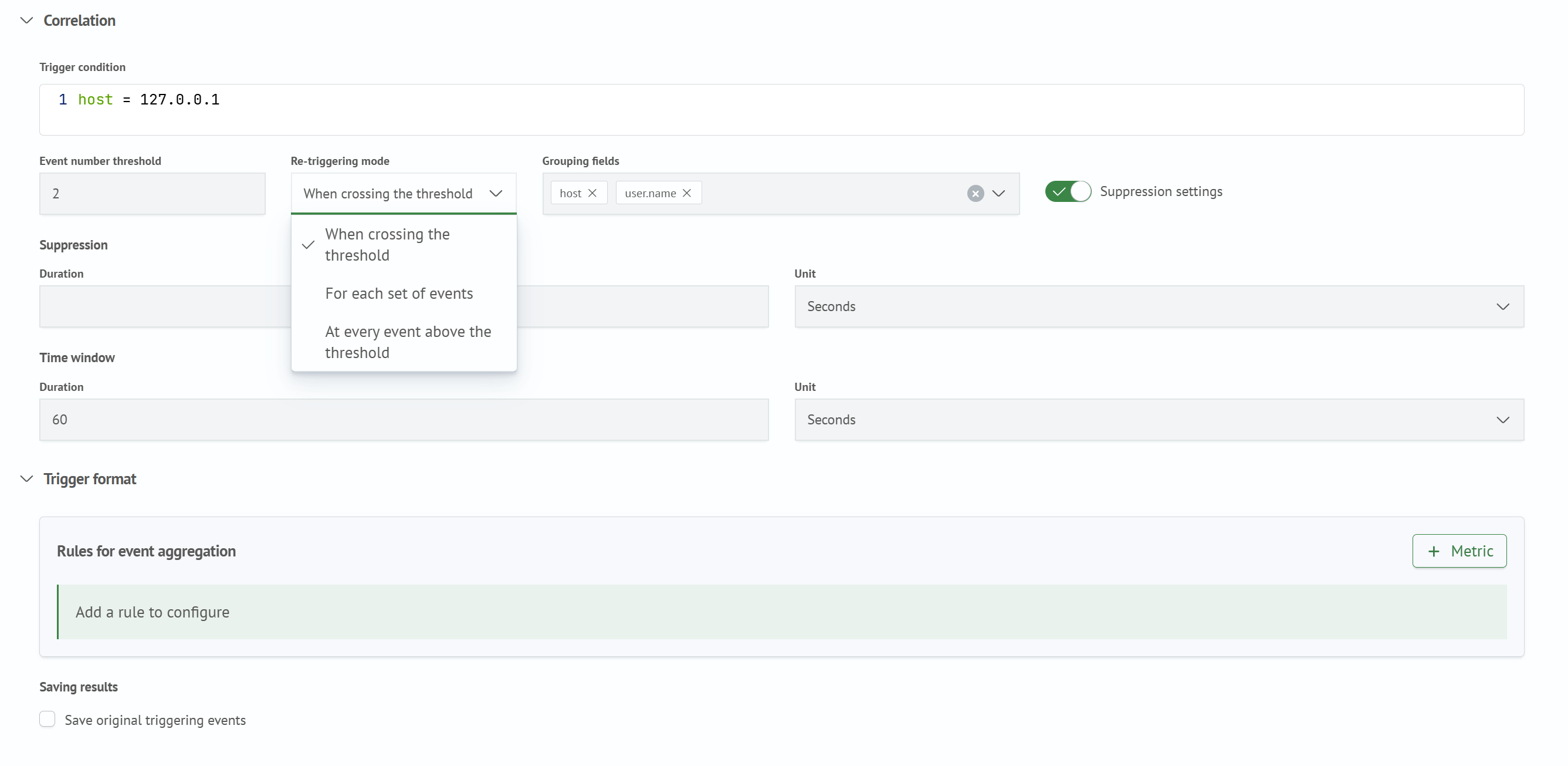
-
Select
Grouping Fields. The rule counts events separately for each combination of these field values, maintaining a separate counter and generating a separate firing for each group -
Set the
Time Windowusing theDurationandUnitfields. This is the interval during which the rule accumulates events for comparison with the threshold -
If necessary, enable
Suppression Settings, and complete theDurationandUnitfields in theSuppressionsection that appears. After a firing, subsequent firings for the same group are suppressed for the specified period. ADurationof0disables suppression
Firing Format
On the Firing Format tab, define the contents of the firing document:
-
If
Event Count Thresholdis greater than one, add metrics inEvent Aggregation Rules. TheMetricbutton adds a row containingSource Field Name,Function, andEvent Field. Each metric reduces the events in the window to one value, which is written to the firing document under the name specified inSource Field Name. Metrics are required whenEvent Count Thresholdis greater than one and prohibited when the threshold is one. Unlike aggregation rules, declarative rules do not support a filter for an individual metricThe
Functionfield offers functions in the following order:count,sum,min,max,avg,dc,values,median,p95,p99,variance,stddev,first,last,earliest,latest,rateEvent Fieldis required for every function exceptcountandrate. If a field is specified forcountorrate, only events containing that field are included in the calculation.
-
If necessary, select
Save Source Events for Firing, and enter aSource Event LimitinResult Storage. When the checkbox is selected, the correlator saves the events included in the firing and sends them to Smart Monitor. The default limit is100, and the maximum is1000. If the limit is exceeded, the most recent events are retained -
Click
Saveto create the rule