Active Actions
Overview
An active action defines how a script is called by Smart Monitor users. The action card sets:
- the title and description the user sees when selecting and running the action
- action fields: which input parameters are shown to the user, which of them can be changed at launch, and which are set by the administrator in advance
- scopes: the modules where the action is available for configuration and launch
You can create several actions for different tasks on the same script: for example, one for manual launch by an analyst with a form of several fields, and one for scheduled automatic launch where all values are set in advance.
Action Types
- Script-based actions — created by the administrator based on scripts
- System actions — shipped with Smart Monitor modules; their input and returned parameters are defined by the module
Active Action List
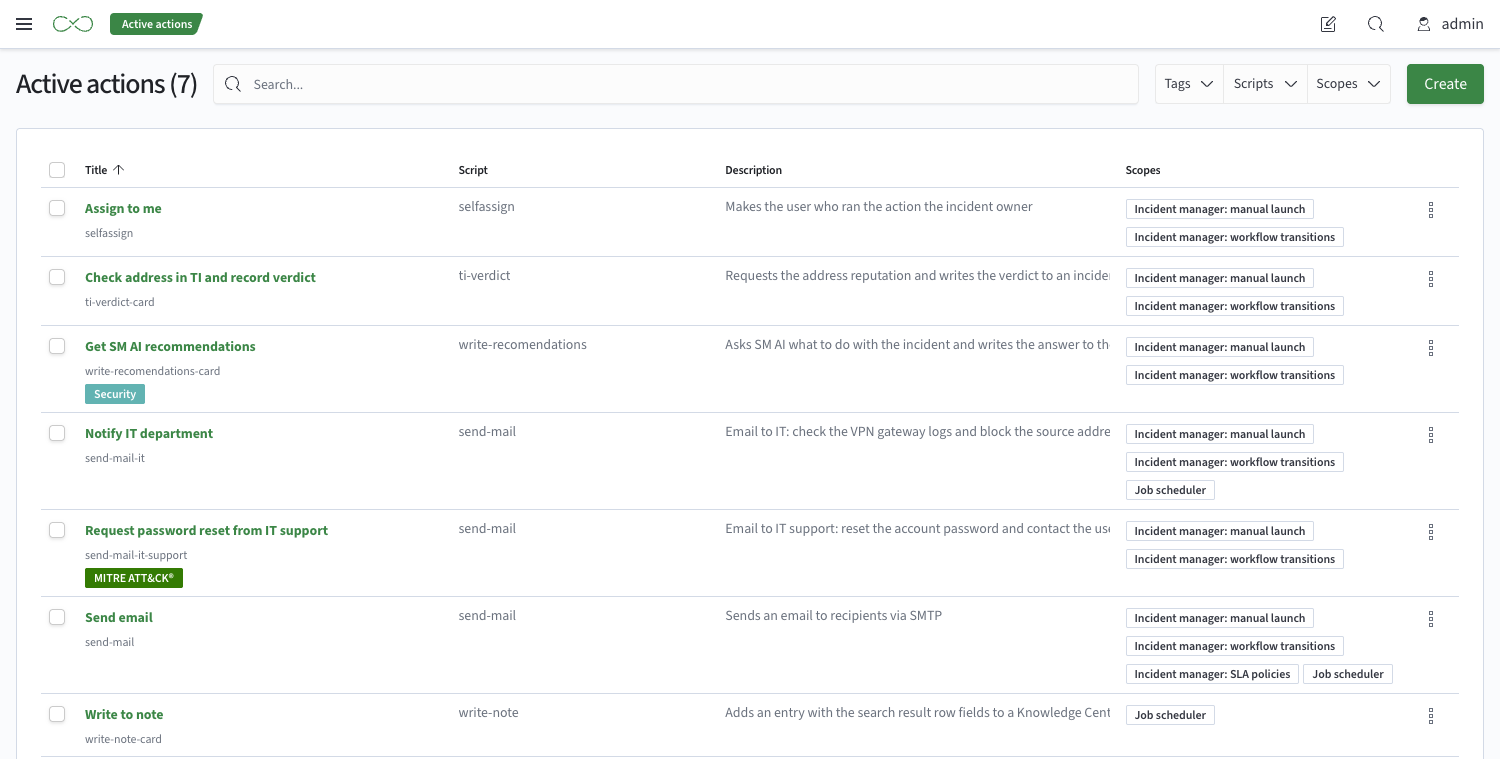
To open the list, go to Main Menu - Active actions - Active actions.
For each action, the table shows:
- the action title and identifier
- the source — the script the action is based on
- the description
- the scopes
The list can be filtered by scripts and scopes. To open an action card, click its title. Bulk operations are available for several selected actions, such as changing tags or deleting them.
Creating an Action
To create an action, click Create. An action is created based on an existing script. First, the script selection window opens: for each script it shows the title, the number of input and output parameters and the number of actions already saved on it. You can search for a script by its identifier.
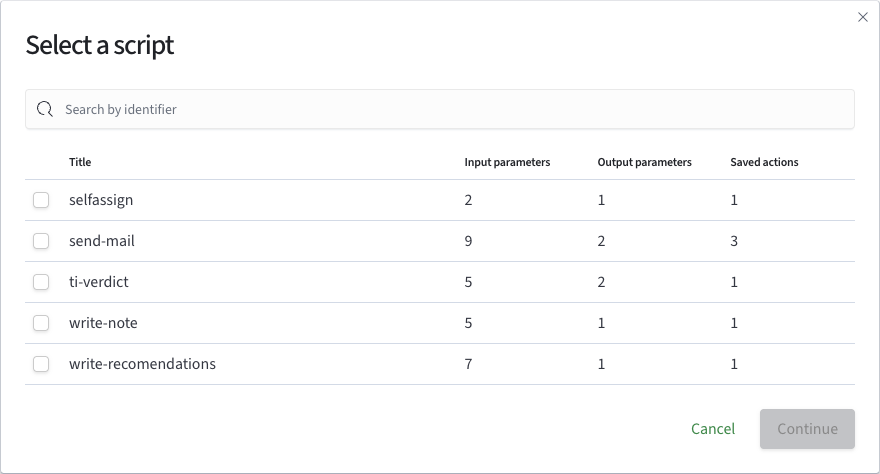
After you select a script, the new action form opens.
Action Card
The action card contains two tabs:
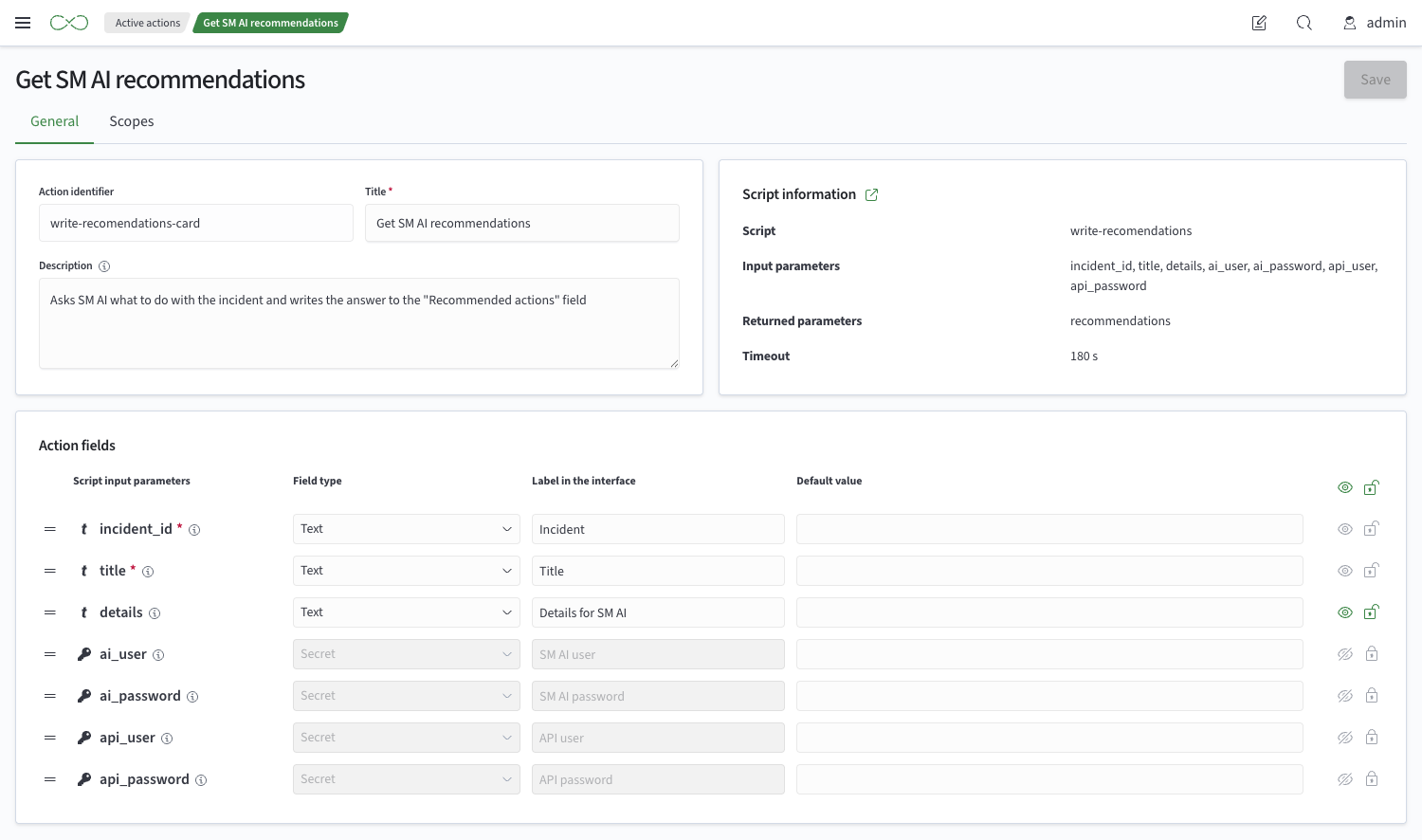
General— the title, description, script information and action fieldsScopes— the modules where the action is available
General Parameters
Title— shown in action selection lists and in the launch windowAction identifier— the unique action name that application points use to refer to the actionDescription— what happens when the action is run. Write the description for the user who will select and run the action
The Script information block shows what the action is based on: the script identifier, its input and returned parameters and the timeout. You can open the script card from this block.
Action Fields
Action fields define how script input parameters appear in application points and in the launch window. Each row of the Script input parameters table corresponds to one input parameter. An icon next to the parameter name indicates the type defined in the script, and required parameters are marked with an asterisk.
For each field, you set:
Field type— the input control:Text,Multiline text,Number,Date and time,Select,Multi-selectorSecret. The list of available types depends on the parameter type in the script, see belowLabel in the interface— a field name that is clear to the userDefault value— the value used to populate the field automatically- visibility and editability — see below
The parameter order defines the field order in the launch window and can be changed.
Field Type and Parameter Type
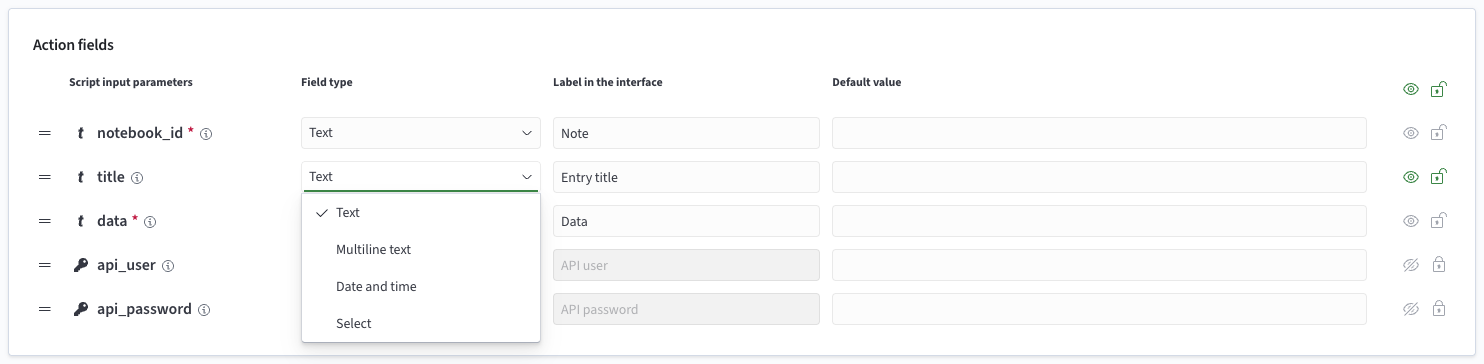
The field type is limited by the type of the script input parameter. The Field type list shows only the allowed options:
| Parameter type in the script | Allowed field type |
|---|---|
String | Text, Multiline text, Date and time, Select |
String, array of strings | Multi-select only |
Number | Number, Select |
Number, array of numbers | Multi-select only |
Boolean | Select only, with the true and false options |
Secret | Secret only |
The value of a Multi-select field is a list. At launch, the user can enter several values manually even if no options are defined. Fields of all other types hold a single value. When you change the field type, its default value is reset.
Boolean Parameters
A Boolean parameter uses a Select field with two static options: true and false. The field type, the option source, the number of options and their values cannot be changed. You can only set the option labels (for example, Yes and No) and the default option.
Visibility and Editability
Two flags are set for each field: whether it is visible to the user and whether the user can change its value.
Hidden fields are used for values that must not depend on the user.
If a parameter is required in the script but has no default value either in the script or in the action card, the field cannot be made read-only: it is always shown to the user and available for input.
The value of a field that the user cannot change cannot be overridden either at launch or in the incident type settings. If the value must differ for different incident types, allow editing of the field.
Select Field Options
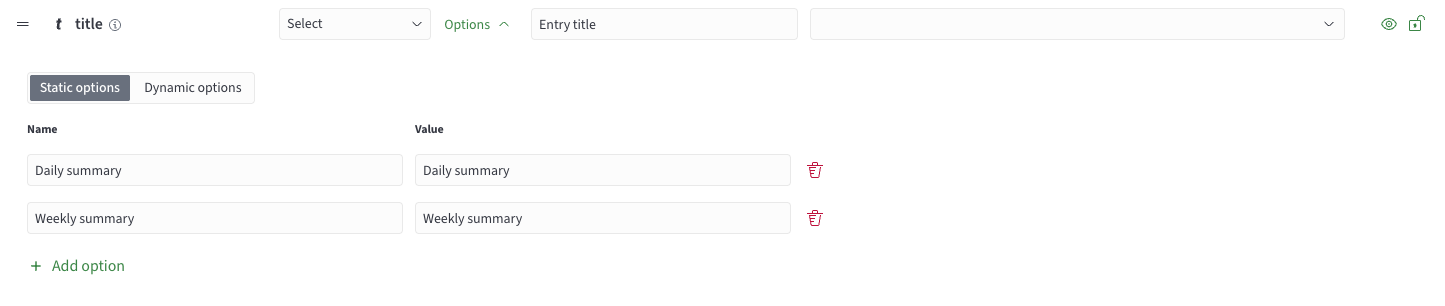
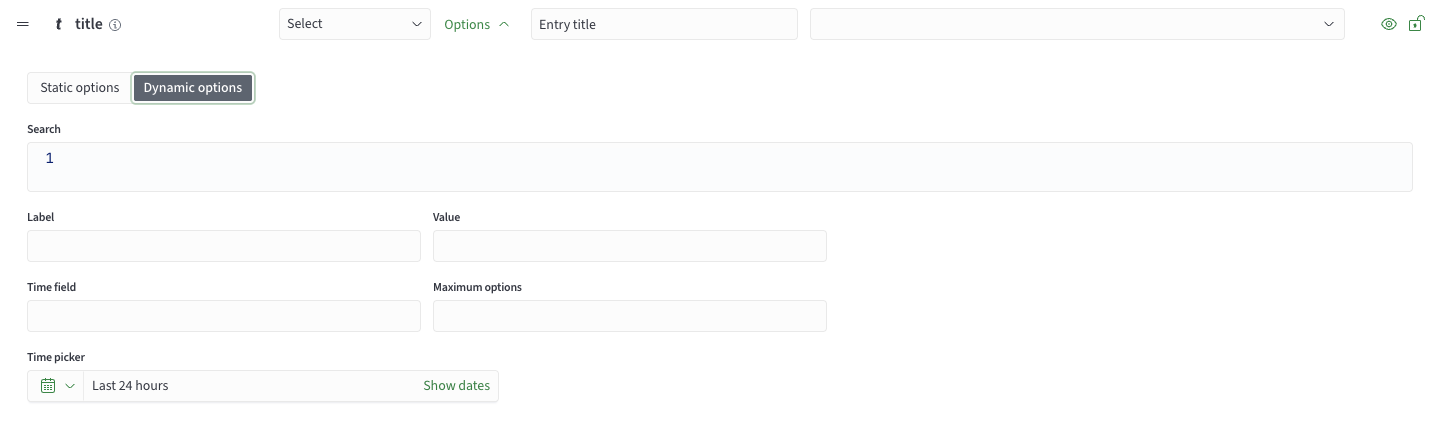
For Select and Multi-select fields, you configure the list of allowed values. Options are of two kinds:
- static — the list is defined manually
- dynamic — the list is built from Smart Monitor data when the form opens
The value of a static option of a Multi-select field must match the type of the array elements: for an array of numbers, you can enter only a number; for an array of strings, only a string.
Secret Fields
The value of a Secret field is not shown in forms: in the launch window, such a field is always empty. Use secret fields for tokens and passwords that must not be visible to users.
The field type, visibility and label cannot be changed. You can set a default value: it is stored not in the action card but in the keystore — the same way as the default value of a secret parameter in a script. The keystore key has the form sm.core.actions.secrets.<action identifier>.<parameter identifier>, where both identifiers are base64url-encoded.
New Script Parameters
New input parameters of an existing script are automatically added to the active action with the following settings:
- the field is hidden and read-only, so the launch form does not change for users
- the default value is taken from the script if it is set there
- the field type is selected by the parameter type in the same way as when an action is created
- the label is taken from the parameter description
- the fields are added to the end of the list in the order the parameters are declared in the script
Existing fields of the card do not change.
Scopes
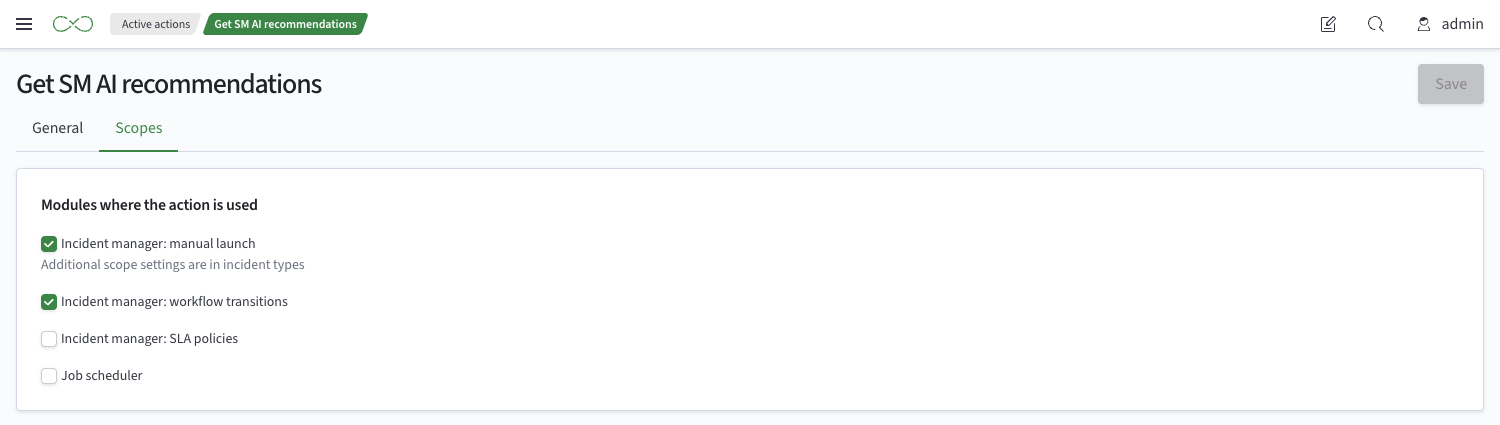
On the Scopes tab, you select the modules where the action is offered for configuration and launch:
Incident manager: manual launch— the action is available to the analyst in the incident menu. Passing values from the incident can also be configured in the incident typeIncident manager: workflow transitions— the action can be added to a workflow transition and run when the incident status changesIncident manager: SLA policies— the action can be selected for a time threshold of an SLA policyJob Scheduler— the action can be added to a search job
The action appears in the selection lists only of the modules selected in its scopes. For example, an action for manual incident investigation with a form of several fields is not offered in Job Scheduler.
If no scope is selected, the action is not available anywhere.
Permissions
Access can be configured both for individual active actions and for all of them at once.
For individual actions, access is configured with the Permissions button.
To view all active actions at once, grant the cluster permission cluster:admin/sm/sm_actions/read_all; to create actions — cluster:admin/sm/sm_actions/create; to change and delete them — the write permission cluster:admin/sm/sm_actions/write_all.
The read permission for an action is required not only to view it in the active action list, but also to be able to configure the action in application points: in a Job Scheduler search job, in an incident type, in an SLA policy and in a workflow transition.
Running an action in an incident does not require separate permissions: if the action is configured for the incident and the user can see this incident, the user can run the action.
To create an action based on a script, the read permission for this script or for all scripts (cluster:admin/sm/adhoc_scripts/read_all) is also required. For details, see Permissions in the article about scripts.