Module Selection
Module Management
Modules contain versions of content and the content itself for installation in SM. This step allows you to load, update, or delete modules.

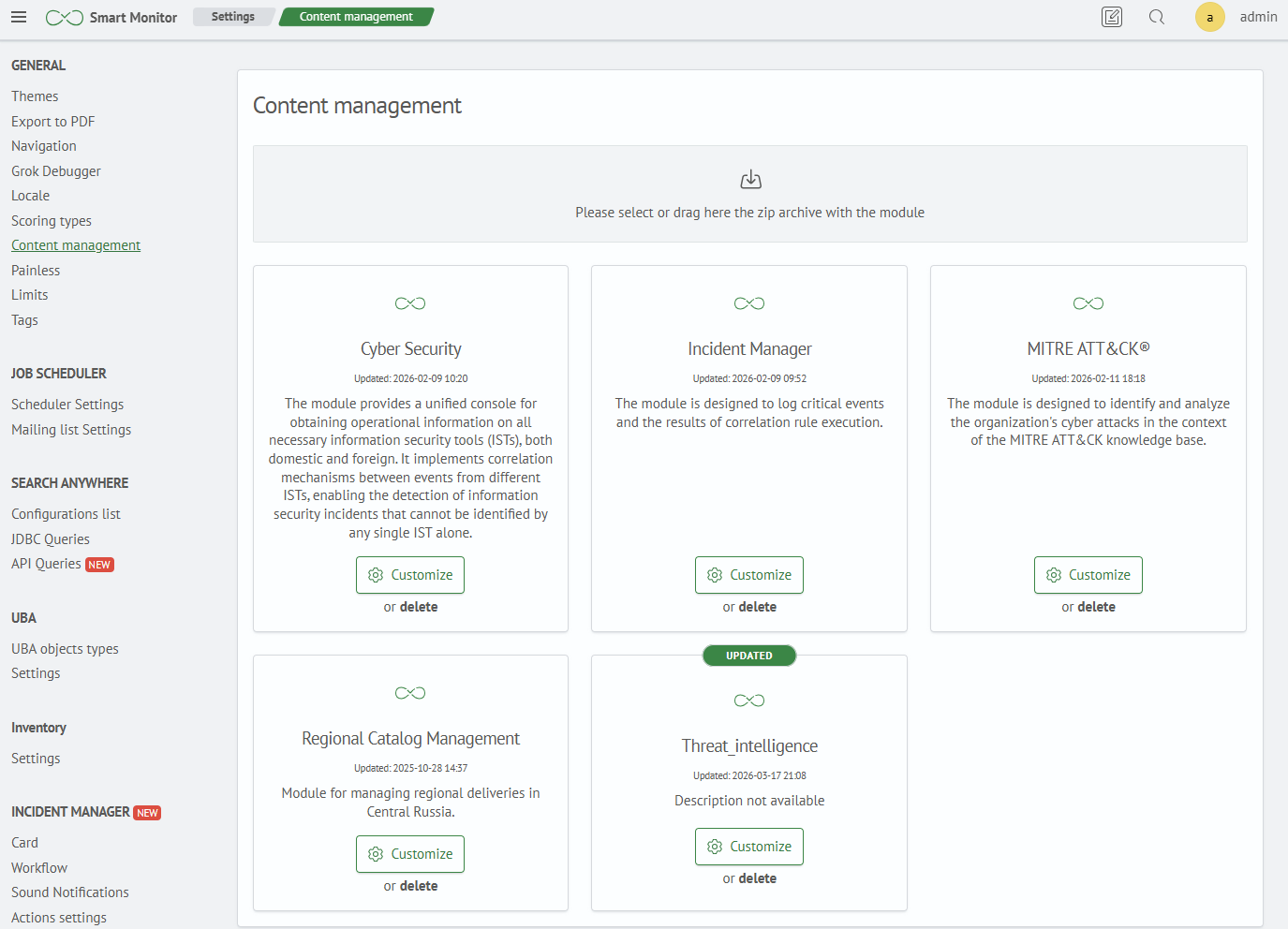
If there are no cards on the page and there is a message No modules loaded, you need to upload a module in ZIP file format.
Module Upload

You can upload a module using the upload form in one of the following ways:
- dragging and dropping the archive into the upload form area (Drag & Drop)
- manually selecting the file through the operating system interface by clicking on the upload form area
After uploading, the statistics of the content included in the archive will be displayed:
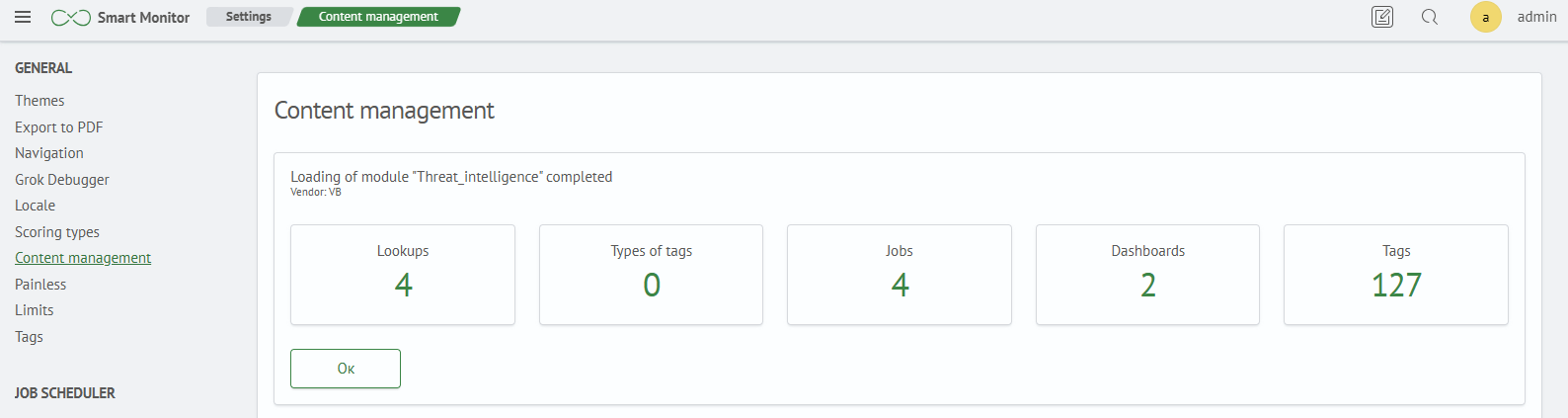
To proceed, click the OK button. A card with the uploaded module, marked with the label NEW, will appear on the page.
Module Update
The process of updating a module is similar to uploading it. The updated module will be marked with the label UPDATED.
Module Deletion
To delete a module, click Delete in the module's card.