Suppression
Suppression limits the execution of Active Actions for events found by a search job. For example, you can send a notification about a recurring event no more than once an hour or temporarily disable actions for events from a server undergoing maintenance.
In the job editor, the Suppression block is on the General tab in the Schedule section.
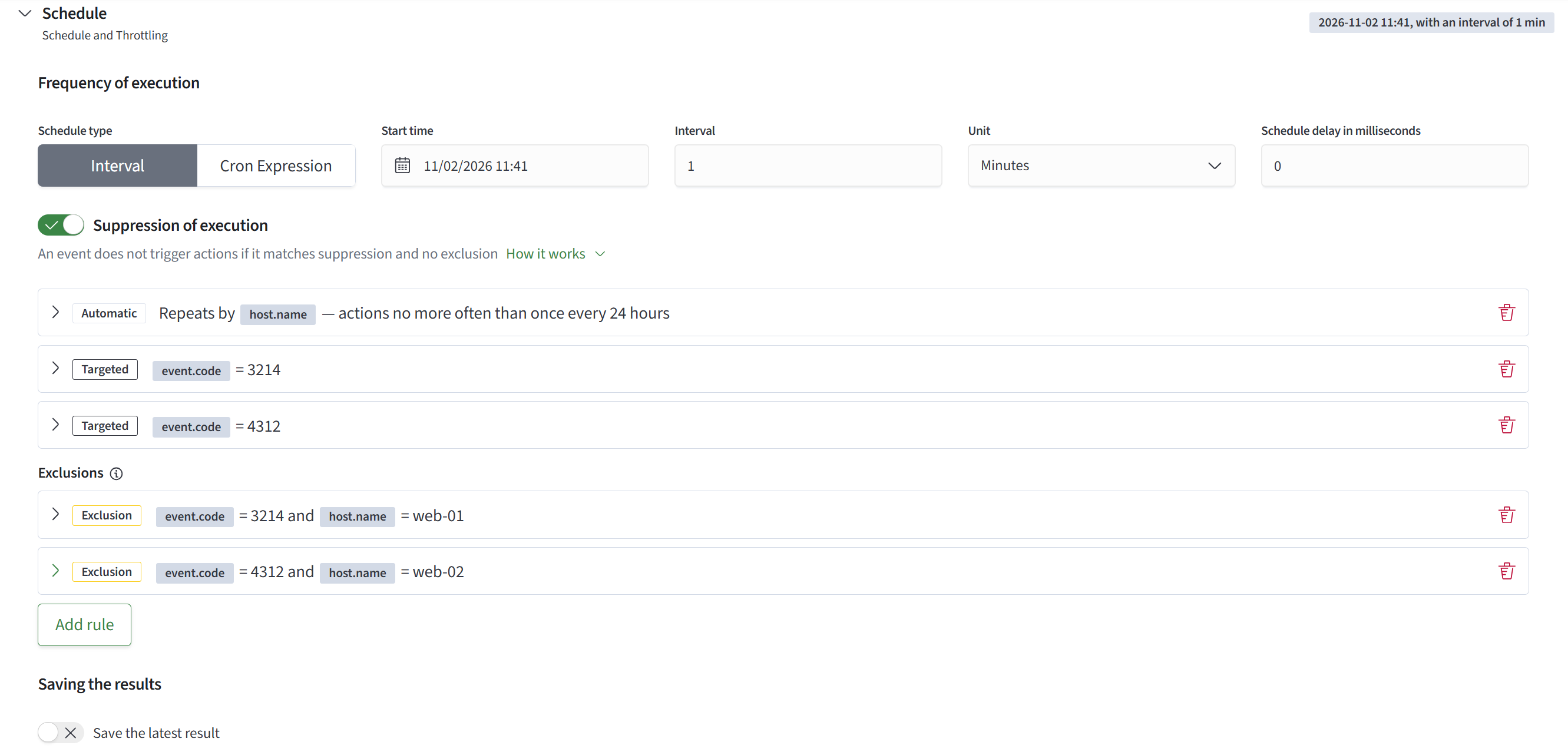
Choosing a rule
Turn on Suppression and select a rule type:
| Rule type | When to use it |
|---|---|
Automatic suppression | To limit the frequency of actions for events with the same values in selected fields |
Targeted suppression | To prevent actions for events with specified field values for a set period or indefinitely |
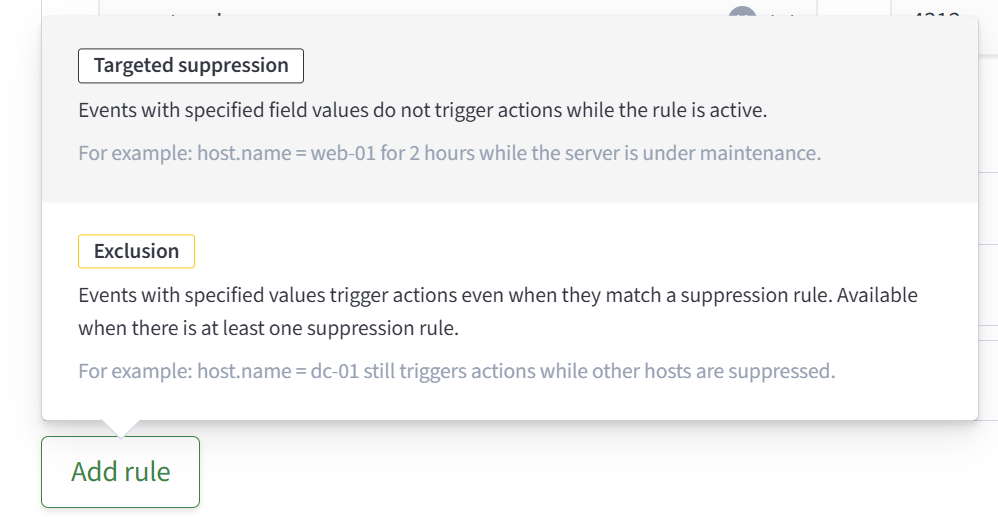
Exclusion | To allow actions for selected events even if they match a suppression rule |
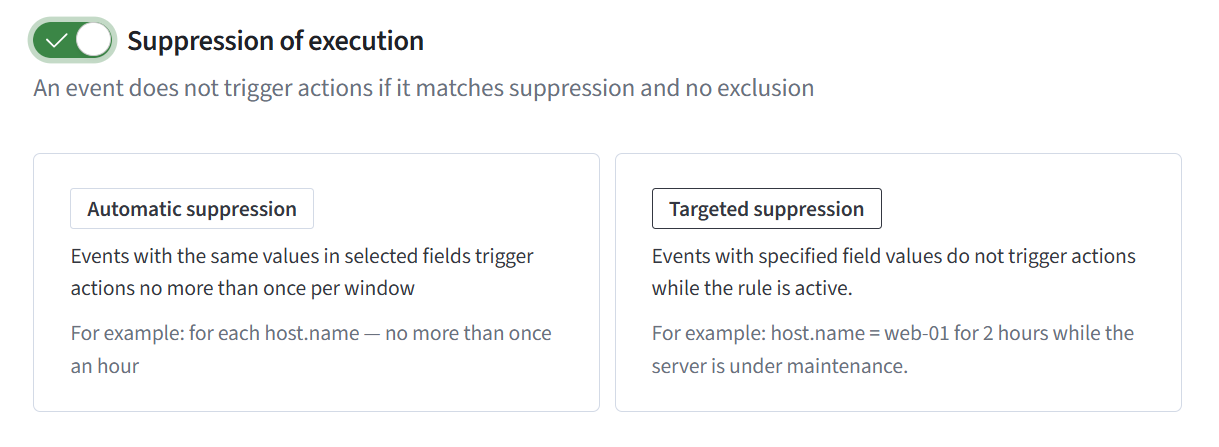
The first rule can be automatic or targeted suppression. You can then use Add rule to create more rules, including exclusions. A job can have only one automatic rule. Targeted suppression can be used without an automatic rule.
Saved rules appear in collapsed cards with their conditions and expiration. To change a rule, expand its card and edit it. Changes take effect after you save the job. The Reset button in an automatic rule performs a separate operation immediately after confirmation.
Automatic suppression

When an event passes the suppression check, an automatic rule creates an entry for a new combination of values in the selected fields. The entry is created before Active Actions run. While it remains active, another event with the same combination is not sent to Active Actions.
An entry does not mean that an action has already run for the event: actual execution depends on the Active Action settings.
To configure the rule:
- Select
Automatic suppression - Set
Suppression windowto an integer greater than zero and choose a time unit (seconds, minutes, hours, or days) - Add the names of the fields used to identify repeats. You do not need to enter their values
- Save the job
Each field can be added only once. If you select multiple fields, their combination of values is compared.
For example, select host.name and set a one-hour suppression window, with no targeted rules or exclusions. The first event with host.name = web-01 passes the check and creates an automatic entry. Further events from that host are suppressed while the entry is active. An event with host.name = web-02 has a different value and is checked independently.
If you add event.code, each combination of host.name and event.code is tracked separately.
Resetting accumulated suppression
To allow new triggers for previously suppressed combinations, click Reset in the automatic rule card and confirm.
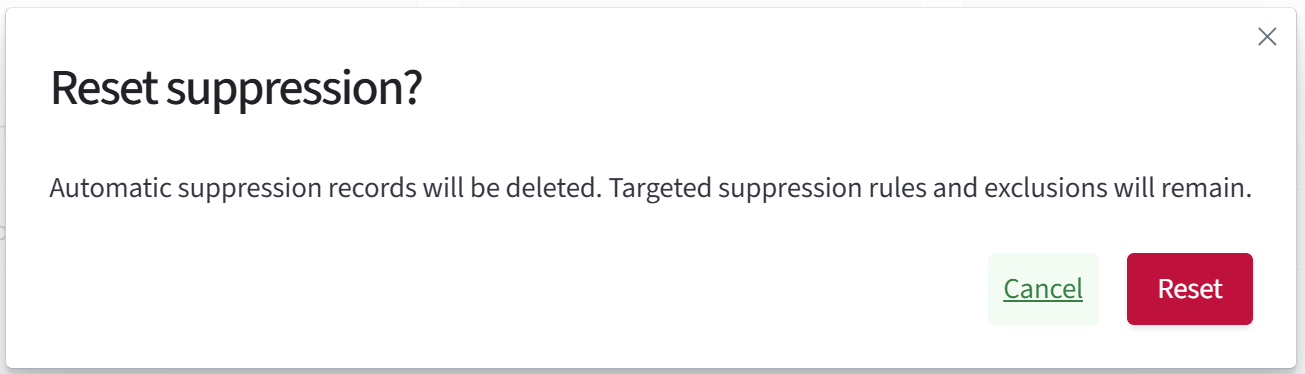
Resetting removes accumulated automatic suppression entries. The selected fields, suppression window, targeted rules, and exclusions remain unchanged.
After confirmation, the operation runs without clicking Save.
For an SP job, the reset affects all its clients.
Targeted suppression

A targeted rule prevents actions for events with specified field values while the rule is active. For example, you can suppress events with host.name = web-01 for two hours during server maintenance.
To add a rule:
- Select
Targeted suppression. If rules already exist, useAdd rule - Enter a name in
Fieldand the required value inValue - If needed, add more conditions using the
Fieldbutton with a plus icon - Set
ExpirationtoFor a periodorIndefinitely. For a period, enter an integer greater than zero and select minutes, hours, or days - Save the job
The rule applies when all its conditions match. For example, the conditions host.name = web-01 and event.code = 4625 suppress only events from that host with the specified code.
Within one rule, a field can be specified only once. To suppress two different values of the same field, create two rules.
Exclusions
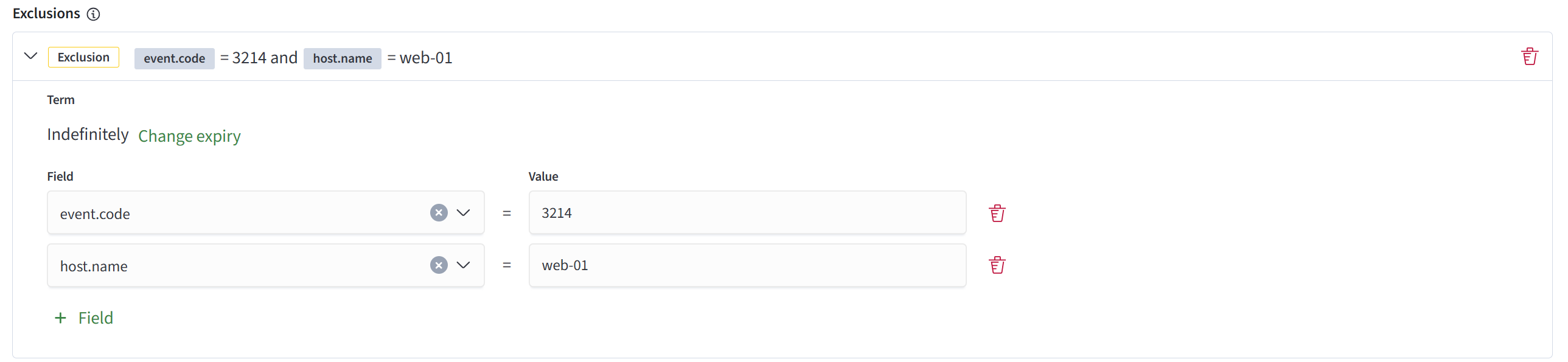
An exclusion allows actions for events that would otherwise be automatically or specifically suppressed. You can add one when the job already has at least one suppression rule.
Click Add rule, select Exclusion, and enter Field and Value pairs and an Expiration. Fill in the conditions and expiration as you would for a targeted rule. Then save the job.
For example, an automatic rule limits repeats by host.name to one trigger per hour. An exclusion with host.name = dc-01 allows actions for every event from that host.
Rule priority
The How it works link in the Suppression block explains the order of checks:
- If an event matches all conditions of at least one exclusion, it is sent to Active Actions. Other rules are not checked, and no automatic entry is created for that event
- If no exclusion matches but the event matches targeted suppression, it is not sent to Active Actions
- If an automatic rule exists and an active entry exists for the combination of values, the repeated event is not sent to Active Actions
- Otherwise, the event is sent to Active Actions. If an automatic rule is configured, an entry for the new combination is created before actions run. It remains active for the suppression window
Expired rules are ignored.
The job has three active rules:
- automatic suppression by
host.namewith a one-hour window - targeted suppression for
event.code = 4625 - an exclusion for
host.name = dc-01
There are no accumulated automatic suppression entries yet. Events arrive in this order.
| Time | host.name | event.code | Result |
|---|---|---|---|
| 10:00 | dc-01 | 4625 | The event is sent to Active Actions by the exclusion. No automatic entry is created |
| 10:01 | web-01 | 4625 | The event is suppressed by the targeted rule |
| 10:02 | web-01 | 4624 | The event passes the suppression check and is sent to Active Actions. An automatic entry is created for web-01 for one hour |
| 10:05 | web-01 | 4624 | The event is suppressed because the automatic entry created at 10:02 is still active for web-01 |
Subsequent events with host.name = dc-01 are also sent to Active Actions while the exclusion is active, regardless of event code or repeats.
SP job behavior
In Service Provider mode, an SP job runs for connected clients through child jobs.
Targeted suppression rules and exclusions added to the SP job's Suppression block apply to all its clients.
Automatic suppression entries are tracked separately for each child job. For example, an entry for host.name = web-01 for one client does not suppress events with the same value for another client. The second client's own automatic entries are checked.
Resetting automatic suppression from the SP job affects all its clients. Targeted rules and exclusions remain unchanged.
Changing expiration and deleting rules
The period of a targeted suppression rule or exclusion begins when you save it. A saved rule shows an expiration date or Indefinitely.
To change the expiration, expand the card and click Change expiration. Keep previous expiration cancels the change in the form. If you do not change the expiration, saving the job retains the previous end date.
To remove a rule, click the delete icon in its card and save the job.
Turning off suppression

Turn off Suppression and save the job to stop applying all rules. The cards are hidden, but the rules are retained.
Expiration periods for targeted rules and exclusions continue while suppression is off. Turning it back on does not restart them.
Viewing without write permission
If a user has no write permission for a job, the Suppression block is read-only. When suppression is on, the user can expand rule cards and view their conditions, suppression window, and expiration.
The Suppression switch and settings fields are disabled. The user cannot add, change, or delete rules or reset accumulated automatic suppression.
Suppression limitations
Keep these limitations in mind when configuring rules:
- a job can have only one automatic rule. All selected fields share one suppression window, and repeats are identified by their combination of values
- all conditions of a targeted rule or exclusion must match at the same time
- within one targeted rule or exclusion, each field has one value. Create another rule for a different value of the same field
- an exclusion takes priority over any suppression. If it covers all events of a targeted rule, that rule will not apply
- an exclusion has no effect without an active suppression rule
- identical rules are merged when saved, retaining the later expiration. If one rule is indefinite, the merged rule is also indefinite
- turning off suppression does not pause the expiration of targeted rules or exclusions. Expired rules do not apply after suppression is turned on again
If an error message says the job was saved but rule operations were not completed, save again to complete the remaining operations.
You can view the number of suppressed documents in run statistics.