Schedule Balancer
Overview
When many search jobs are configured, their runs may overlap and create peak load on the cluster. Schedule Balancer analyzes the run schedule, identifies intervals with the highest number of concurrent runs, and suggests a new schedule that reduces peak load.
Balancing is interactive: the system only suggests a new distribution, and the changes are applied after the user confirms them.
Opening Schedule Balancer
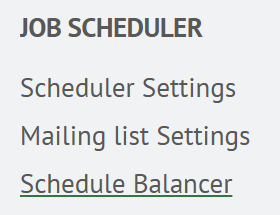
Go to Main Menu - System Parameters - Module Settings. On the page that opens, select JOB SCHEDULER -
Schedule Balancer.
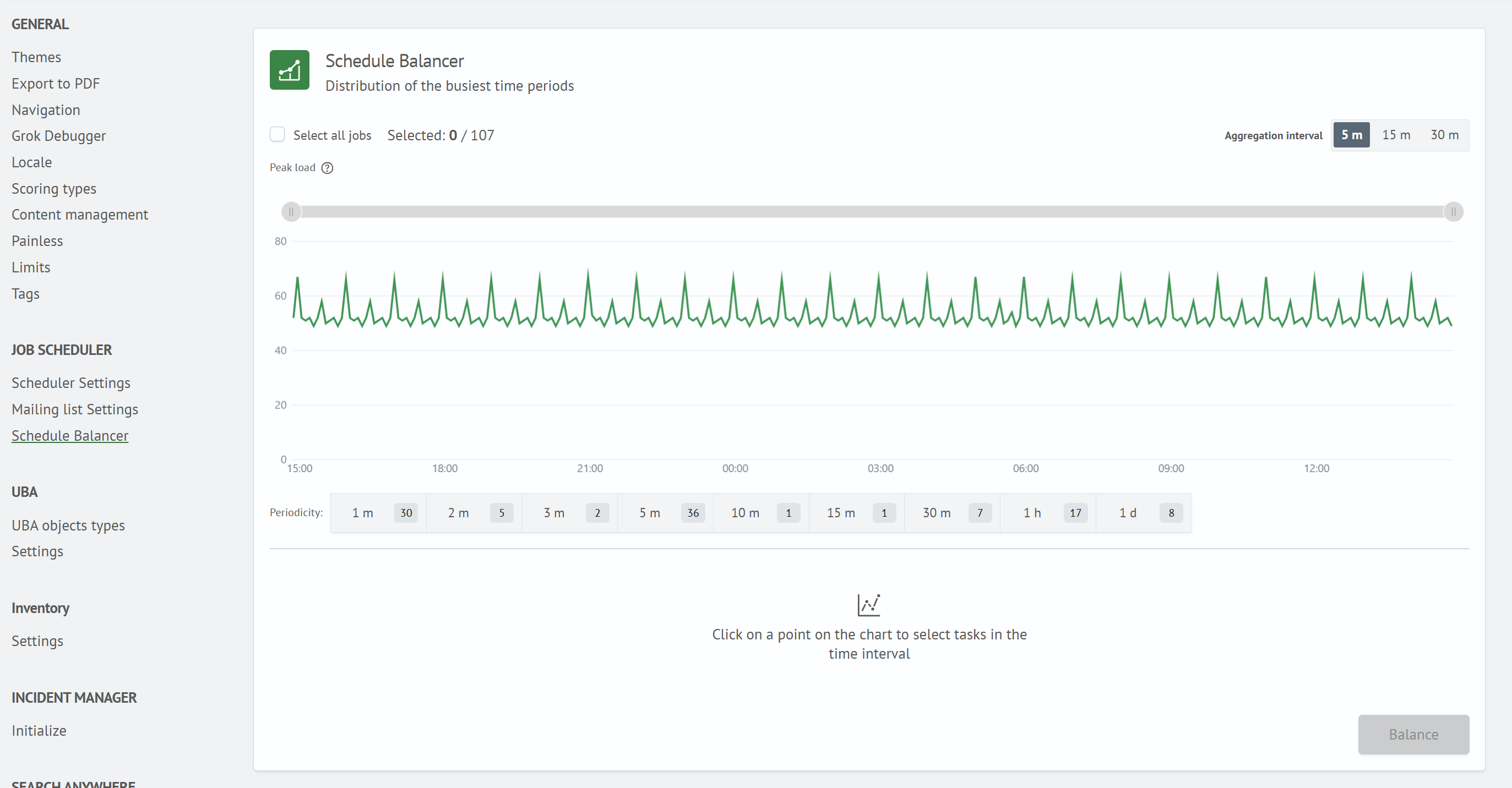
The Schedule Balancer page opens with a chart showing the distribution of job runs over a 24-hour period. The
Periodicity filter is located below the chart. The job list appears after you select an interval on the chart.
Viewing the Distribution and Selecting Jobs
Run Distribution Chart
The chart shows peak load over a 24-hour period. Each point represents the maximum number of concurrent job runs within an aggregation interval. The horizontal axis shows the time of day without dates, and the vertical axis shows the number of concurrent runs.
An explanation of the chart is available from the icon next to Peak load.
Use the 5 min., 15 min., and 30 min. buttons on the right side of the panel to change the aggregation interval.
The default and minimum available interval is 5 min..

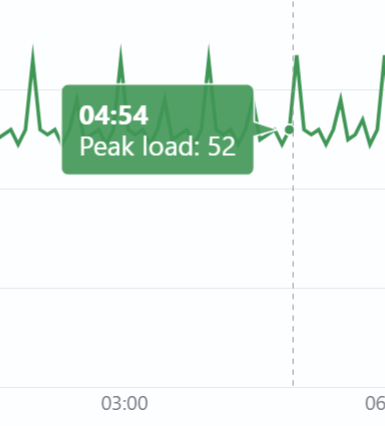
When you hover over the chart, the closest interval point and a tooltip with its time and peak load value are displayed.
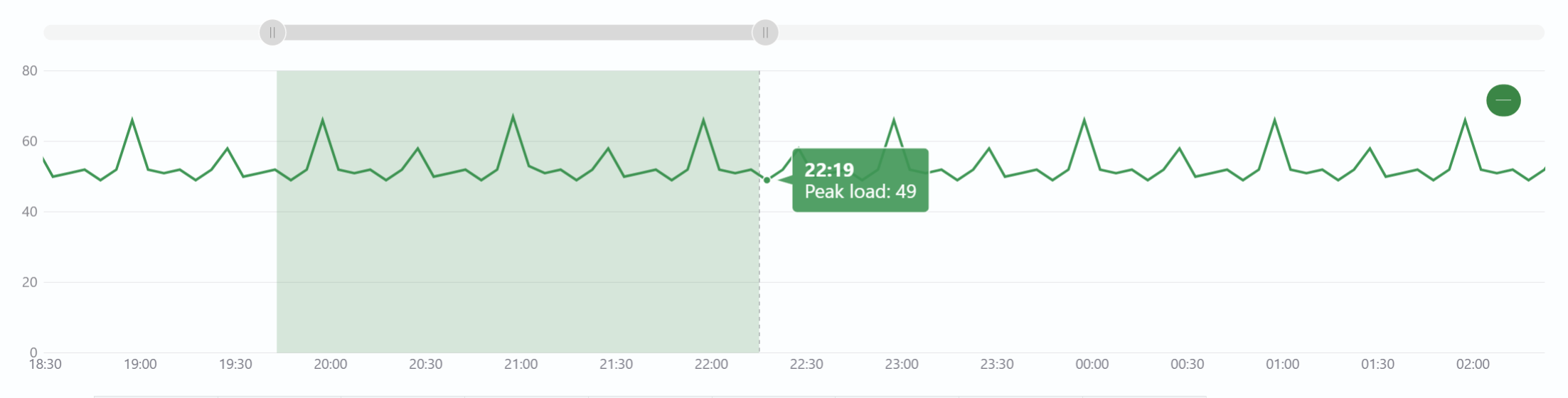
Use the slider above the chart to limit the displayed time range. When you zoom in, points remain visible and labels appear more frequently on the time axis. You can also select a time interval directly on the chart.
Jobs in an Interval
Click a point on the chart to open a panel listing the jobs in the selected interval. The panel header displays the interval date and time and the number of jobs in it.
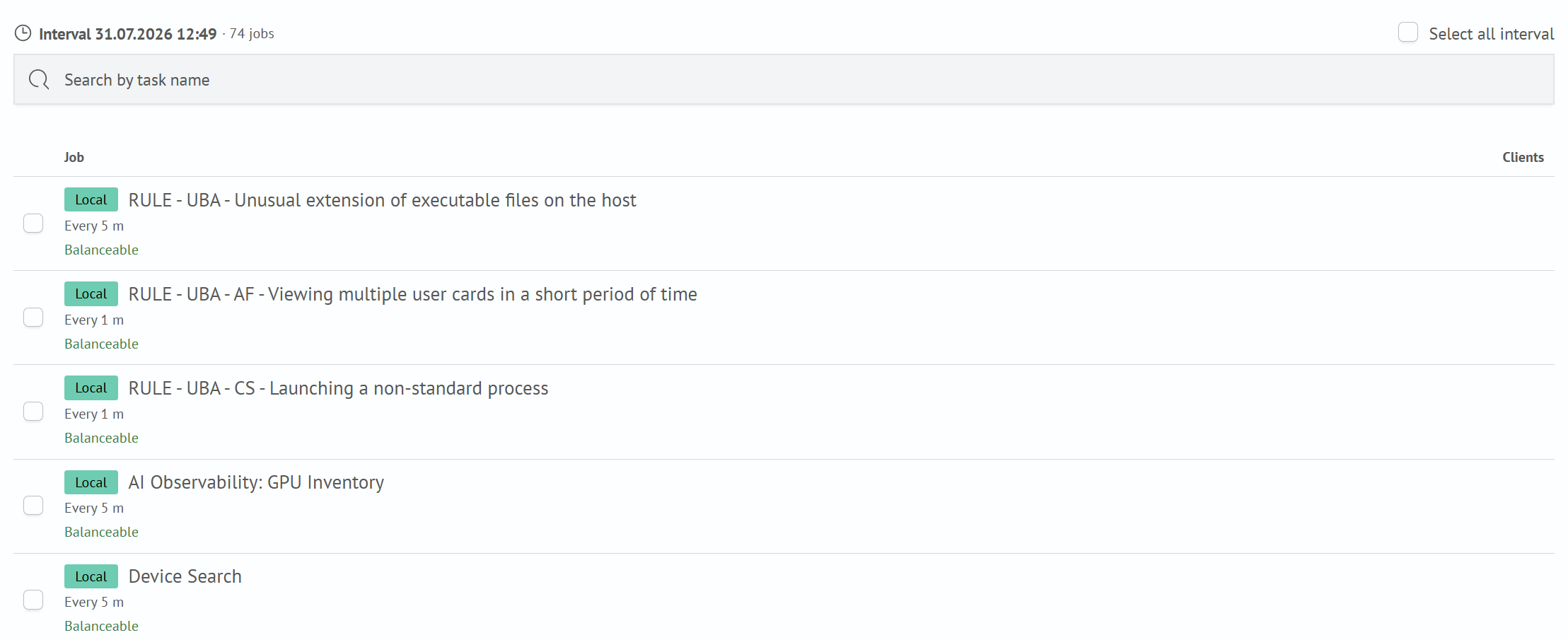
The panel contains:
- the
Search by task namefield for searching within the interval - the
Select all intervalcheckbox for selecting all jobs in the list - the
JobandClientscolumns; the latter is populated for SP jobs that run on multiple clients - pagination controls with a page size selector
A type badge, such as Local, is displayed next to the job name. The run periodicity and balancing status are displayed
below the name:
Balanceable- a job with a regular schedule whose run time can be changedNon-balanceable- a job with an irregular schedule whose run time is not changed
An explanation of Non-balanceable is available from the icon next to the label.
Selecting Jobs for Balancing
You can balance the entire list, individual jobs, or jobs with a specific periodicity:
- entire list - select the
Select all jobscheckbox - by interval - click a point on the chart and then select
Select entire intervalor select individual job checkboxes in the panel that opens - by periodicity - use the
Periodicityfilter; click a period, such as1 min.or5 min., to select all balanceable jobs with that periodicity
The number of jobs with each schedule is displayed next to the corresponding period. When jobs with a given periodicity are selected, the counter is highlighted and displays the number of selected jobs.

The Selected counter in the upper-left corner of the page shows the number of selected jobs relative to the total
number. Click Reset selection to clear the job selection.

The Balance button is enabled only when at least one job is selected.
Previewing and Applying the Schedule
After you click Balance, the system searches for an optimal schedule and switches the page to preview mode. The chart
displays two lines:
Current schedule- a dashed line showing the current distribution of job runsBalanced schedule- a solid green line showing the suggested distribution
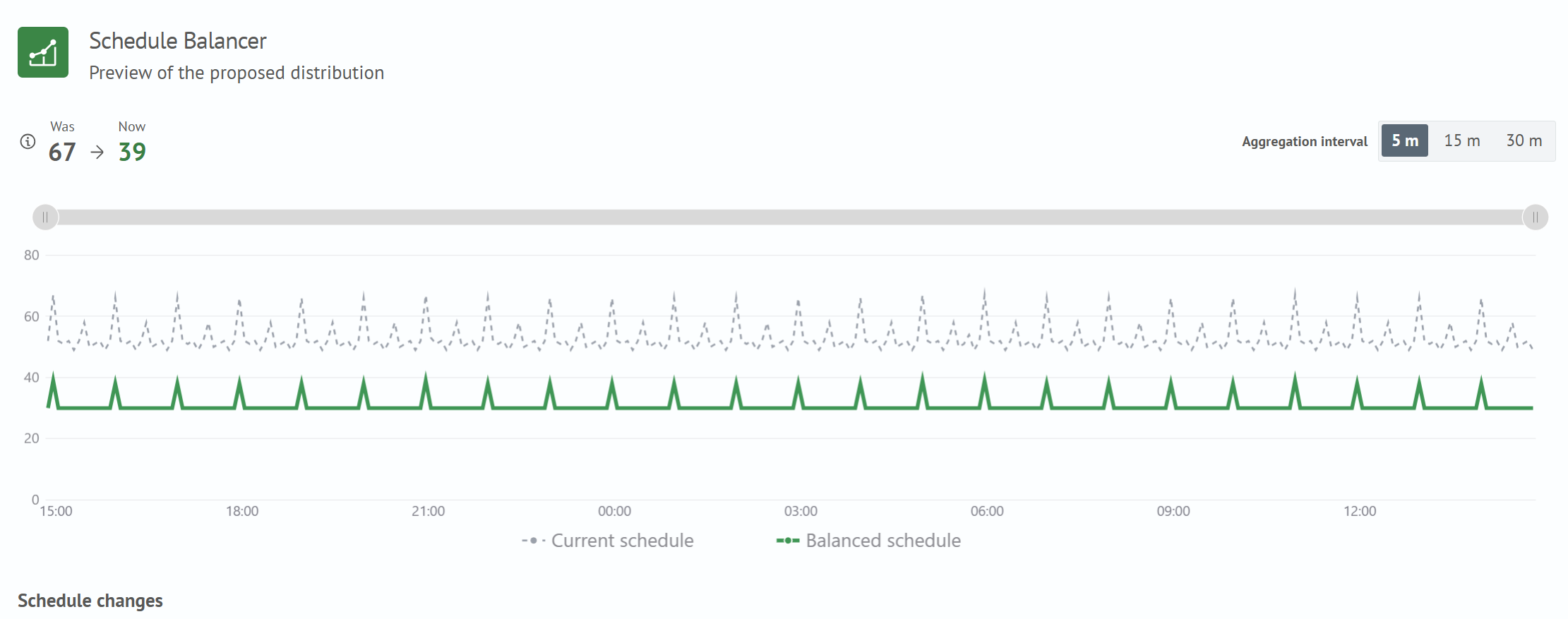
The Before and After values in the upper-left corner of the page show peak load before and after balancing. An
explanation is available from the icon next to these values.
Below the chart, the Schedule changes table contains the Name, Current schedule, and Balanced schedule columns.
The schedule columns show the cron expression and its description. For jobs that run every minute, the offset is also
displayed, for example, Offset: 30 sec.. All jobs are selected by default. Clear the checkboxes for jobs whose
schedules should not be changed.
For some jobs, the suggested schedule may be the same as the current one. Search by name and pagination work in the same way as in the interval jobs panel.
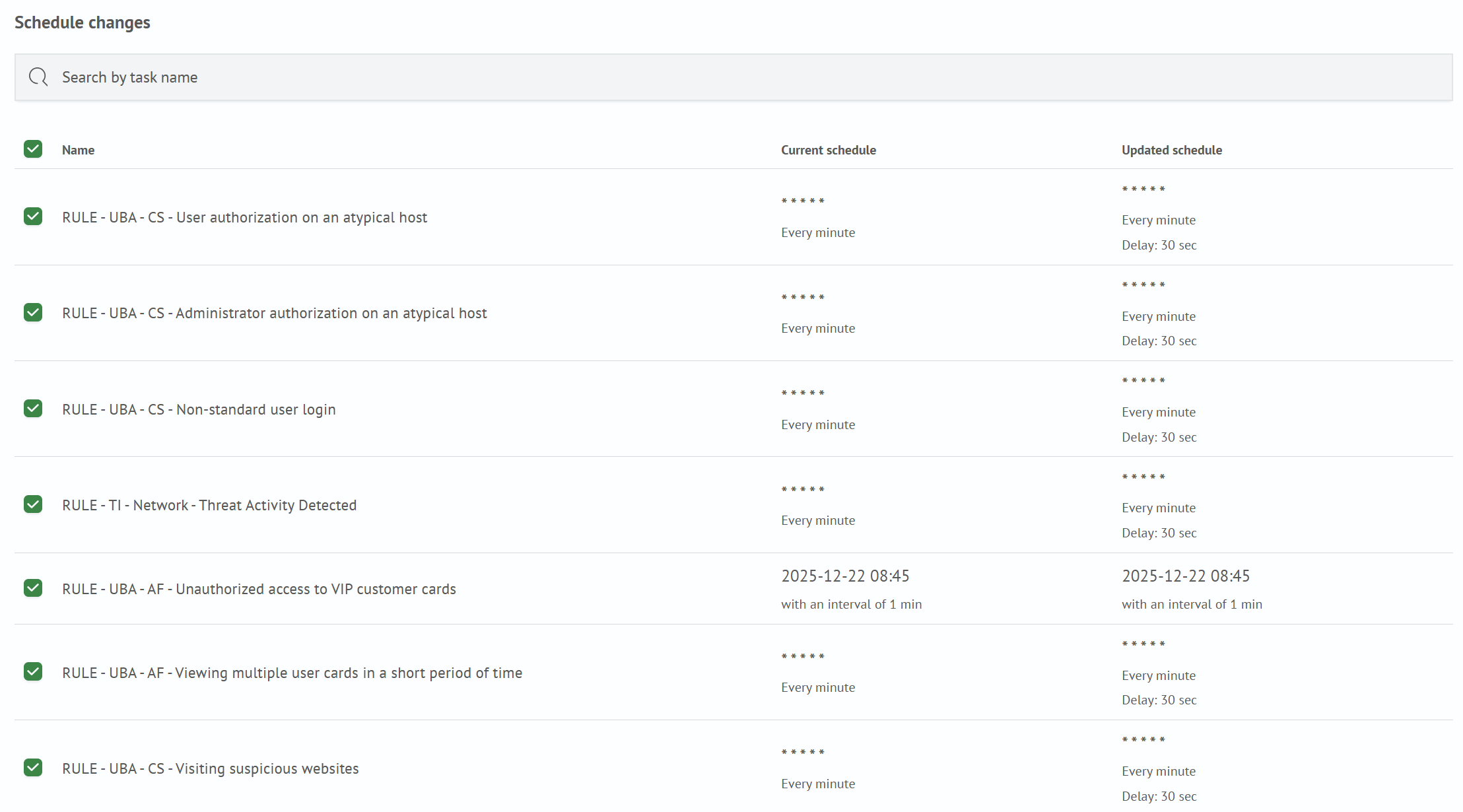
The following actions are available:
Save- apply the suggested schedule to the selected jobsBack- return to job selection without applying changes
If the selected jobs do not require changes, the table is replaced with the message The schedule is already balanced - no changes are required.
Job schedules are changed only after you click Save. Leaving the page at any step does not apply any changes.
How the New Schedule Is Generated
Schedule Balancer selects a new run time for each job according to the following rules:
- the new run time is written to the job schedule's cron expression
- jobs that run every minute are distributed across seconds within the minute; the shift is written to the job's
Offset in secondsfield - jobs with irregular schedules, such as one-time jobs or jobs scheduled for specific dates or days of the week, are not balanced but are included in load calculations
- SP jobs that run on multiple SP clients are weighted by the number of clients and distributed as a single group
The Offset in seconds field can also be configured manually in the Schedule section when editing a job. For more
information about job configuration, see Job Scheduler.
Distribution Algorithm
Schedule Balancer is deterministic: new run times are calculated algorithmically without random distribution. Therefore, balancing the same set of jobs always produces the same result.
The timeline is divided into fixed-size slots. The analysis horizon is the least common multiple of all job periods, subject to an upper limit. The number of concurrent runs is calculated for each slot. Jobs with irregular schedules are treated as fixed load, and balanceable jobs are placed in slots that are not occupied by them.
For each balanceable job, an offset is selected in the range from 0 to period - 1. A job with offset s starts
in slots s, s + period, s + 2 × period, and so on until the end of the horizon. For each possible offset, the
algorithm evaluates the busiest of these slots and selects the option with the lowest peak.
Jobs are placed in ascending order of period. Jobs with shorter periods have fewer possible offsets, so these most constrained jobs are placed first while more slots are available. Jobs with longer periods are more flexible and are fitted into the remaining slots. SP jobs are placed as a group with one offset for all clients, while local jobs are placed individually. The load map is updated after each placement, so every subsequent job accounts for slots that are already occupied.
Jobs with irregular schedules do not participate in balancing, and their run times are not changed. However, they are included as load when the new schedule for other jobs is calculated.
Limitations
- Schedule Balancer considers only Job Scheduler jobs; load from other Smart Monitor components is not included in the analysis
- Schedule Balancer considers only enabled jobs; disabled jobs are not included in the schedule analysis
- the minimum chart aggregation interval is 5 minutes