Graph
Description
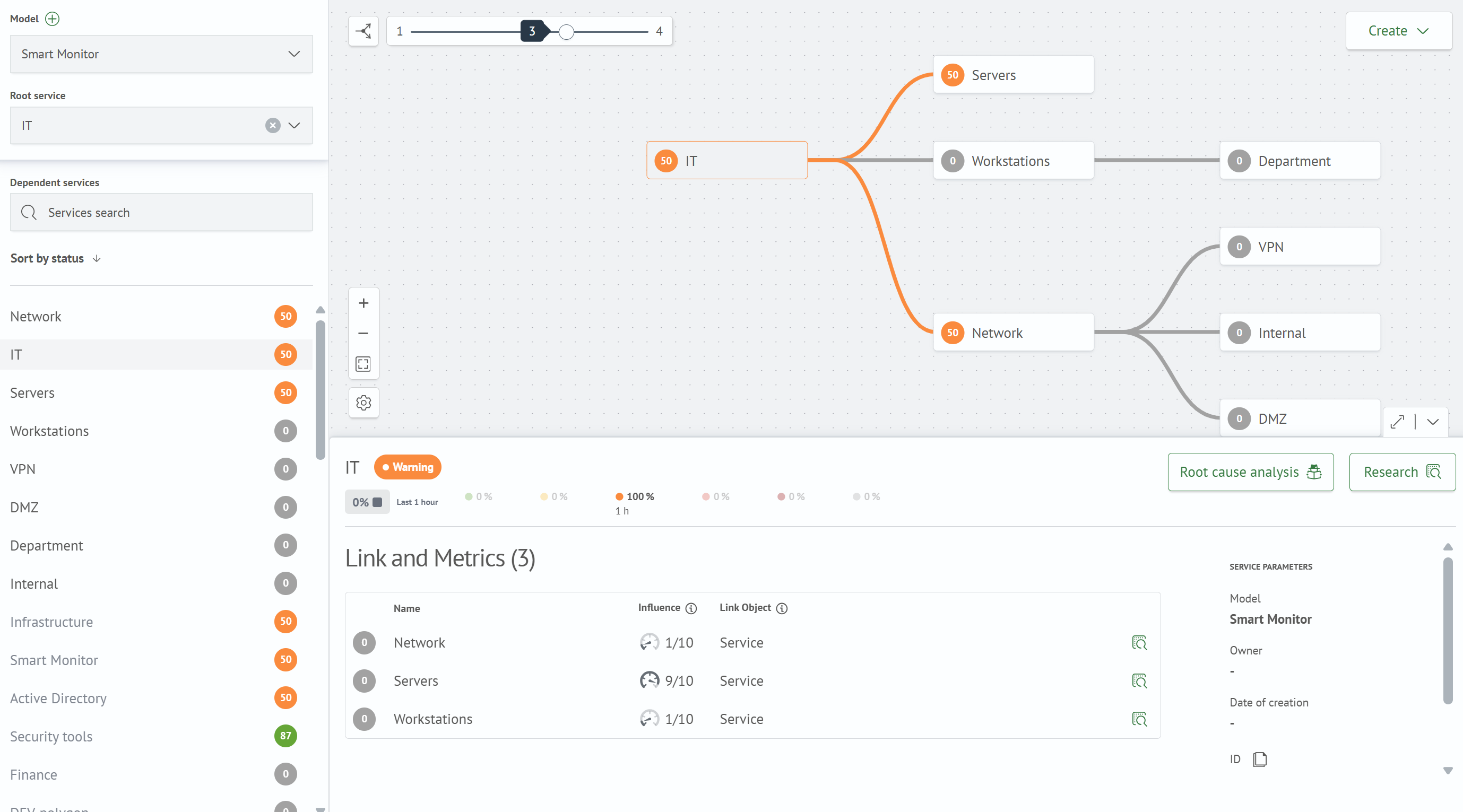
Graph is a visual representation of the Health Model. The shortened name "model" is used throughout this article. The graph shows services as nodes, connections between them, and the current state of each service.
The graph page consists of three main areas:
- left panel for selecting a model, root service, searching, and working with the service list
- graph canvas for viewing connections, managing depth and scale
- bottom service panel, which opens when a service is selected
Key Features
The graph allows you to:
- view current service states
- visualize connections between services from left to right
- select a model for viewing
- focus on a branch of the selected root service
- search for services among visible graph nodes
- sort services by state
- change the graph display depth
- expand child and parent branches of individual services
- open brief or full cards of the selected service
- create services and metrics from the graph workspace
- automatically update graph data at a specified interval
Left Panel
The left panel is used to select a model and navigate through services of the current graph.

Main panel elements:
- Model — dropdown list for selecting a model. The plus icon button next to the field name opens creation of a new model
- Root Service — service selection field, whose branch should be shown as the main one
- Dependent Services — search for services that are currently visible on the graph
- Sort by Status — toggle switch for sorting direction of the service list
- Service List — list of services of the selected model with state indicator
Model Selection
After selecting a model, the graph loads its services and connections. The selected model is saved in the browser's address bar and local storage, so after refreshing the page, the last selected model opens. If the saved model is unavailable, the first model from the list is automatically selected.
When switching models, the selected service and root service are reset. The selected level is saved independently for each model.
Root Service
The root service limits the graph display to one branch. After selecting a root service, the graph shows this service and its child connections, recalculates the position of visible nodes, and automatically centers the branch.

The root service can be selected:
- in the
Root Servicefield - using the target icon on a graph node
- using the target icon in the service row on the left panel
- from the connections table in the bottom service panel
To reset the root service, clear the Root Service field, click the target icon on the root node again, or click the button to set maximum graph depth.
Selected service and root service are different operating modes. The selected service parameter is not transferred to the root service parameter.
Service Search and Sorting
The search field in Dependent Services searches for services among visible graph nodes. When entering a query, the list on the left is filtered, and the Enter key switches focus between found services.
The Sort by Status button changes the sorting direction. Services that are displayed on the graph are shown above hidden services. Hidden services remain in the list but are visually separated from visible ones.
When clicking on a service in the list, the graph centers on the corresponding node and opens the bottom service panel.
Graph Workspace
The workspace contains the graph canvas, depth controls, object creation buttons, scale management, and settings.

Nodes and Connections
Each node represents a separate service. The node displays:
- service health indicator
- service name
- root service selection button
- buttons to expand child or parent branches (if available)
Connections between services are directed from left to right. Connection color reflects the state of the influencing service (child).
When zooming out, the graph hides text inside nodes and leaves color indicators to maintain readability of the overall structure and optimize performance.
Branch Expansion
The + button to the right of a node expands one level of the child branch. After expansion, the + button is replaced with a - button. Clicking - hides the part of the child branch that was opened through this button.
The + button to the left of a node expands one level of the parent branch. After expansion, the + button is also replaced with a - button. Clicking - hides the expanded part of the parent branch.
For parent nodes, only one-level expansion is available. Sequentially expanding a parent branch, like a child branch, is not possible. To rebuild the graph from a parent node, make that node the root.

Graph Depth
The view depth slider controls the number of levels displayed on the graph.
If a root service is selected, the slider is limited to levels of its branch. This prevents selecting a depth where the root service or its child branch would not fall within the display area.
The Set maximum depth button expands to the maximum available depth of the current model, resets the selected service and root service, and then centers the graph.
Canvas Navigation
Navigation buttons are located at the bottom of the canvas:
+— zoom in on the graph-— zoom out of the graphFit to view— adjust scale and position so that visible nodes fit on the screen
The graph also centers automatically after initial loading, model change, root service selection, depth change, and root service reset.
Creating Services and Metrics
The Create button opens a menu for creating objects for the selected model.
Available actions:
- create metric
- create service from inventory
- create service manually
If no model is selected, creating a service from the graph is unavailable.
Graph Settings
The gear icon button opens graph settings.

Available options:
- How many levels to display when opening the page — initial graph depth
- Auto-refresh — enables or disables periodic data updates
- Interval — auto-refresh period in seconds
Depth and auto-refresh settings are saved in the browser's local storage.
Bottom Service Panel
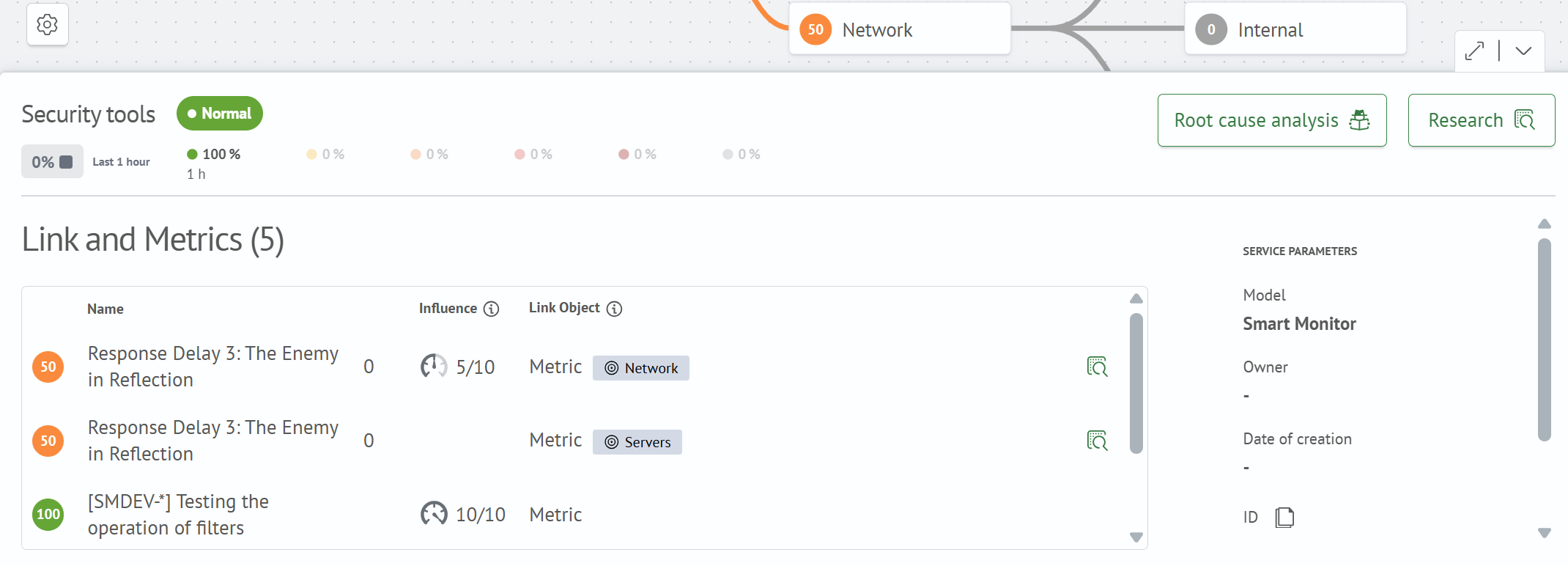
The bottom panel opens after selecting a service on the graph or in the list on the left. It shows a brief service card without leaving the graph page.
To close the bottom panel, click on an empty area of the canvas or the collapse button in the right part of the panel.
Main bottom panel elements:
- Service Name — link to the service view page
- Service Status — final state of the selected service
- Description — brief service description, if specified
- Dynamics and State Distribution — summary of state changes over the last period
- Connections and Metrics — table of dependencies and related metrics
- Service Parameters — technical information about the selected service
- Action Buttons — quick access to analysis and investigation of the selected service
The expand button in the right part of the panel opens the full service card in a modal window. The collapse button hides the bottom panel and returns the graph workspace to its normal size.
Service Actions
Actions are available in the right part of the bottom panel:
Root Cause Analysis— transition to analyzing the causes of state changes of the selected serviceInvestigation— transition to investigating the service with all its metricsSaved Investigations- transition to the list of investigations in which the currently selected service participates
Connections and Metrics
The Connections and Metrics block shows dependencies of the selected service and metrics associated with it. For each row, the state, name, and type of connection object are displayed.
The Impact column shows the degree to which an object affects the service status: a circular indicator with a priority value in the N/10 format, the absolute label, or an empty cell if the object does not affect the calculation. For more information, see Service details.
From the table, you can select a related service as root to rebuild the graph around its branch. If the row refers to a metric, the action opens the related metric drilldown.
Resetting Selected Service
The selected service is reset when:
- clicking on an empty area of the canvas
- selecting another service
- selecting a root service
- changing the model
- setting maximum graph depth
When normally selecting a service, the parent branch is not collapsed. Branch reset is performed only when explicitly selecting a root service, changing the model, or setting maximum depth.
Saving State
The graph page writes the main viewing parameters to the address bar. Such a link can be sent to another user to open the graph with the same model, selected service, and root service.
Parameters used:
modelId— selected modelserviceId— selected service and open bottom panelrootServiceId— selected root service
If serviceId and rootServiceId are passed in the link, they are applied as independent parameters. The selected service does not automatically become the root.