Export Jobs: Overview
An export job generates a PDF version of the selected dashboard and emails it to the specified recipients. A schedule lets you repeat the delivery automatically. For example, a job can send a team regular reports on dashboard metrics without manually exporting the dashboard and sending an email.
A job stores the dashboard, recipients, email subject, filter settings, and schedule. You can create multiple jobs for one dashboard to send different reports or reach different recipients.
Use the Export button on the dashboard page to download a PDF once. For details, see PDF Export. To send a PDF by email, use an export job.
Contents
Accessing Export Jobs
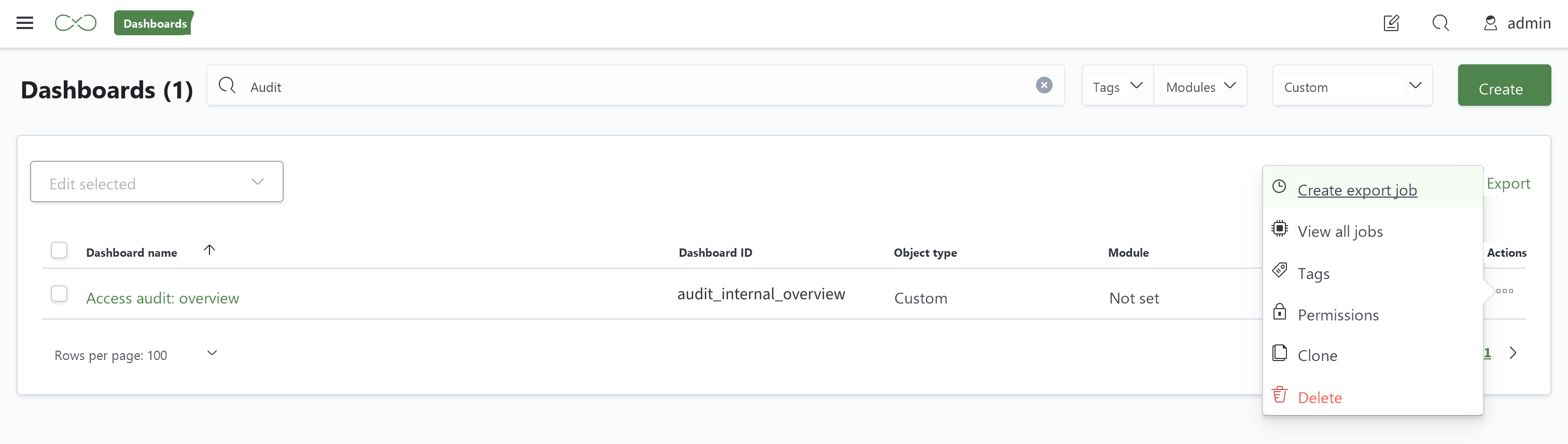
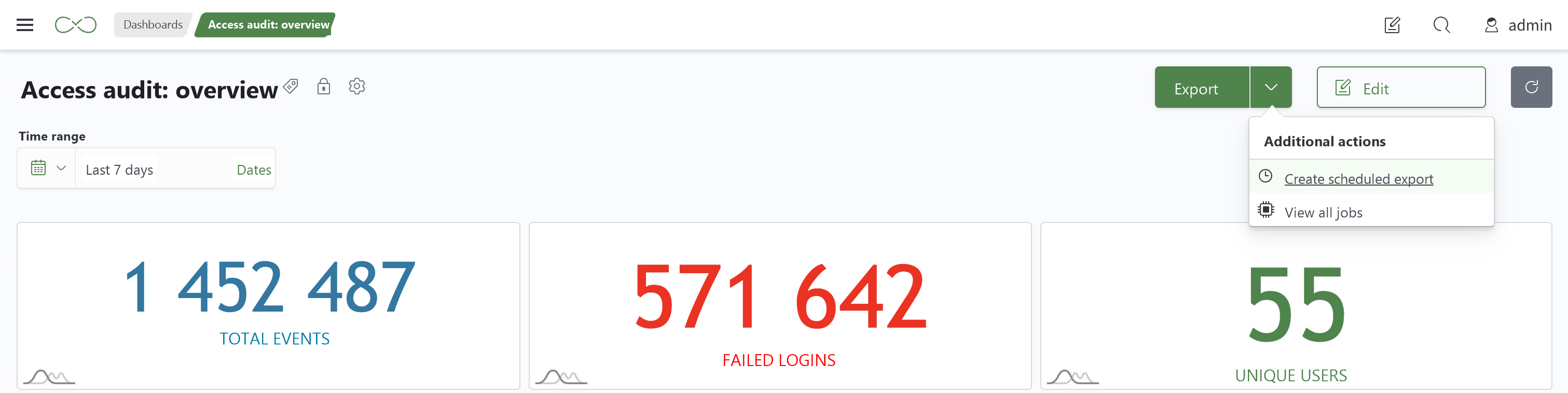
Export actions are available in the dashboard's actions menu in the dashboard list and in the menu next to the Export button on the dashboard page.
| Element | Purpose | How to Use / Result |
|---|---|---|
Create Export Job in the dashboard list | Create a mailing for the dashboard | Opens the form with the dashboard selected |
Create Scheduled Export on the dashboard page | Create a mailing from the dashboard view | Opens the same form with the dashboard selected |
View All Jobs | View jobs for the selected dashboard | Opens the job list filtered to that dashboard |
Job List
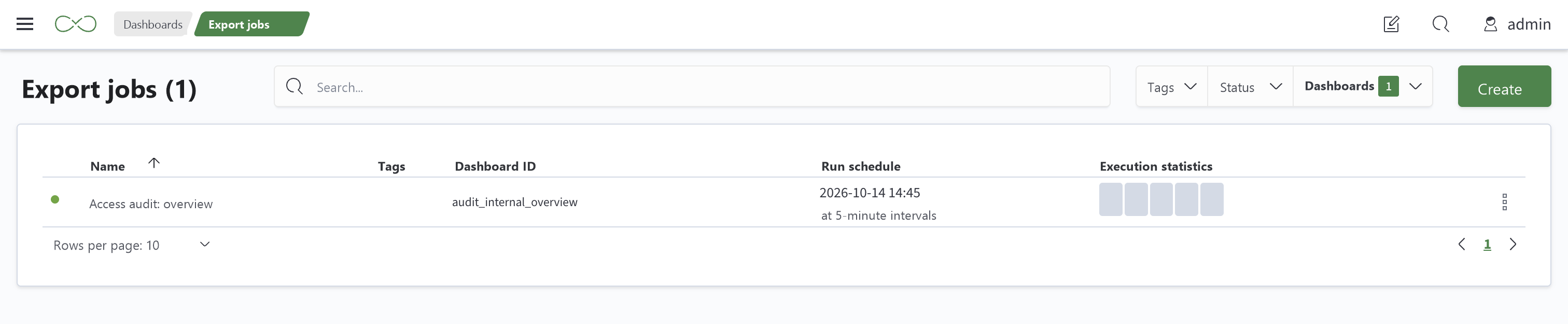
The Export Jobs section lets you find jobs, check their status, and manage delivery. The number in the heading shows how many jobs match the filters. By default, jobs are sorted by name in ascending order.
Search and Filters
| Element | Purpose | How to Use / Result |
|---|---|---|
| Search field | Find jobs | Narrows the list by the entered text |
Tags | Filter by tag | Shows jobs with the selected tags |
Status | Filter by job status | Helps find enabled or disabled jobs |
Dashboards | Filter by dashboard | Shows jobs for the selected dashboards; the filter is already set when you use View All Jobs |
Create | Create a job from the list | Opens the job parameters form |
Rows per page and page controls | Adjust and navigate the list | Let you choose the number of rows and move between pages |
Table Columns
| Element | Purpose | How to Use / Result |
|---|---|---|
| Colored dot next to the name | Scheduled run status | Green means the job is enabled; red means it is disabled. A tooltip provides the status |
Name | Job name | Helps distinguish jobs for the same dashboard, for example by recipient or frequency |
Tags | Job labels | Used for grouping and filtering |
Dashboard ID | Dashboard associated with the job | Identifies which dashboard is exported |
Run Schedule | Conditions for automatic runs | Shows the configured interval or Cron expression |
Execution Statistics | Results of recent runs | Five indicators show available information about executions |
| Row actions button | Manage the selected job | Opens the actions menu |
Execution Statistics
| Element | Purpose | How to Use / Result |
|---|---|---|
| Green indicator | Successful execution | The run completed successfully |
| Blue indicator | Execution in progress | The run result is not yet available |
| Red indicator | Execution error | The run failed; click to view details |
| Yellow indicator | Warning | Click to view warning details |
| Gray indicator | No execution information | This indicator does not establish whether the run succeeded |
An execution indicator's tooltip shows the status and start time when available.
The green job-status dot and green execution indicator mean different things. The dot shows whether the schedule is enabled and can be green or red. The execution indicator shows the result of a particular run.
Job Actions
| Element | Purpose | How to Use / Result |
|---|---|---|
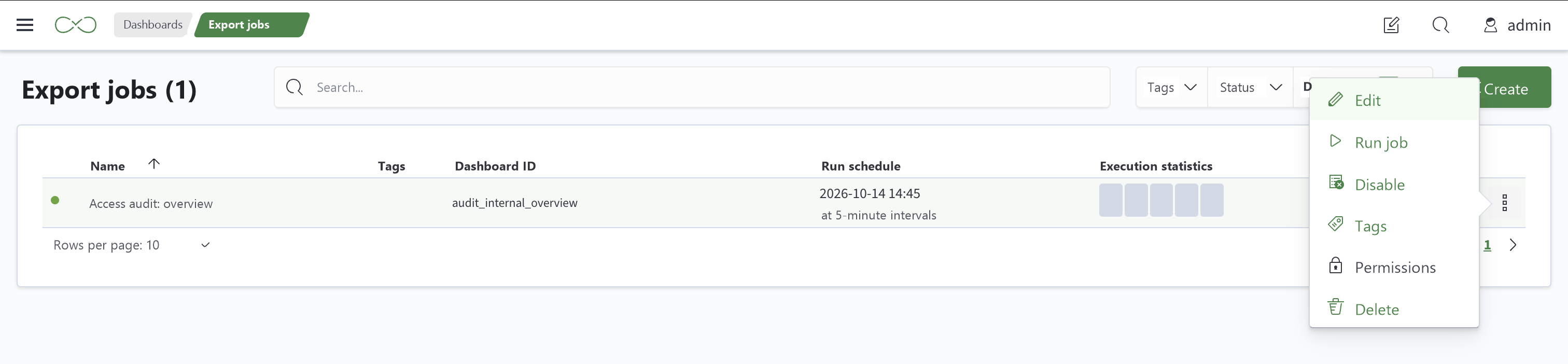
Edit | Change parameters | Opens the existing job's form |
Run Job | Run manually | Starts the job without waiting for the schedule; for example, to test email delivery |
Enable / Disable | Manage automatic runs | Enables or disables scheduled runs |
Tags | Group jobs | Opens tag settings for the selected job |
Permissions | Manage access | Opens permission settings for the job |
Delete | Delete the job | Removes the job from the list |
The available actions depend on permissions to modify the job.
Job Parameters
The Job Parameters form is used to create and edit jobs. Required fields are marked with an asterisk.
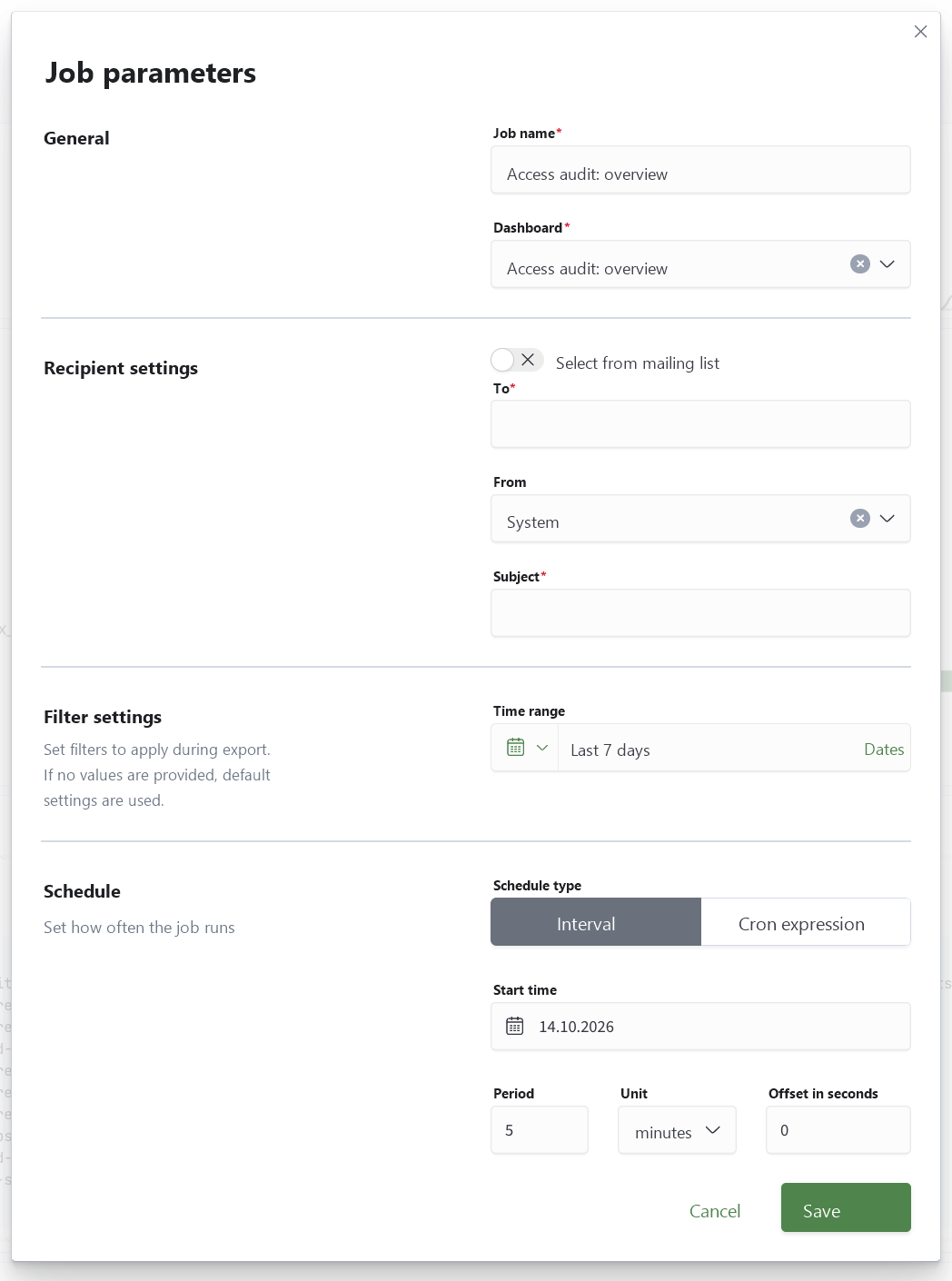
General
| Element | Purpose | How to Use / Result |
|---|---|---|
Job Name | Name shown in the list | Required; a descriptive name helps distinguish one mailing from another |
Dashboard | Source of the PDF report | Required; when the form is opened from a dashboard, it is already selected but can be changed |
Recipient Settings
| Element | Purpose | How to Use / Result |
|---|---|---|
Select from Mailing Group | Switch recipient selection method | Lets you select an existing group instead of entering addresses manually |
Recipient Group | Select a recipient group | Addresses in the selected group appear in To; this field cannot be edited manually in this mode |
To | Email recipients | Required field that accepts multiple addresses. Each address appears as a separate item. Only email addresses are accepted |
From | Sender settings | System uses the system sender; the other option lets you select a configured SMTP connection |
Subject | Subject of the report email | Required; helps recipients recognize the mailing |
Filter Settings
The Filter Settings section is hidden until a dashboard is selected. After selection, it displays fields that determine which data appears in the exported dashboard. Unset fields use their default values. Changing the dashboard may change the available filters and their values.
The filters for each dashboard panel are grouped in a separate bordered block. If a panel has a name, it appears as the block heading without additional text. If it has no name, the block displays only filter fields and no heading.
| Element | Purpose | How to Use / Result |
|---|---|---|
| Dashboard panel filter block | Group filters for one panel | Contains that panel's filter fields; a heading appears only if the panel has a name |
| Filter fields | Filter report data | Let you set filter values for this job; each field's type matches its filter type |
| No-filters message | Explain an empty section | Displays No Filters in Dashboard; add filters in the dashboard editor |
Schedule
| Element | Purpose | How to Use / Result |
|---|---|---|
Schedule Type | Choose how to define the schedule | Interval repeats after a specified period; Cron Expression defines a schedule with an expression |
Start Time | Start of an interval schedule | Sets the initial date and time |
Period | Interval between runs | Used with the Unit field |
Unit | Period unit | Minutes, hours, or days |
Cron | Define a schedule with an expression | Contains the expression for scheduled runs |
Offset in Seconds | Shift the run time | Additional schedule offset; defaults to 0 |
When you switch schedule types, the schedule fields revert to their default values.
Form Buttons
| Element | Purpose | How to Use / Result |
|---|---|---|
Save | Save settings | Creates the job or saves changes to an existing job |
Cancel | Exit without saving | Closes the form |
Creating and Configuring a Job
For steps to fill in the form and test email delivery, see Creating and Configuring an Export Job.