Using the AI Assistant chat
Opening AI Assistant
- Open
Main Menu-General-AI assistant - Select
New dialogto start a new topic, or select an existing chat in the left column
If the page says that AI Assistant is not connected, contact your administrator. See the AI Assistant overview for a description of the page elements.
Sending a question
- Enter a question in the field at the bottom of the conversation. In a new chat, you can select one of the suggested questions to insert its text into the field
- Specify the data source, period, and expected result if they are relevant to the task
- If needed, select
Reasoning effortnext to the send button.Defaultuses the service settings; available levels depend on the service - Select the up-arrow button or press
Enter. UseShift+Enterto start a new line - Wait for the answer. To refine the result, send a follow-up question in the same chat
Example questions:
- “Show the number of authentication errors in the last 24 hours, grouped by host”
- “Explain how to write an SML query to count events by host”
- “Prepare an example index template for web gateway events with timestamp, client IP address, and response code fields”
For a separate topic, select New dialog. This keeps it separate from the previous conversation.
Checking and using an answer
- Read the answer and check whether it addresses the question
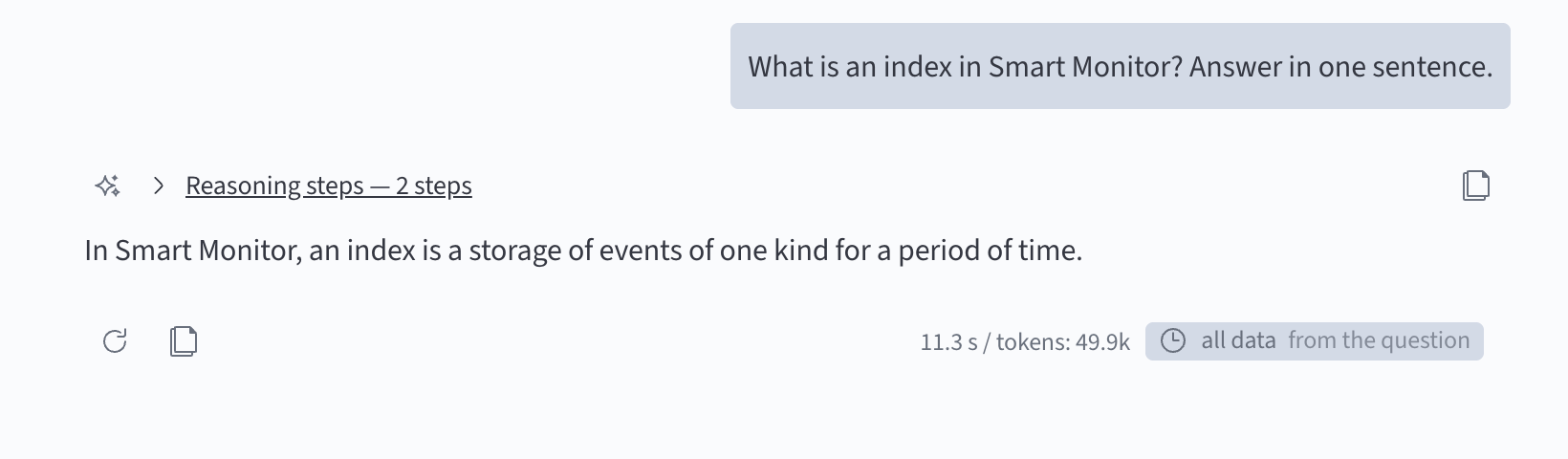
- Check the data source, field names, and search period. The period may appear below the answer
- If a work trail is available, expand it to see the steps. Select an operation to view its details
- If the data is insufficient or the result needs refinement, add the required conditions in your next message
If you have scrolled up, Go to the latest answer returns to the end of the conversation.
Copying
Select Copy next to the message or code block. The button below an answer copies the answer text; the button in a code block copies that block's contents.
Running an SML query
If an SML editor is available in the answer:
- Review the query and edit it if needed
- Select
Run - Review the result below the query
The Run button runs the query. Before selecting it, check the data source and search conditions, especially if you edited the suggested code.
Stopping and repeating
While an answer is being prepared, select Stop the answer to interrupt the current request. After it finishes or is stopped, select Repeat to send the same question again in the current chat. The previous answer remains in the conversation.
To change the question, enter the revised wording in the message field instead of repeating it.
Tables and visualizations
If an answer contains an interactive result card:
- If
Data viewis available, selectTableorVisualization - For a table, configure columns and sorting, and move to the next page of results if needed
- For a chart, select an available type and, if needed, open
Visualization settings - Select
Queryto review the card's query. If you edit it, selectRunin the editor that opens - To reload data for the current query, select
Refresh data
To save an image, select Download as image if available. Editing the query or refreshing data does not change the original AI Assistant answer text.
To discard query edits, select Restore original in the editor. If the edited query has already been run, the card reloads the result of the original query from the answer.
Operation confirmation
If Ask is selected in personal settings, AI Assistant requests permission before search queries and period comparisons. Metadata, platform objects, knowledge, and previously retrieved results are read without a confirmation card.
- Read the operation description and parameters in the confirmation card
- To allow subsequent queries in the current request as well, turn on
Allow following requests in this run - Select
Runto allow the operation orDeclineto refuse it
Confirming an AI Assistant operation and running an SML query from a completed answer are different actions. Confirmation resumes answer preparation; the code block's Run button executes that query.
Working with chat history
Opening a chat
- Find the required time group in the left column and expand it
- Select the chat title
- Read the saved conversation or send a new question to continue it
If Load more is available, select it to load additional entries.
Searching for a chat
- Select
Searchabove the chat list - Enter part of the title or message text
- Select a result to open the conversation
Search checks saved history, including chats older than the period selected in History depth.
Pinning
- Hover over the chat in the list
- Select the pin icon
- Find the chat in the
Pinnedgroup at the top of the list
To remove a chat from this group, select the pin icon again.
Deleting
- Hover over the chat and select the trash icon
- Check the title in the confirmation dialog
- Select
Deleteto remove the chat orCancelto keep it
Deleting a chat cannot be undone. Check that you selected the right conversation before confirming.
Changing personal settings
- Select
Settingsat the bottom of the left column - Change the required settings on the
Personaltab - Close the panel. Changes are saved automatically; there is no separate save button
See Personal settings for descriptions of the settings. For example, Default time window applies when the period cannot be determined from the question or the chat context. A follow-up such as “Repeat the count with the same query” may keep the previous question's period, shown below the answer as same as in the chat. Show the work trail controls whether answer preparation steps are visible.
To restore request settings to the service values, select Reset to service settings. This does not reset work trail display or history depth.
If no answer is received
| Situation | Action |
|---|---|
| The send button is unavailable | Check that the question is not empty, the previous answer has finished, and the service is available |
| AI Assistant is waiting for confirmation | Review the operation card and select Run or Decline |
| The request was stopped or ended with an error | Read the message in the conversation. Repeat the question or change its conditions if needed |
| The work limit was reached | Narrow the period or task, for example, ask for one metric instead of several |
| There is not enough data | Specify the data source, fields, and period; check that your account can access the required data |
| History is unavailable | Follow the interface warning: the conversation may not be saved. Ask your administrator about the service status |