AI Assistant
Purpose
AI Assistant is a Smart Monitor tool for working with data and getting explanations in natural language. The user describes a task in a chat, and AI Assistant selects the required operations, accesses available data and the knowledge base, and prepares an answer.
AI Assistant can:
- provide information about indices, fields, and platform objects
- analyze events over a specified period
- create and explain search queries in Smart Monitor Language (SML)
- explain how to configure and use Smart Monitor
- refine a result with follow-up questions in the same chat
Data access depends on the user's permissions and the capabilities of the connected service. The question determines the answer: it may be an explanation, a query, a table, or a combination of these.
AI Assistant can make mistakes. Before using an answer, check the selected data source, fields, search period, and suggested actions. A generated query example alone does not confirm that the query was run or its results verified.
Interface
The AI Assistant page is available under General in the navigation menu. Chat history and settings are on the left; the conversation and question composer are on the right.
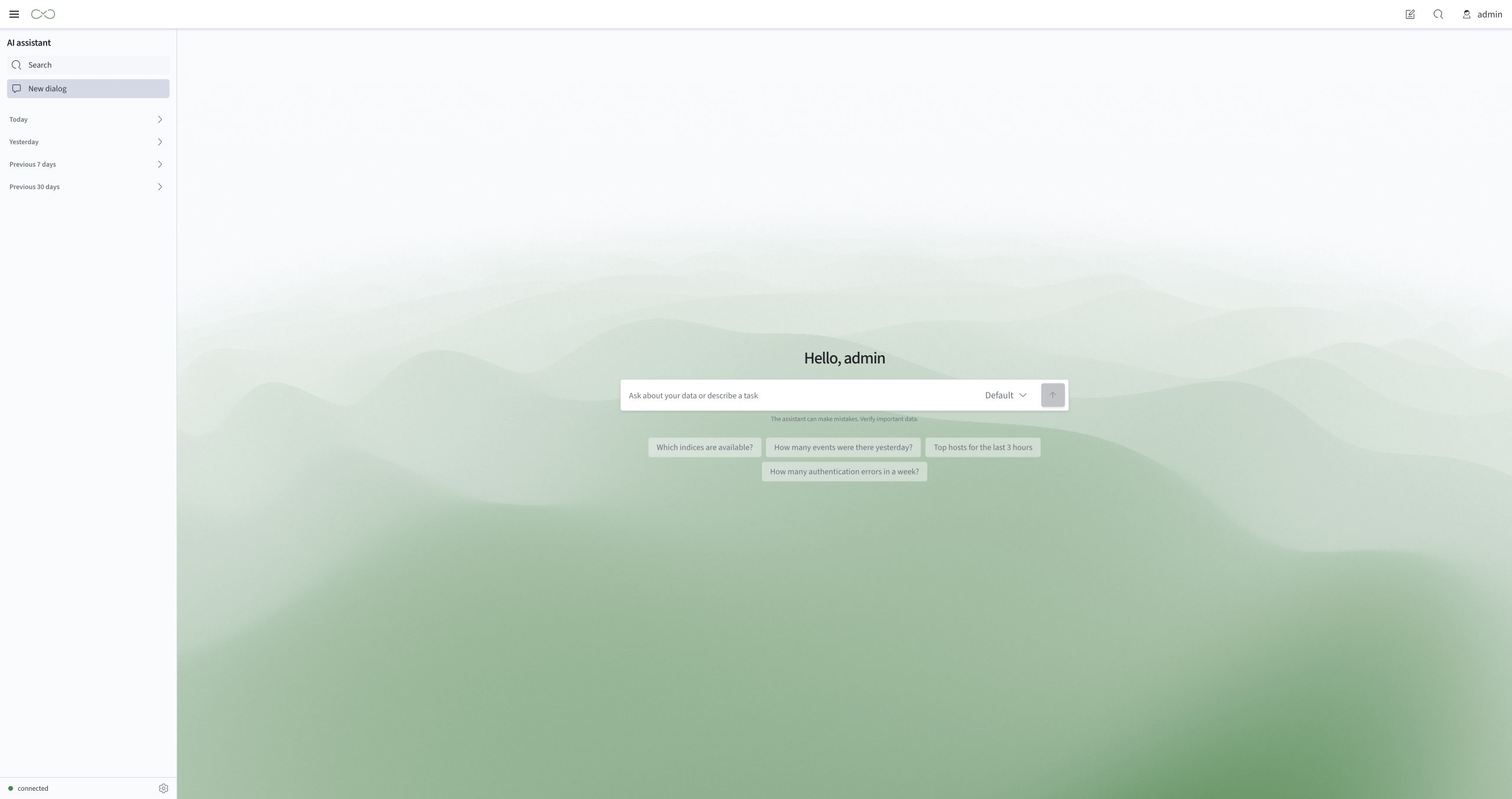
| Element | Purpose |
|---|---|
Search | Searches saved chats by title or message text |
New dialog | Opens an empty conversation for a new topic |
| Chat history | Shows saved chats grouped by time, with a separate Pinned group |
| Message field | Accepts a question or a follow-up to the current chat |
| Suggested questions | Insert a selected question into the field without sending it |
Reasoning effort | Selects the reasoning effort for the next request, if supported by the service |
| Send button | Sends the question. While an answer is being prepared, it is replaced by Stop the answer |
Settings | Opens personal settings and information about the connected service |
| Status indicator | Shows whether the AI Assistant service is available |
Answers and work trail
The conversation shows the user's questions and AI Assistant's answers. Answers appear as they are prepared. When Show the work trail is enabled, reasoning steps and information about completed operations are available. Operation details can be expanded separately.
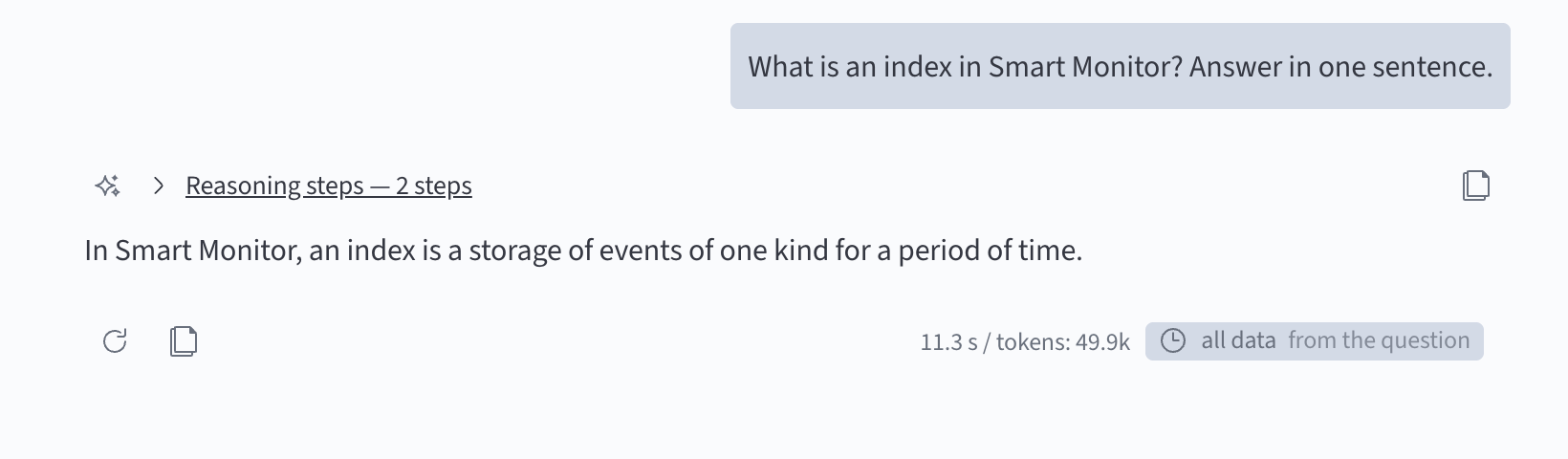
Copy buttons are available next to messages and code blocks. Repeat under an answer sends the same question again in the current chat; the previous answer remains in the conversation.
If an answer contains an SML block, it may appear in an editor with a Run button. This button runs the query and displays the result below it. Review and, if necessary, edit the code before running it.
The search period and its source may appear below an answer, for example, from the question or by default. A completed request may also show its duration and token count. The service determines which details are available.
In Ask mode, a confirmation card appears before a search query or a period comparison. The operation waits for the user to approve it. See Using the AI Assistant chat for the steps.
Tables and visualizations
Results may appear in interactive cards with tables and charts. If a card supports multiple views, use Data view to select Visualization or Table. Some charts also let you choose a type: Columns or Pie chart.
Query opens the card's query for review and editing. Refresh data reloads the result for the current query. These actions update the card; they do not send a new question to AI Assistant. After you edit the query or refresh the data, the result may differ from the values in the original answer text.
Tables provide controls for columns, cell size, sorting, full-screen mode, and page navigation. Use Visualization settings to configure the view and Download as image to save an image. Available controls depend on the result type.
Chat history
Chat history lets users return to previous questions and continue a conversation. Chats are grouped by their last update. Groups can be collapsed, and important chats can be pinned to the top of the list. If more entries are available, select Load more.
Search checks chat titles and saved message text. History depth limits how far back chats appear in the sidebar, but does not limit search.
Chat retention and its duration depend on the service settings. If history saving is unavailable, the interface reports this. Do not assume that such a conversation will be available after leaving the page.
Personal settings
The Settings panel has the Personal and About the assistant tabs.
The Personal tab contains settings for behavior, search, and chat display. The values shown in the image are examples and may differ from your installation.
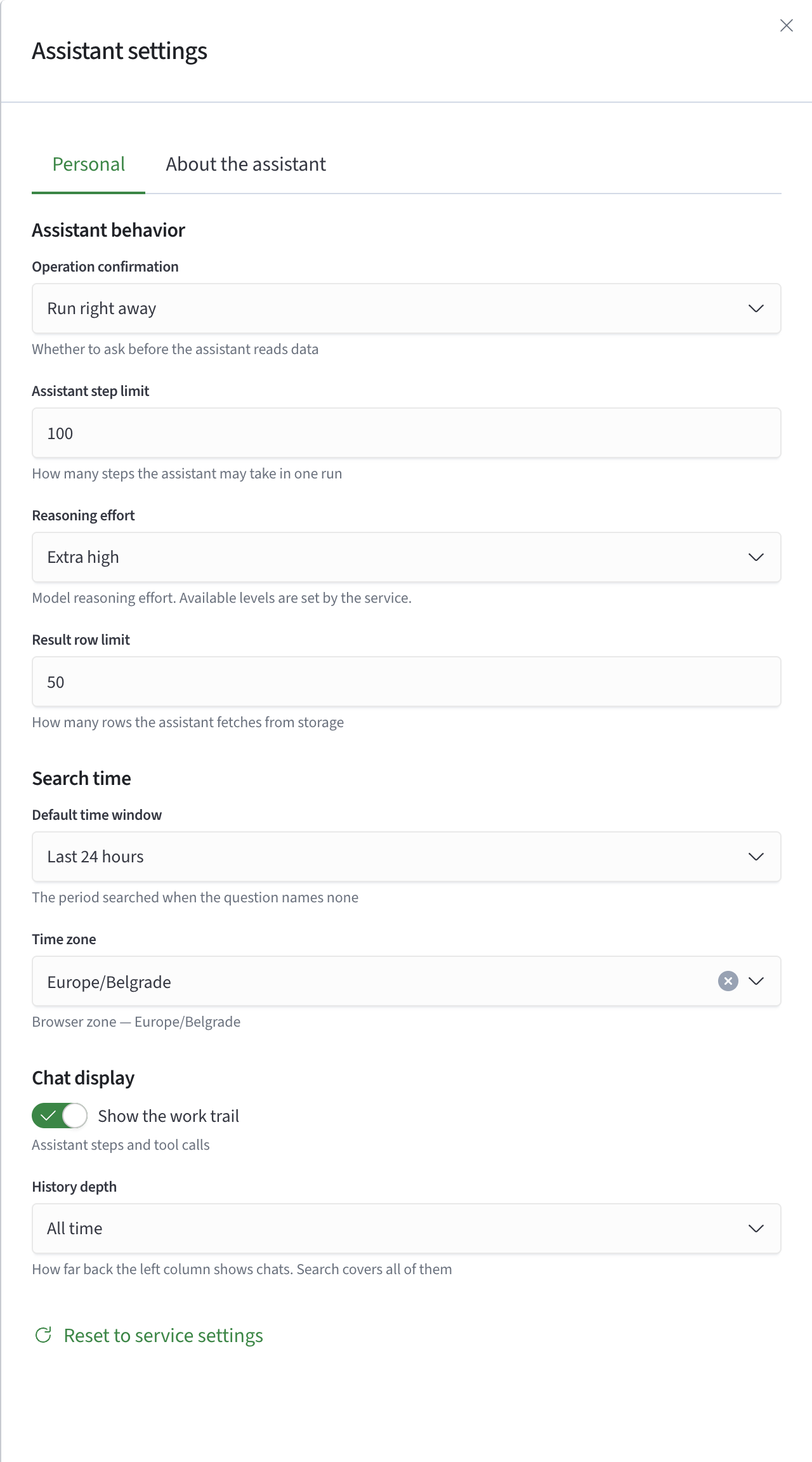
| Setting | Purpose |
|---|---|
Operation confirmation | Ask requests permission before search queries and period comparisons; Run right away allows them without separate confirmation |
Assistant step limit | Limits the number of steps used to prepare one answer |
Reasoning effort | Sets the model's reasoning effort. The service determines the available options |
Result row limit | Sets the default size of the first batch of result rows passed to the model. The model can choose a different batch size and read more of the result. This setting does not limit storage reads or aggregate calculations |
Default time window | Sets the search period when it cannot be determined from the question or the chat context |
Time zone | Sets the time zone used to interpret time |
Show the work trail | Controls whether reasoning steps and operation calls appear in the conversation |
History depth | Sets how far back chats appear in the sidebar |
Personal settings are saved automatically in the current browser. Reset to service settings restores request settings to the service values. Work trail display and history depth settings are saved separately.
The About the assistant tab shows the service version, user and roles, answer language, default settings, history retention, and knowledge source availability. This information helps clarify the conditions under which AI Assistant operates.
Next steps
See Using the AI Assistant chat for how to send questions, work with answers, and manage chat history.