File Storage
The article describes the File Storage section: connections to storages, binding modules to them, and viewing the files that modules have saved in the storage.
General Information
Smart Monitor modules store files in an external file storage.
The file storage settings section is located in Main Menu - Settings - Module Settings - File Storage and consists of three pages:
| Page | Purpose |
|---|---|
Connections settings | List of storage connections, creating a connection and changing its parameters |
Modules binding | Selecting the connection and directory used by each module |
Files management | Viewing, downloading and deleting files in the storage of the selected module |
Key concepts:
- connection — settings for accessing a storage. Two storage types are supported:
S3andDisk(a local or network file system on the server). You can create multiple connections - module — a part of the system that stores files. The
Incident ManagerandKnowledge Basemodules are currently bound to storage. Each module uses exactly one connection - directory — a module's directory inside the storage: a prefix inside the bucket for
S3, or a subdirectory for a disk. One connection can be assigned to multiple modules by specifying a separate directory for each
The resulting file storage path is formed from the connection string and the module directory: <connection string>/<directory>.
Viewing the section and downloading files requires the cluster:admin/sm/file_storage/read cluster privilege. Changing settings and deleting files requires the cluster:admin/sm/file_storage/write privilege.
Connection Settings
The Connections settings page shows the list of storage connections. Each connection has:
Name— the connection nameConnection string— theS3server URL or the absolute path to a directory on the diskStorage type—S3orDisk

The storage type (S3 or Disk) is selected only when the connection is created. The type of an existing connection cannot be changed.
S3 Connection
| Field | Description |
|---|---|
Server URL | The S3 server address in the http://host:port or https://host:port format. Required field |
Addressing type | Virtual-Hosted or Path-Style |
Region | The S3 region. The default is us-east-1 |
Bucket | The bucket name. Module directories inside the bucket are set on the Modules binding page. Required field |
Enable hostname verification | Verify that the host name matches the server certificate |
Trust all certificates | Do not verify the S3 server certificate |
Request timeout, ms | Time to wait for a response from the S3 server, in milliseconds |
Enable connection retry | Retry the connection on error |
Number of connection retry attempts | How many times to retry the connection on error |
Access Key | The S3 access key. Required field |
Secret Key | The S3 secret key. Required field |
Access Key and Secret Key are saved in the keystore. When editing an existing connection, leave the key fields empty to keep the saved keys unchanged.
Disk Connection
| Field | Description |
|---|---|
Folder path | The absolute path to a directory on the application server, for example /var/lib/smart/files. Required field |
Connection Check
You can check the connection before saving by clicking Check connection. For S3, Smart Monitor sends a test request to the storage with the specified parameters; for a disk, it checks that the directory is accessible on the application server. The result is shown in a notification.
Module Binding
On the Modules binding page, specify the connection and directory used by each module.
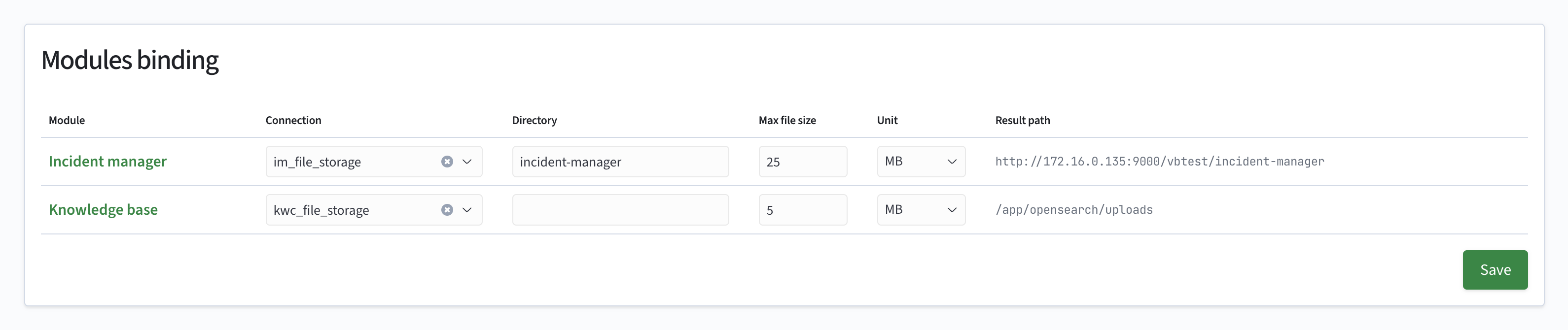
| Column | Description |
|---|---|
Module | The module name |
Connection | A connection from the list on the Connections settings page |
Directory | The name of the module directory (prefix) inside the storage |
Max file size | The maximum size of a single uploaded file: a number and a unit in the Unit column (B, KB, MB, GB or TB). The default is 5 MB. The limit is applied when files are uploaded to the module |
Result path | The connection string and the module directory. Calculated automatically and recalculated when the connection or directory changes |
To apply the changes, click Save.
A module looks for previously uploaded files at the resulting path. If you change the connection or directory of a module, the files at the old path are no longer displayed in the module: they are not moved to the new location automatically.
File Management
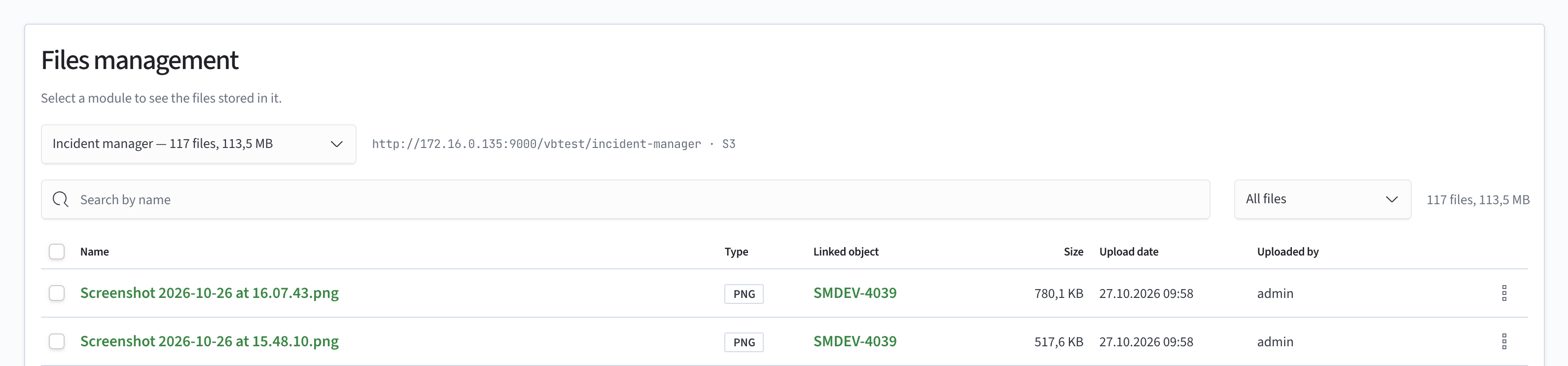
The Files management page shows the contents of the selected module's storage and lets you download and delete files.
Search and Filtering
- search by name — shows files whose name contains the entered string
- binding filter —
All files,LinkedorUnlinked
The Unlinked filter shows files that are not attached to any object. Use it to find and delete unused files to free up storage space.
File Table
| Column | Description |
|---|---|
Name | The file name with extension |
Type | The file extension |
Linked object | The object the file is attached to, such as an incident. Click the object name to open its card. If the file is not attached to any object, the No link label is displayed |
Size | The file size |
Upload date | The upload date and time in the DD.MM.YYYY HH:MM format |
Uploaded by | The user who uploaded the file |
Actions | The Download and Delete buttons |
Downloading and Deleting Files
To download or delete a single file, click the corresponding button in the Actions column.
To delete several files, select their checkboxes. The checkbox in the table header selects all files on the current page. A panel with the number of selected files appears at the bottom of the screen: click Delete on it and confirm the deletion. To clear the selection, click the cross on the panel.
A file is deleted from the storage permanently. If the file was attached to an incident, it is also removed from the incident history.