Search spaces
A search space groups selected data units. Its composition can include data units from different connections and storage types.
Open Main Menu - Settings - Module Settings, then select Search spaces in the Data storage group.
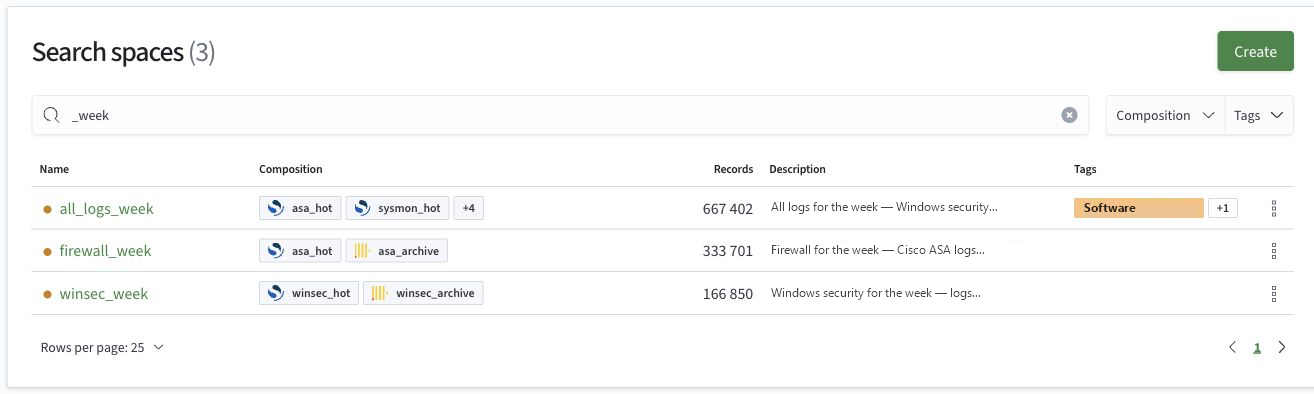
Search space list
The list shows the name, composition, number of records, description, and tags. Icons next to data units in the composition indicate their storage types. If some items are hidden, click the +N badge, where N is the number of hidden items, to reveal them.
To search, enter a name or description and press Enter. The Composition and Tags filters narrow the list. Click a space name to open its card.
The icon next to the name indicates space availability. The row’s Actions menu contains Edit, Tags, Permissions, and Delete if you have write permission.
Create a search space
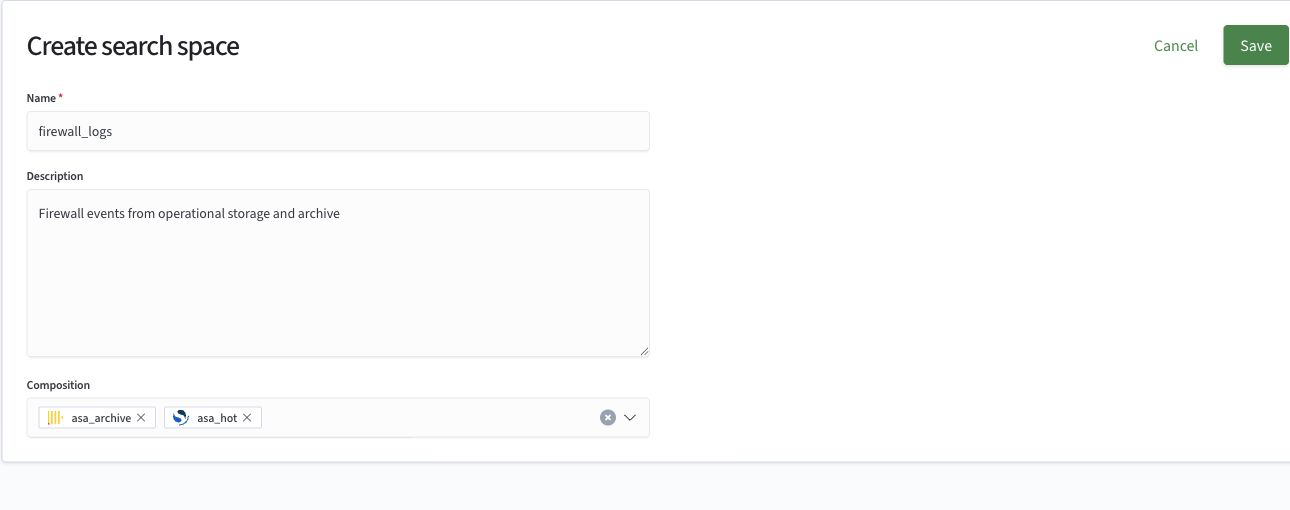
- In the list, click
Create - Fill in the required
Namefield and, if needed,Description - In
Composition, select one or more data units. The field supports selecting multiple items and searching the list - To remove an item from the composition, click the cross next to its name
- Click
Save. To exit without saving, clickCancel
Use 1 to 256 characters: Latin letters, digits, and _, with single . or - characters separating nonempty parts of the name. Dots and hyphens cannot appear at the beginning or end of the name or next to each other.
The first part of the name, before the first dot or hyphen, must contain at least one Latin letter or _. If there are no separators, this requirement applies to the entire name. Leading digits and _ are allowed.
The names os, clk, elk, db, api, and had are reserved regardless of case.
Valid examples: 1archive, _archive, 2026_logs, 1archive-2026, logs.2026.
Invalid examples: 123, 1-archive, 1.2archive, logs..2026, logs.-2026, logs-, OS.
Search space card
Overview and state
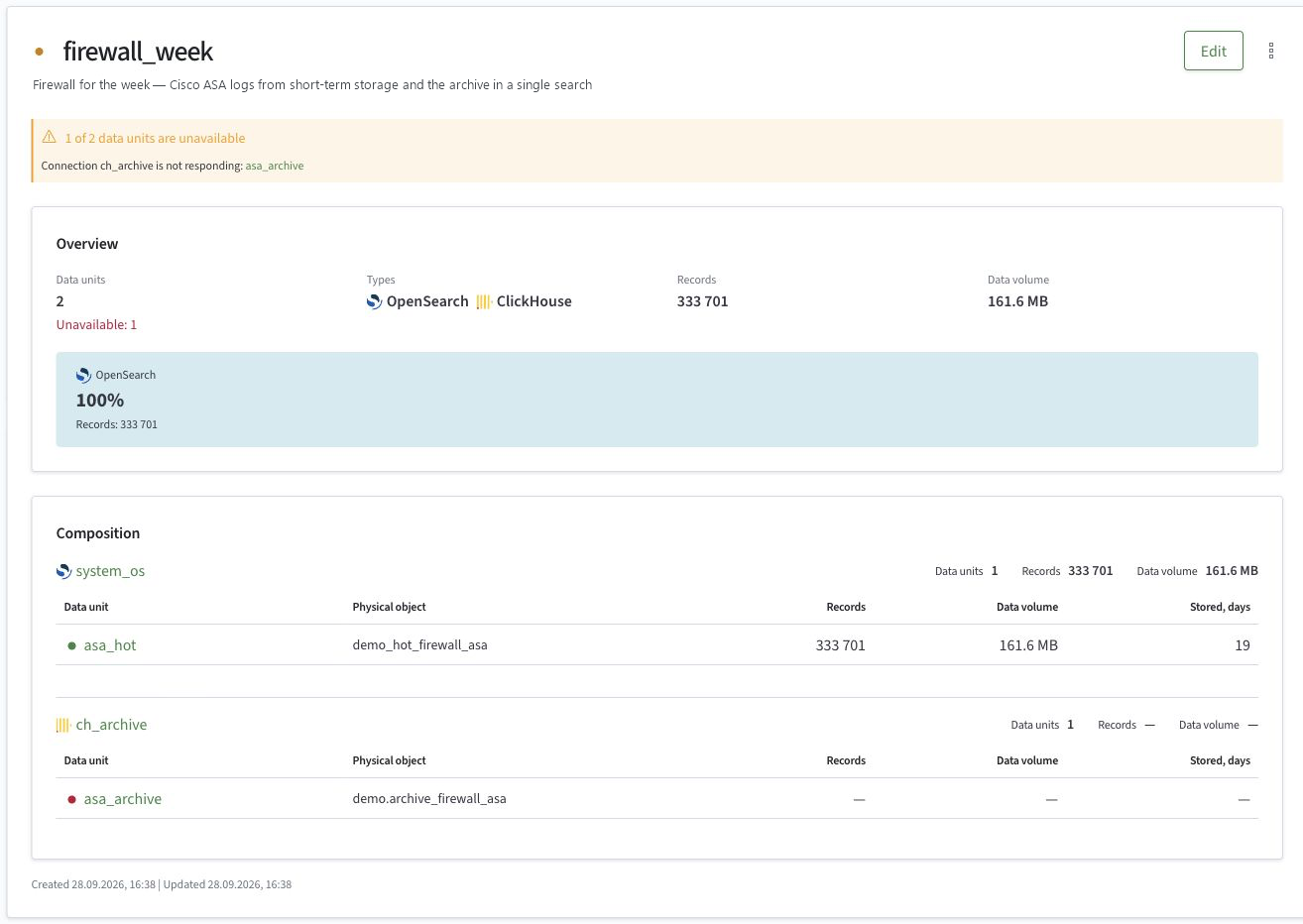
The top of the card shows the space name, description, and state. If some data units are unavailable, a warning shows their count and links to the affected data units.
The Overview section shows the number of data units, the number of unavailable units, storage types, record count, and data volume. The chart shows the shares of known records by storage type.
If statistics could not be retrieved for some sources, the available metrics do not describe the entire search space. For example, a 100% share for one type in the chart does not mean that the space contains no data units of another type.
Composition
The Composition section groups data units by connection. Each group shows the number of data units and their record count and data volume. Tables show the data unit name and state, physical object, record count, data volume, and Stored, days value.
Click a connection or data unit name to open its card. If a metric is unavailable, a dash appears in place of its value. See data unit statistics for a description of Stored, days.
Edit a search space
- Open the card and click
Edit - Change the description or composition. The search space name cannot be changed
- Click
Save