Data units
A data unit links a connection to a physical object in storage. It can point to an index, index pattern, or alias for the OpenSearch type, or to a table for the ClickHouse type.
Open Main Menu - Settings - Module Settings, then select Data units in the Data storage group.
Data unit list
The list shows the data unit name, connection, physical object, number of records and fields, data volume, the Stored, days value, and tags. The icon next to the name indicates source availability.
Enter a data unit name, physical object, or connection name in the search field and press Enter. The Connection, Type, and Tags filters narrow the list. Click Refresh to update the information, or click a data unit name to open its card.
The row’s Actions menu contains Edit, Tags, Permissions, and Delete if you have write permission.
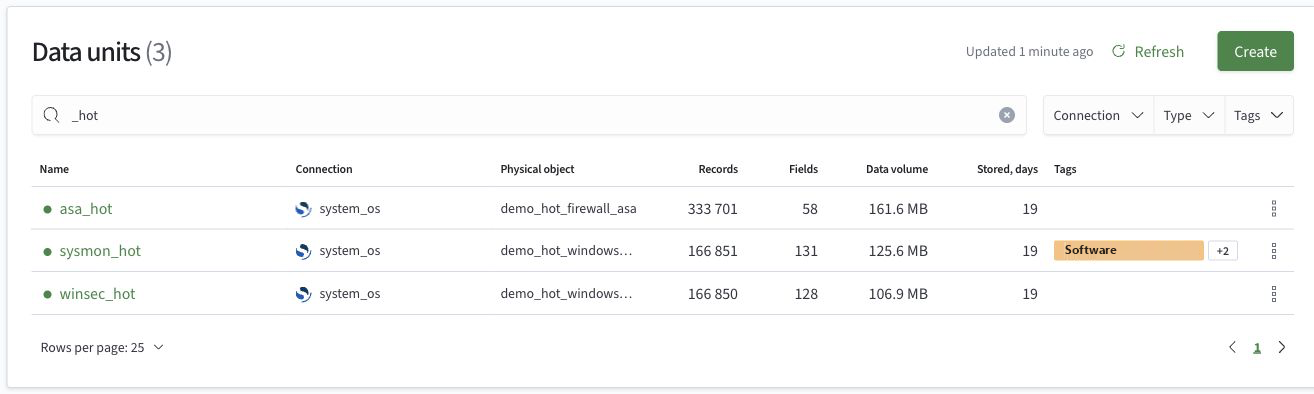
Create a data unit
- In the list, click
Create - Fill in the form fields
- Click
Save. To exit without saving, clickCancel
| Field | Purpose |
|---|---|
Name | Required data unit name, for example, firewall_events |
Connection | Required connection to a storage system. Create the connection first |
Description | Optional description of the source data |
Physical object | Required index, index pattern, alias, or table. For example, firewall-* for log indexes |
Time field | Field containing the record timestamp, for example, @timestamp |
Use 1 to 256 characters: Latin letters, digits, and _, with single . or - characters separating nonempty parts of the name. Dots and hyphens cannot appear at the beginning or end of the name or next to each other.
The first part of the name, before the first dot or hyphen, must contain at least one Latin letter or _. If there are no separators, this requirement applies to the entire name. Leading digits and _ are allowed.
The names os, clk, elk, db, api, and had are reserved regardless of case.
Valid examples: 1archive, _archive, 2026_logs, 1archive-2026, logs.2026.
Invalid examples: 123, 1-archive, 1.2archive, logs..2026, logs.-2026, logs-, OS.
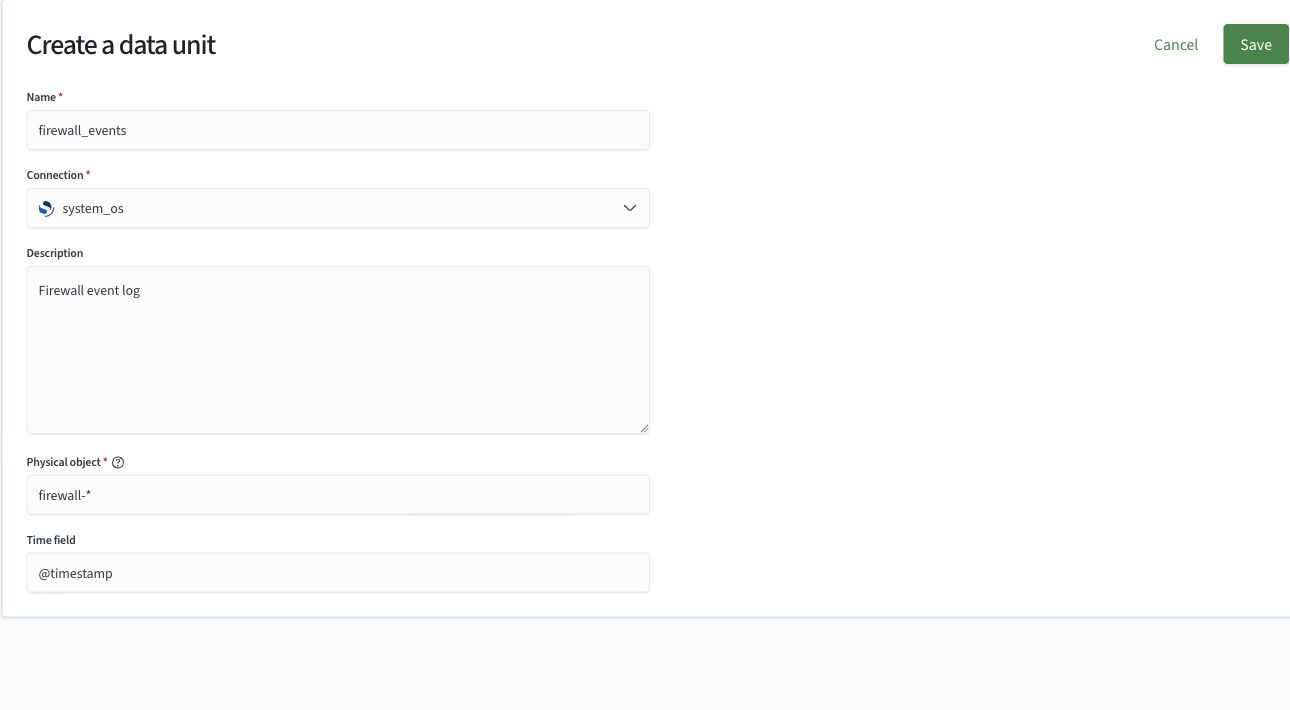
If no time field is set, the card shows a warning, and metrics that depend on the time field are unavailable.
Data unit card
The top of the card shows the source state, description, and the time the information was updated. Warnings and errors appear when there are source problems. Click Refresh to update the information.
Statistics
The Statistics section contains source metrics. The label next to the heading indicates the completeness of the last collection: Full collection, Partially collected, Collection failed, or Collection completeness unknown. If collection has not run yet, the label is Not collected yet.
| Metric | Description |
|---|---|
Records | Number of records |
Fields | Number of fields in the schema |
Stored, days | Number of days between the oldest and newest records |
Data volume | Data size excluding replicas |
Disk volume | Disk space used by all copies of the data |
Oldest record, Newest record | Boundaries of the time range based on the time field |
Stored, days describes the actual date range of the records, not a configured retention period. A missing value does not mean zero. Hover over the metric to see the reason, such as a collection failure or an unset time field.
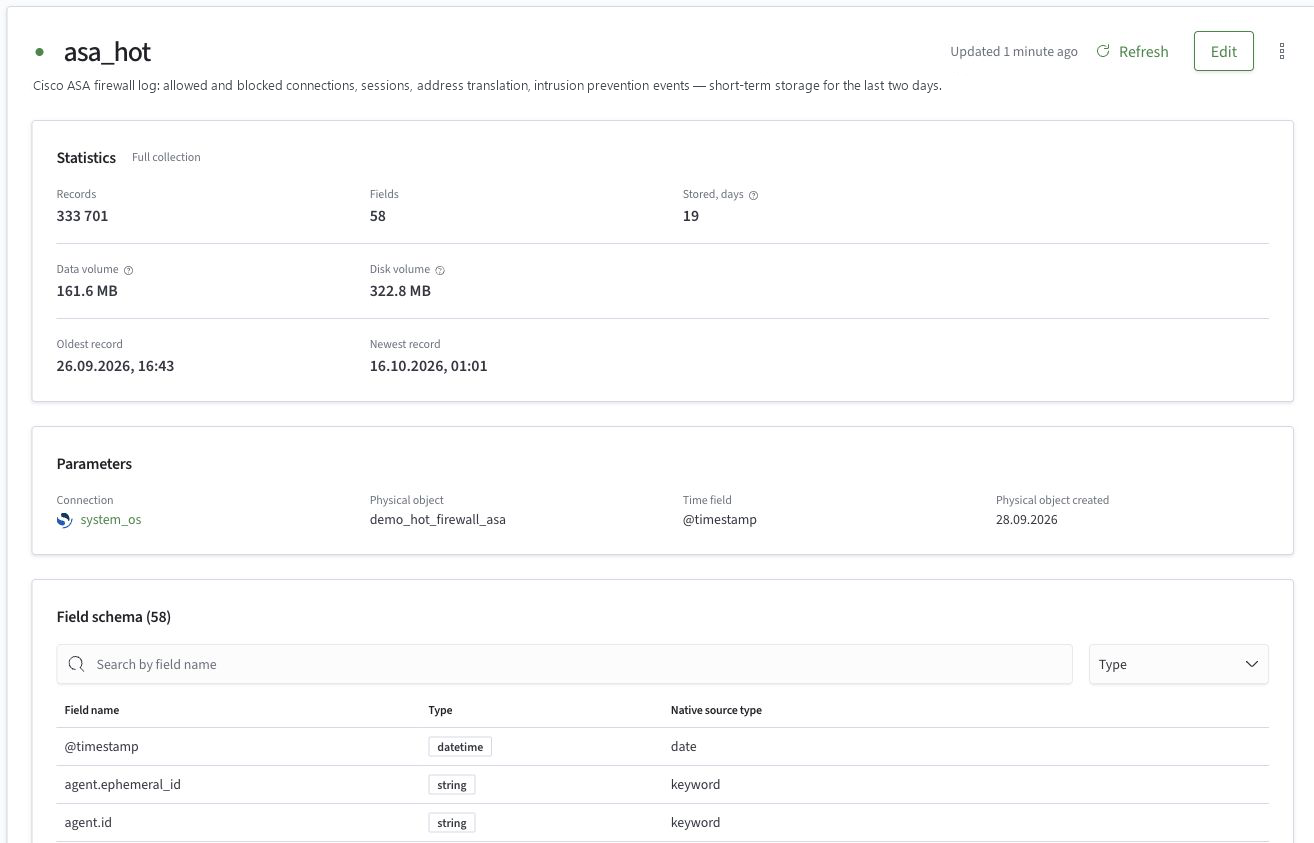
Parameters and field schema
The Parameters section shows the connection, physical object, time field, and the date the physical object was created. Click the connection name to open its card.
The Field schema section shows the field name, its normalized Type, and its Native source type. For example, the @timestamp field can have the datetime type and the native date type. Use the search field to find a field; the Type filter selects a data type. The table footer lets you choose the number of rows and move between pages.
Edit and actions
The edit form is similar to the creation form, but the Name and Connection fields cannot be changed.
- Open the card and click
Edit - Change the description, physical object, or time field
- Click
Save
The Actions menu contains Tags, Permissions, and Delete. Data units can be added to search spaces.