Connections
A connection contains access parameters for a storage system. The primary Smart Monitor storage is of type OpenSearch and is available through the system connection system_os. You can also connect additional storage systems of type ClickHouse.
Open Main Menu - Settings - Module Settings, then select Connections in the Data storage group.
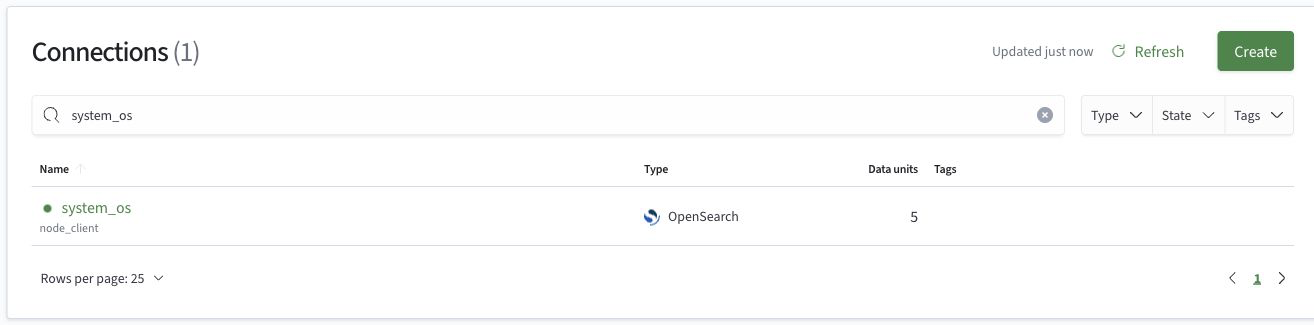
Connection list
The list shows the connection name and address, type, number of linked data units, and tags. The icon next to the name indicates the connection state. Hover over it to see the label: Available, Unavailable, Not checked, or Availability unknown. The last two states use a neutral icon and do not mean that the connection is unavailable.
To search, enter a name or address in the search field and press Enter. The Type, State, and Tags filters narrow the list. Click a connection name to open its card, or click Refresh to update the information.
The row’s Actions menu contains Edit, Tags, Permissions, and Delete if you have write permission. The system_os system connection has no row menu.
Create a connection
Type and parameters
- In the connection list, click
Create - On the
Type and parametersstep, selectClickHouse - Fill in the required
Namefield and, if needed,Description - Click
Next
Use 1 to 256 characters: Latin letters, digits, and _, with single . or - characters separating nonempty parts of the name. Dots and hyphens cannot appear at the beginning or end of the name or next to each other.
The first part of the name, before the first dot or hyphen, must contain at least one Latin letter or _. If there are no separators, this requirement applies to the entire name. Leading digits and _ are allowed.
The names os, clk, elk, db, api, and had are reserved regardless of case.
Valid examples: 1archive, _archive, 2026_logs, 1archive-2026, logs.2026.
Invalid examples: 123, 1-archive, 1.2archive, logs..2026, logs.-2026, logs-, OS.
The name must be unique (case-sensitive). The name cannot be changed after creation.
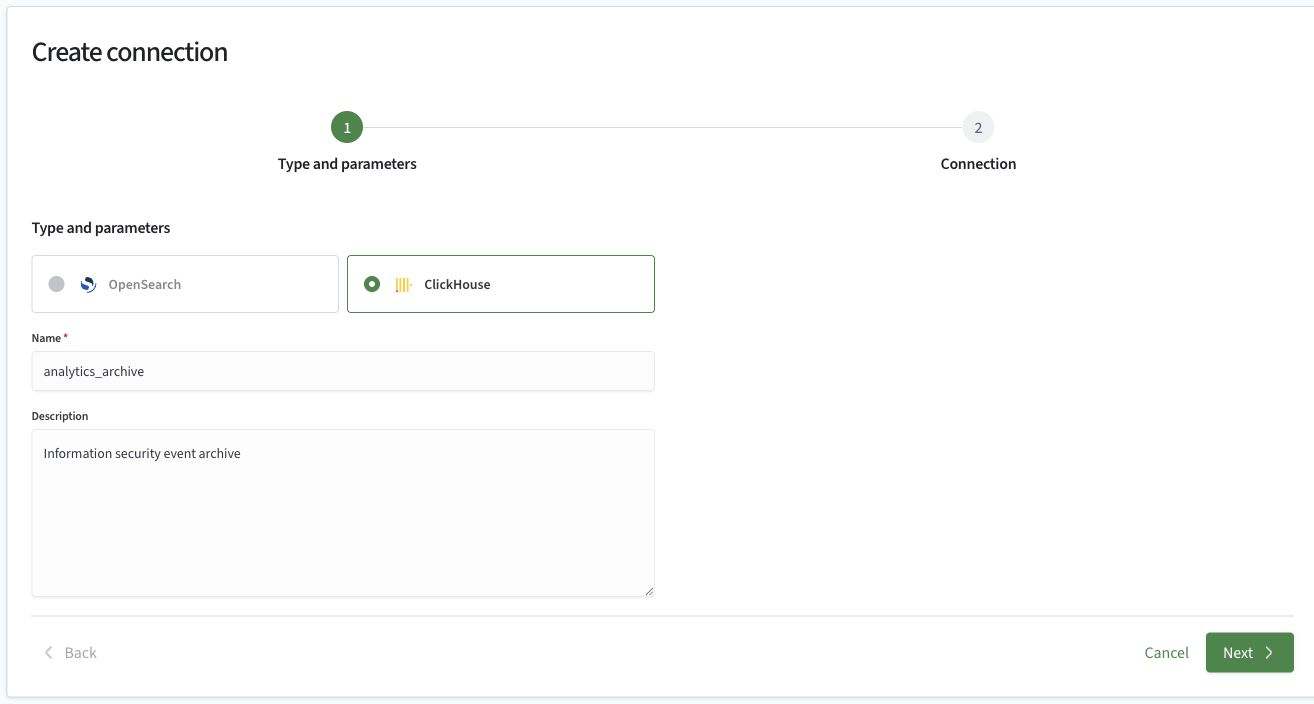
The OpenSearch type appears in the wizard but is disabled. The system connection system_os appears in the same connection list.
Support for connecting additional storage systems of type OpenSearch will be added in future versions.
Connection parameters
On the Connection step, enter the access parameters for ClickHouse. Fields marked with an asterisk are required.
| Field | Purpose |
|---|---|
Host, Port | Server address and connection port |
Advanced mode | Switches to manual entry of Connection string instead of host and port |
JDBC driver | Selects an installed driver. Use Upload driver to choose a driver file |
Driver class | JDBC driver class. Check the populated value after selecting a driver |
Authorization | Basic with User and Password fields, or None |
SSL / TLS | Enables a secure connection |
Host name verification | Verifies the server name for a secure connection |
Trust store path | Path to the trust store for a secure connection |
Password variable in the keystore | Name of the variable that stores the trust store password |
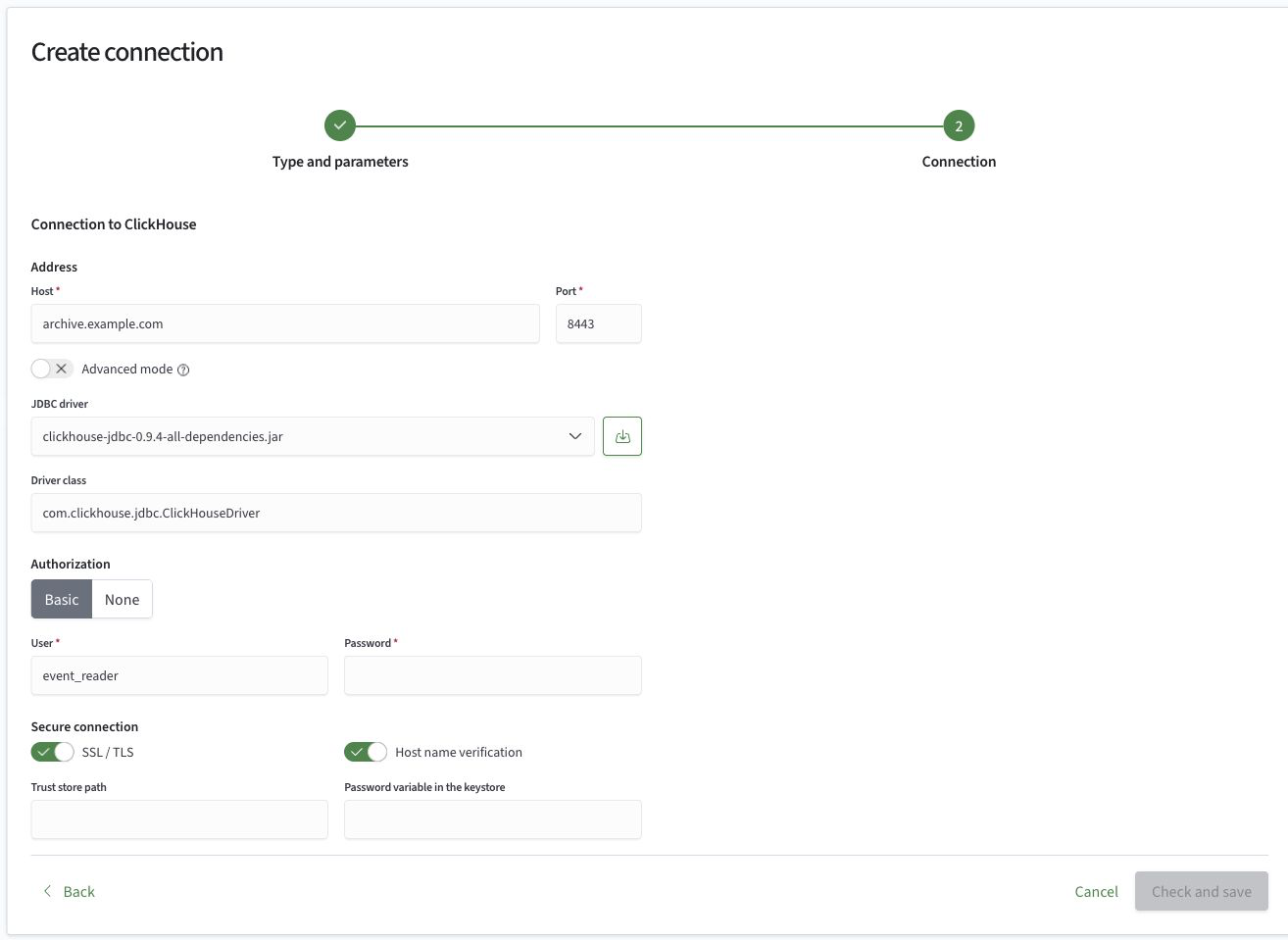
After filling in the fields, click Check and save. Click Back to return to the first step, or Cancel to close the wizard.
If the connection cannot be established, you can still save it. The Check and save button changes to Save.
Connection card
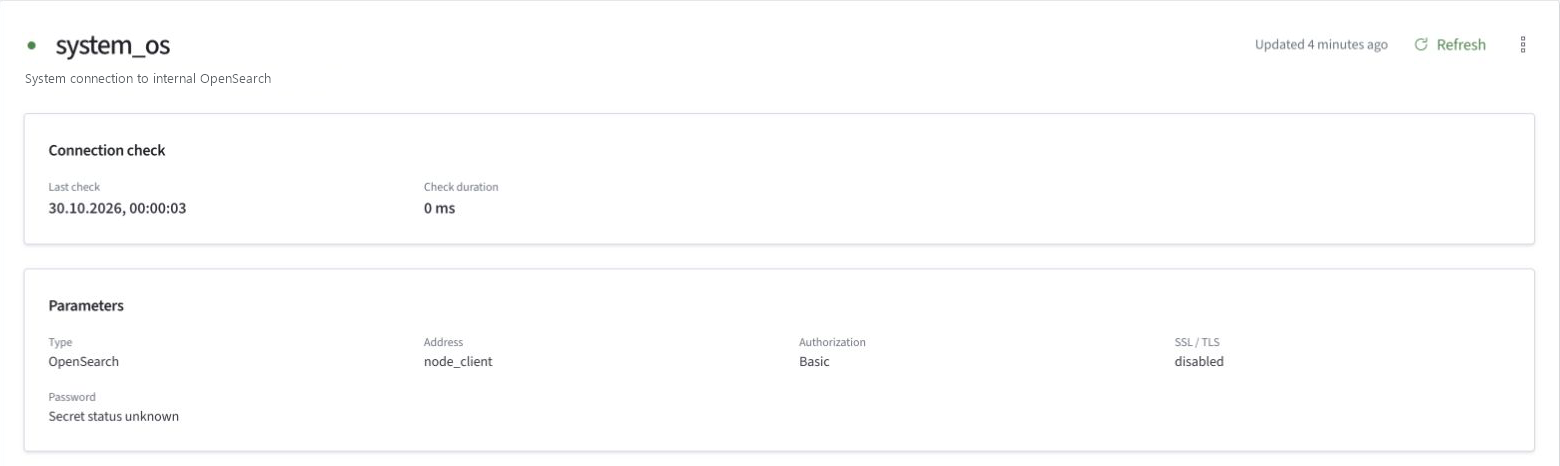
Click a connection name in the list. The top of the card shows its state, description, and the time the information was updated. The Connection check section shows the Last check time and Check duration. If an error occurs, the card displays a message explaining why the connection is unavailable.
The card header displays tags if any are set. Click Refresh to update the information. For a ClickHouse connection, write permission gives access to the Edit button and a menu containing Tags, Permissions, and Delete. On the system_os card, the menu contains only Permissions.
The Parameters section shows the type, address, authorization method, SSL/TLS state, and information about password storage. For a ClickHouse connection, it also shows User and JDBC driver if they are set. The password is not displayed on the card.
Below is the Data units table, which shows physical objects, record counts, data volume, and the day range. Click a data unit name to open its card.
Edit a connection
- Open the connection card and click
Edit - Change the description or connection parameters. The connection name and type cannot be changed
- Click
Check and save
The Edit button is absent from the system_os system connection card.