Objects List
The Objects List displays all objects, including both objects added through fill configurations and objects created manually, with filtering available in the Search field. For the object fill algorithm, see Filling the Objects List.
To open the Objects List page, select Objects in the User Behavior Analytics section of the navigation menu.
Page Content
Objects Table
The objects table includes a required object identifier column. Other columns depend on available base and additional fields, and on table view settings.
Table data is filtered according to the selected object type. Use the Select type dropdown above the table to choose the type of objects to display.
License Usage
Above the table, license usage information is displayed. It includes the current number of created objects and the maximum number of objects allowed by your license.
Duplicates
Above the table, you can also see the number of duplicates found for the type selected in the Select type dropdown. If there are no duplicates for the selected type, this information is not shown.

Table View Settings
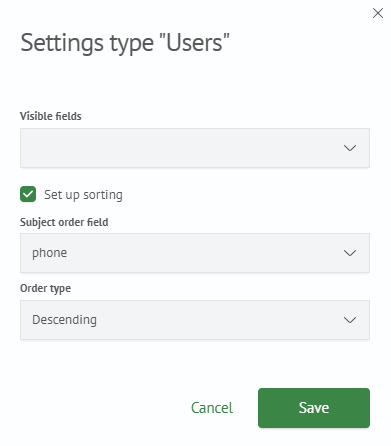
To configure table data display, use the Settings button (gear icon). Configuration is done in a modal window with the following options:
Displayed fields: controls which fields are shown in the table. If empty, all available fields are shown.Configure sortingtoggle: enables or disables table sorting.- When sorting is enabled, you can choose the sort field and sort order.
After completing the settings form, click Save. Parameters are saved, the modal closes, and the table updates according to the selected settings.