Editing Incidents
This article covers the main capabilities for editing incidents, including editing a single incident, editing multiple incidents, and changing incident statuses in the card.
Editing a Single Incident
To edit a single incident:
- Click the incident edit button in the right part of the incident card

-
Make the necessary changes in the modal window that appears
-
Save the changes by clicking the
Savebutton
Editing Multiple Incidents
To edit multiple incidents:
-
Select incidents by checking the checkboxes in the left part of the cards of the required incidents
-
Click the
Edit Incidentsbutton

- In the modal window, change the common fields of the selected incidents:
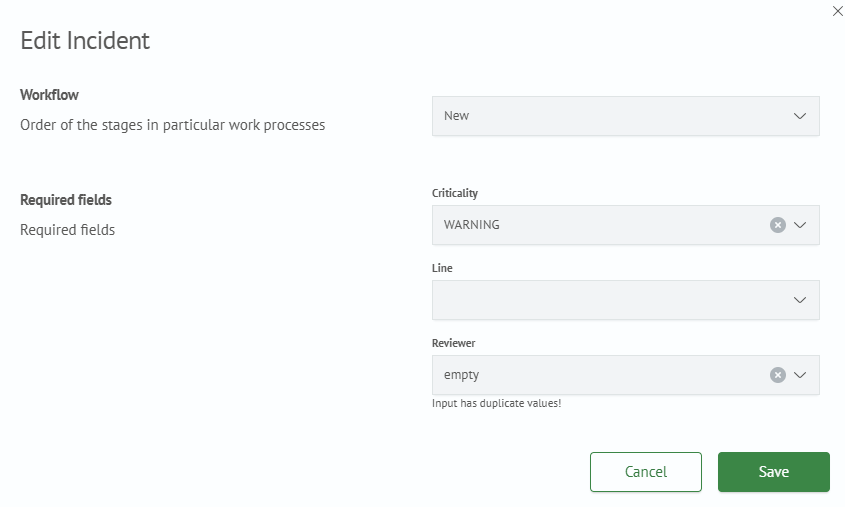
- Save the changes by clicking the
Savebutton
Status Change
To change the workflow status:
- Expand the incident card. Buttons for changing the incident status will be displayed in the right part of the card according to the workflow settings

-
Select the required transition
-
After changing the status, the change history will be displayed in the
Historyarea in the right part of the incident card:
