Creating Incidents
Incident creation refers to the process of logging and documenting significant events and correlation rule outputs. Depending on operational needs, incidents may be created either automatically (via the Create Incident function) or manually by authorized users.
Creating an Incident Using the "Create Incident" Active Action in the Job Scheduler
To create an incident using the Create Incident active action in the Job Scheduler, follow these steps:
-
Go to the
Jobs Listsection (Main Menu-Job Scheduler-Jobs List) and create a new task -
Add the
Create Incidentactive action to the task and fill it out. Information on how to fill it is provided on the Active Actions Description page -
Save the search job
-
When the search job results are received, the incident will be displayed in the
Incident Manager
To learn more about how search jobs and active actions work, go to the Job Scheduler section.
Creating Manually
To create an incident manually:
- Go to the
Incident Manager - Click the
Create Incidentbutton. A modal window with incident parameters will appear: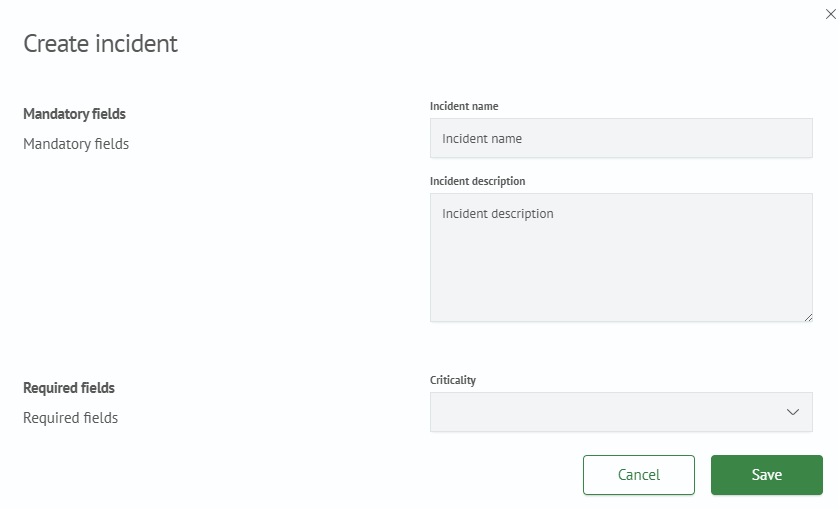
- Mandatory fields:
Incident name- the name of the incident displayed in the general list of incidentsIncident description- a description that is displayed in the general list when the incident details are expanded
- Required fields:
Severity- the importance level of the incidentComment- an explanatory comment for the incidentReviewer- the employee or group of employees responsible for resolving the incident and its consequences
- Additional Information - additional information about the incident
- Click the
Create Incidentbutton. After clicking, the created incident will appear in the general list