Incident Card Overview
This article describes the structure and capabilities of the incident card.
General Description
Data in the card is divided into several sections (blocks). Below is a card with all possible blocks displayed:
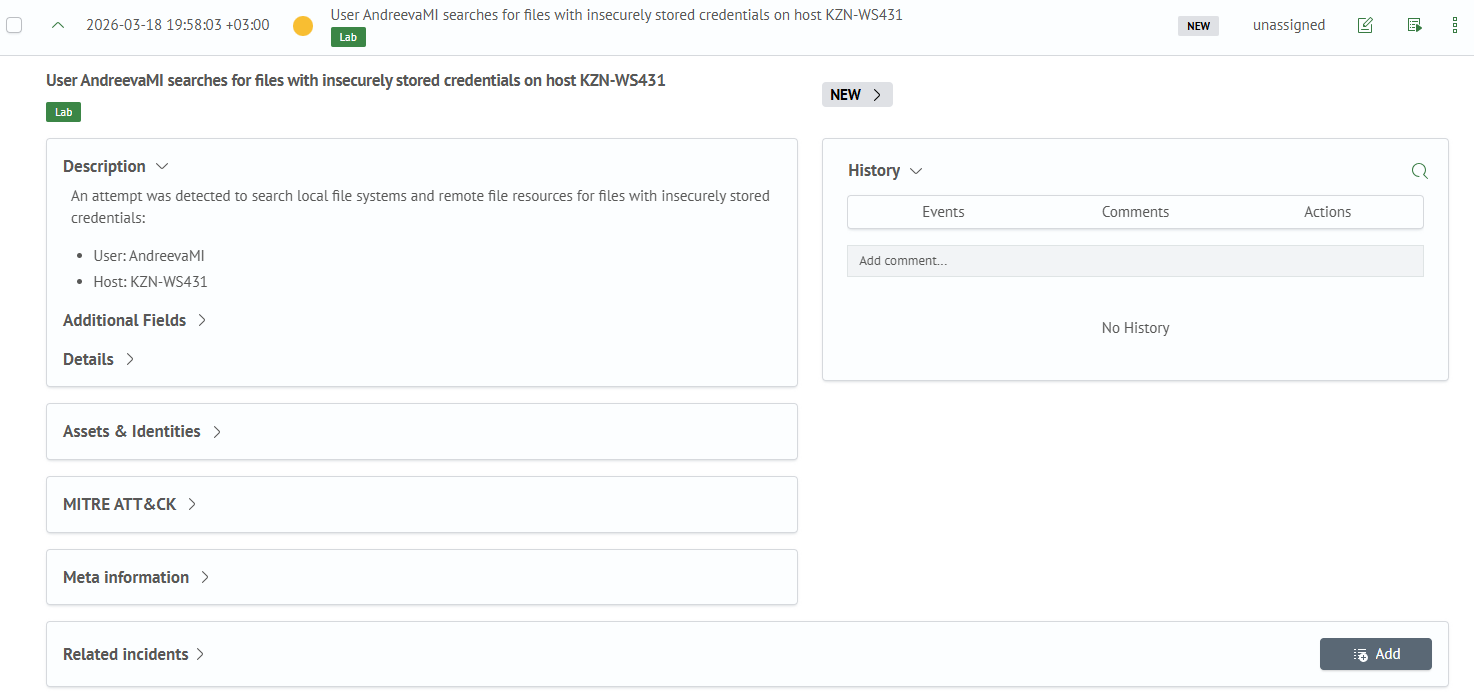
The following provides a detailed breakdown of each block.
Main Block and Metadata
The main block contains:
DescriptionAdditional Fields- fields from the search queryDetails- fields from the incident card
If Inventory Module Integration is configured for the incident's additional fields, assets linked to the incident will be displayed in the main block as cards.
For example, below shows the main information block with Inventory linkage by ID field (with two values), where each value has a corresponding asset:

The Metadata block displays:
- Incident ID
- Name of the rule that generated the incident
- Incident creation time
- Additional information - list of notes mentioning this incident
Example of the Metadata block:

Inventory and Mitre ATT&CK Blocks
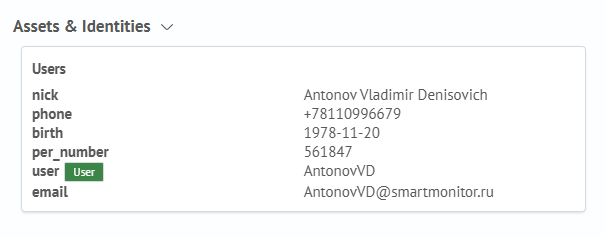
If Inventory Module Integration is configured for the incident's additional fields, assets linked to the incident will be displayed not only in the main block but also in the Inventory block - also as cards:
The Mitre ATT&CK block contains data about the linked Mitre object, if one exists:

Related Incidents Block
This block is a table that is empty by default for incidents. Using the Add button, you can populate this table with data from another incident. Addition occurs by ID.
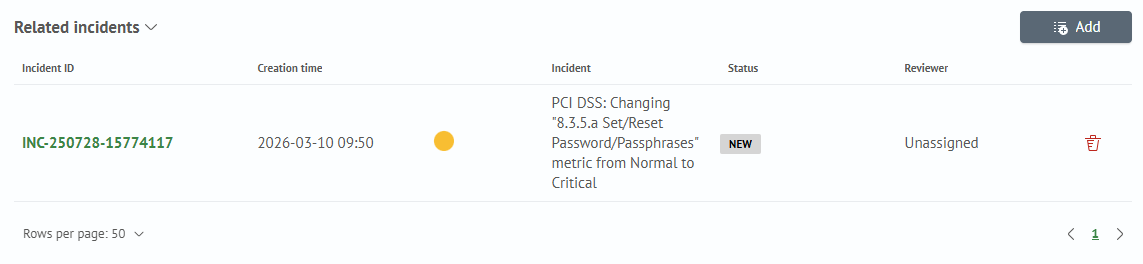

Incident linking works bidirectionally: the linked incident will also show a reference to the incident it's connected to.
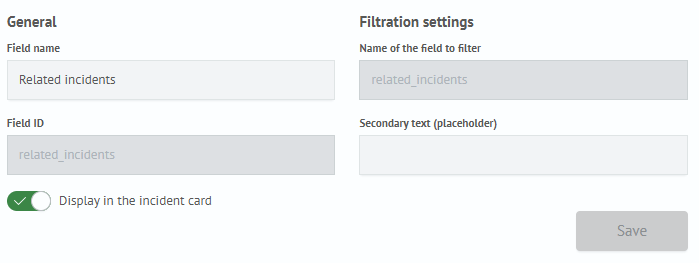
If this functionality isn't needed, it can be disabled in the Module Settings section by turning off the Display in the Incident Card setting for the Related Incidents field:
History Block
The incident history retains changes such as status updates, field modifications during editing, and comments:
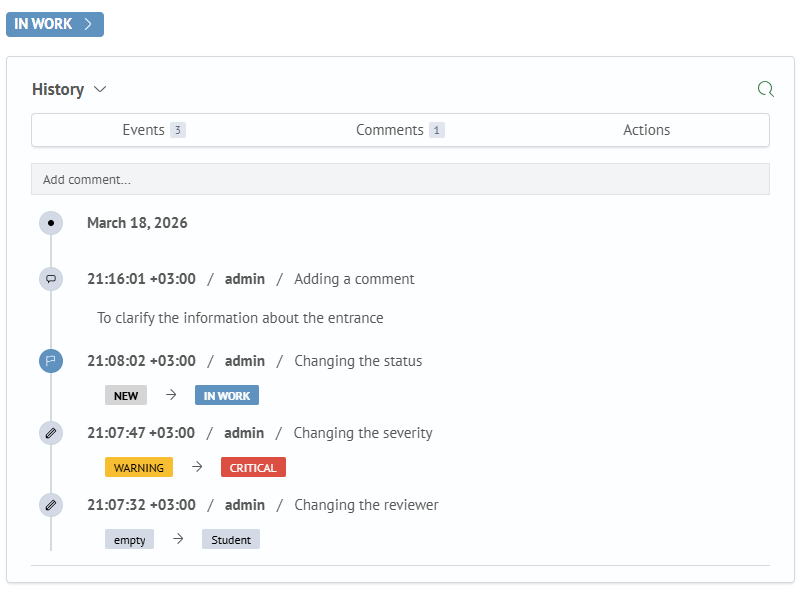
Comments support markdown formatting.
To change an incident's status, click the status button and select the desired transition from the dropdown list.