Metric
Description
A metric allows tracking key service indicators based on collected data and using them to assess service health.
Appointment
Metrics enable:
- monitoring service indicators (both numerical and categorical)
- monitoring service metrics with breakdown by service objects
- analyzing changes in individual service indicators
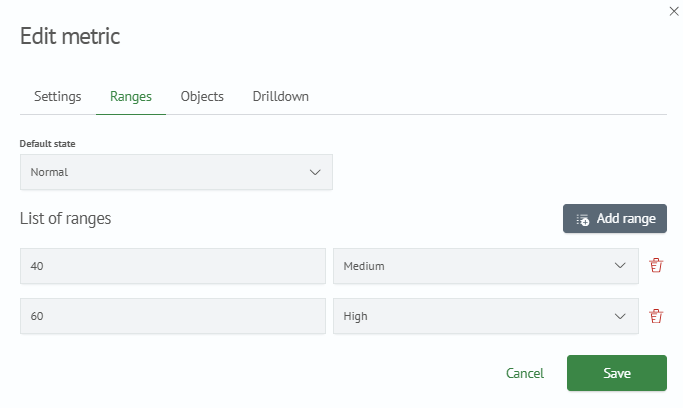
- fine-tune the matching of metric values to the state of the metric
- fine-tune the effect of the state of individual metrics on the state of the service
Example of numerical and categorical service metrics.
Metric Management
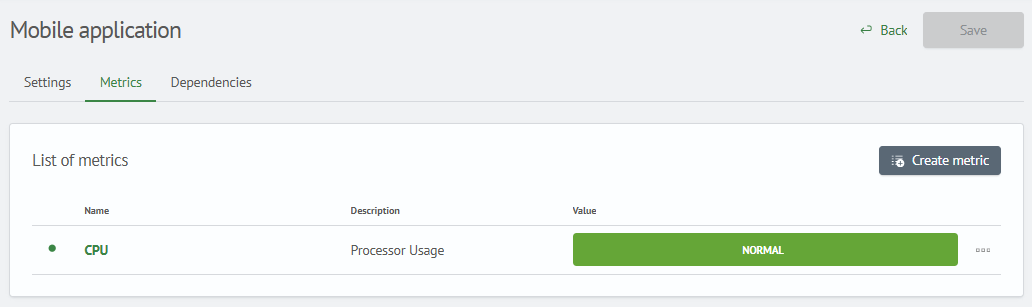
In the first case, you need to navigate to the service editing page.
Then open the Metrics tab to view the metric list.
Available metric operations:
- create metric
- enable/disable metric
- edit metric
- delete metric
When clicking the Save button in the metric editing form modal, all changes are immediately saved to the server.
However, changes made on the service editing page won't be saved until you click Save on the service editing page itself.
Create a Metric
To create a metric, click the Create Metric button,
fill out the form in the opened modal window, and click Save.
Edit a Metric
To edit a metric in the table, click on the metric name, a modal window with the metric editing form will open.
Enable/Disable a Metric
The green or red dot to the left of the metric name indicates its current state: enabled or disabled.
To enable or disable the calculation of a metric's values,
click on the "three dots" to open the context menu,
then select disable or enable depending on its original state.

Delete a Metric
To delete a metric, click on the "three dots" next to the desired metric,
then select Delete from the context menu and confirm the deletion.
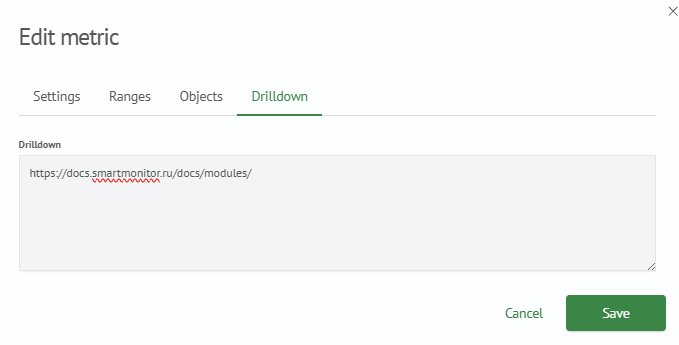
Metric Configuration Form Examples