Configuring the Incident Card
General Description
The incident card view can be configured in the SM module settings section. To do this, go to Main menu - Module Settings - Incident Manager - Card.
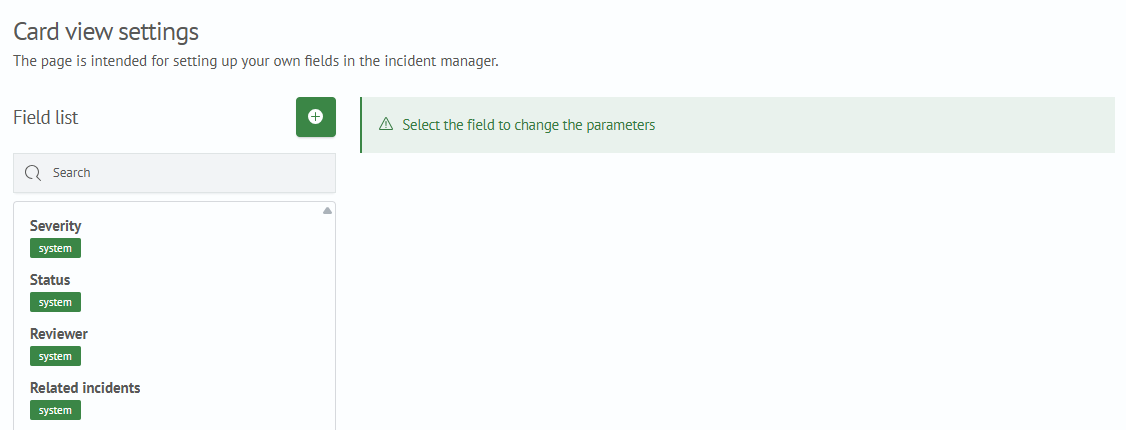
In the settings interface, you can configure the displayed fields. By default, the incident card contains the following fields:
- Severity
- Status
- Reviewer
- Related incidents
Creating New Fields
To create new fields in the incident card settings interface:
- Click the
+button - Fill in the parameters for the new field
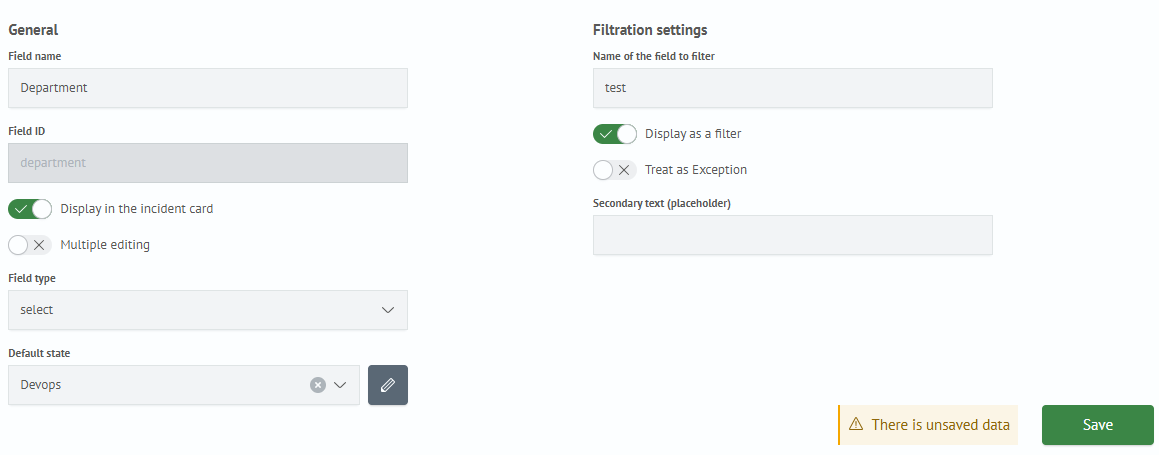
General parameters:
Group Type- field category (Required,Meta,Participants,Additional). Fields of typeSystemare only pre-defined fieldsField Name- name of the new fieldField Identifier- system name of the new fieldDisplay in Incident Card- whether to display the new field in the incident cardDisplay as Filter- whether to display the new field as a filter for searchField Type- data type of the new fieldDefault State- default value
- Click the
Savebutton
Now, when creating an incident, the card will contain the new field.
Dynamic Filters
For fields of type select and multi-select, it is possible to use not only predefined values but also dynamic options. To configure this, you need to specify a search query and time parameters, as well as the fields whose values will be used as the filter’s key and value.
Example
Let's create a field called test_select, enable the Display in incident card and Display as filter options, and set the Field Type - Selection. We will specify a static filter value where the key is test and the value is 10. Additionally, we will define dynamic options. When the specified query is executed, the key will take the value test_dynamic, and the filter value will become 1.

After configuration, if you open the created filter, it will have the values test and test_dynamic.
Selecting these will filter incidents where the value of the test_select field is 10 or 1 respectively.

Editing Existing Fields
To edit a field parameter:
- Select the field from the list and click on it
- The parameter editor for the selected field will appear on the right; make the changes
- Click the
Savebutton
Deleting Fields
To delete a field, click the × button next to the field name. In the dialog box that appears, confirm the action by clicking the Delete button or cancel the action by clicking the Cancel button.