Using Search
Smart Monitor provides a set of tools for managing searches and creating dashboards. After completing the request, you can access the information and manage the received data without leaving the search mode.
Share link
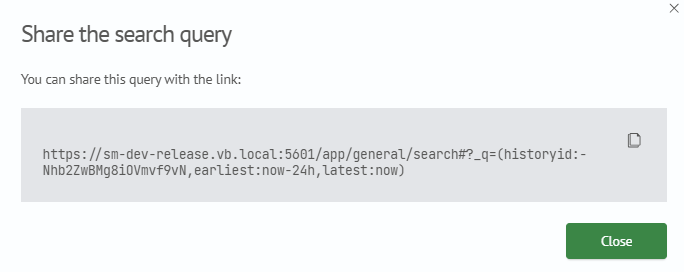
The Share Link feature lets you quickly and easily share your current search query with colleagues or save links for later use. It's great for teamwork, providing an easy way to communicate requests and share information.
How to use Share link
-
perform a search: Enter the query into the search bar and execute it to obtain the desired results
-
find the
Sharefunction: After executing the query, you will find theShareoption next to the query -
create a link: Click the
Sharebutton to create a link to the current query -
share the link: The generated link can be copied and shared with colleagues via email, messengers, or any other convenient method

Benefits of Using
-
convenience: Sharing queries becomes easier and faster thanks to the ability to create links
-
individual access: Each recipient can access the data according to their access settings
-
effective collaboration: Colleagues can easily exchange queries to collaborate on data analysis
Export results
The data obtained after executing a search query can be saved in various formats to be used outside of Smart Monitor or transferred to colleagues for analysis.

Usage Algorithm
-
select the
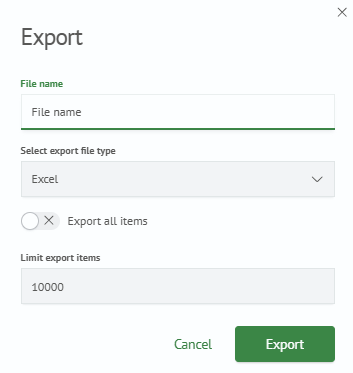
Exportfunction: After executing the query, find the export results option. This is typically represented as a button or a dropdown menu with export format options -
choose a name for the exported file: Specify a name for the file containing the retrieved data
-
select the export format: Smart Monitor offers a choice of several data export formats, including
Excel,JSON, andCSV. Choose the appropriate format based on your needs -
select the export option: You can choose to export all search results or set a limit on the number of records
Save the results: Click the export button to save the selected data in the chosen format
Benefits of Using
-
convenience: Data export makes it easy to share analysis results with colleagues or use them in other applications
-
flexibility: You can choose the format and amount of data to export depending on your needs
-
multiple format support: SM supports several popular file formats, allowing you to work with data in a variety of environments
Send to Background
The Send to Background feature is designed to process heavy queries in the background, allowing you to continue working in Smart Monitor without waiting for the query to complete. This is especially useful when performing long-running operations that can consume a large amount of system resources.
You can view tasks in the background in the Active tasks menu, where a list of all jobs sent to the background is listed. Completed tasks can be accessed at any time as long as the results are saved in the system. A delete option is also available for tasks.
How to use "Send to background"
-
enter the request that you want to send to the background
-
select the
Send to backgroundoption -
After sending the request to the background, you can continue working in Smart Monitor. The execution status of the request is displayed in the
Active tasksmenu -
review the results: Once the query is complete, the results will be available for review. You can refer to the completed tasks at any time to view the results
Benefits of Using
-
does not block the system: Sending a query to the background allows you to continue working in Smart Monitor without interrupting your current tasks
-
efficient use of resources: Heavy queries are executed in the background, which allows you to optimize the use of system resources
-
flexibility and convenience: You can send a request to the background and continue working, then return to it when it is convenient
Statistics
Using commands that present query results in tabular form allows you to see statistics on the processed query. For more information, see Transforming commands.
Visualization
It is possible to visualize the results of queries presented in tabular form. To do this, navigate to the Visualization tab. For more detailed information about visualization, please refer to the section Transforming command.