Using Time Ranges
About time ranges
The Smart Monitor uses a time filter that allows you to select the time interval for which information will be displayed on the dashboard.

By default, the time interval value shows data for the last 24 hours (24 hours ago). To select a different time interval, click on the calendar icon on the left side of the filter and choose the desired value.
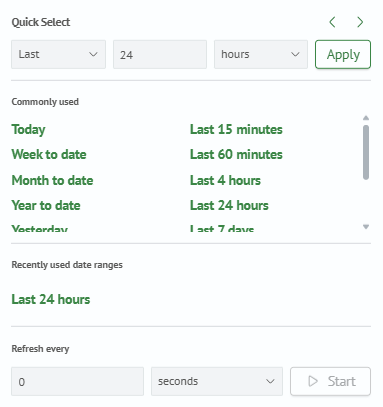
Quick selection of time interval
You can use the Quick Select setting.To select a different time interval, click on the calendar icon on the left side of the filter and select a new value.

Or you can use the Previous time interval < and Next time interval > switches to select a time interval.
Frequently used time intervals
| Time range | Description |
|---|---|
Today | The current calendar day, from 00:00 to the present time. |
Current week | The interval includes all days starting from midnight (00:00) of the first day of the week and ending with the current date. |
Current month | The interval includes all days starting from midnight (00:00) of the first day of the month and ending with the current date. |
Current year | The interval includes all days starting from midnight (00:00) of the first day of the year and ending with the current date. |
Yesterday | The interval includes the day preceding the current one, from 00:00 to 23:59. |
Last week | The interval includes all days of the week preceding the current one, starting from midnight (00:00) of the first day and ending with the last day (23:59). |
Last month | The interval includes all days of the month preceding the current one, starting from midnight (00:00) of the first day and ending with the last day (23:59). |
Last year | The interval includes all days of the year preceding the current one, starting from midnight (00:00) of the first day and ending with the last day (23:59). |
15 minutes ago | Refers to an interval covering the period from the current moment back 15 minutes. Example: current time 12:30, then the range will be from 12:15 to 12:29. |
60 minutes ago | Refers to an interval covering the period from the current moment back 60 minutes. Example: current time 12:00, then the range will be from 11:00 to 11:59. |
4 hours ago | Refers to an interval covering the period from the current moment back 4 hours. Example: current time 16:00, then the range will be from 12:00 to 15:59. |
24 hours ago | Refers to an interval covering the period from the current moment back 24 hours. Example: current time 14:00, then the range will be from 14:00 the previous day to 13:59 of the current day. |
7 days ago | Refers to an interval covering the period from the current moment back 7 days. Example: current date 11.03.24, then the range will be from 04.03.24 to 10.03.24. |
30 days ago | Refers to an interval covering the period from the current moment back 30 days. Example: current date 11.03.24, then the range will be from 11.02.24 to 10.03.24. |
Setting the Interval Manually
To set the start and end times of the interval, click on the panel next to the time filter. In the pop-up window, select one of the time selection formats, and then specify the required parameters.
Absolute range
Absolute time intervals allow the user to set the exact start and end dates and times of an interval for data analysis.
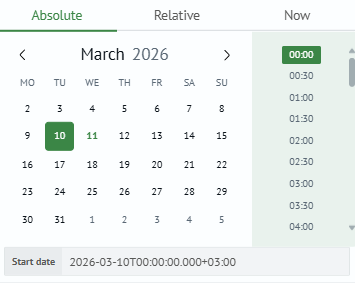
Example using an absolute interval:
Find all events between 2024-03-11T09:00 and 2024-03-11T10:00.
source winlog_auth

Relative interval
Relative intervalRelative time intervals make it possible to set a range relative to the current date. On the Relative tab you can specify the time relative to the current moment, you can make indents in different time units (minutes, hours, days, years). For ease of use of this function, it is better to use preset intervals.

An example of using a relative interval:
Find all events for the last 3 months
source winlog_auth

Current time
When you select the Now time interval, the system will automatically update the data every time there is a change in the data source. For example, if traffic data on a website is being analyzed, the source may be constantly updated with new clickstream data, and the information on the screen will be updated to reflect these changes.

Automatic update
In the time interval settings there is an Update every option, which allows you to configure automatic dashboard updating.
